Format a Drive on Windows
A new USB stick misbehaves, an old drive needs a clean slate, or you must switch file systems. Formatting wipes a drive completely and prepares it fresh — which makes it both the fix and the danger. Do it through the right tool, double-check you picked the right drive, and it is a two-minute job.
TL;DR / Quick Fix
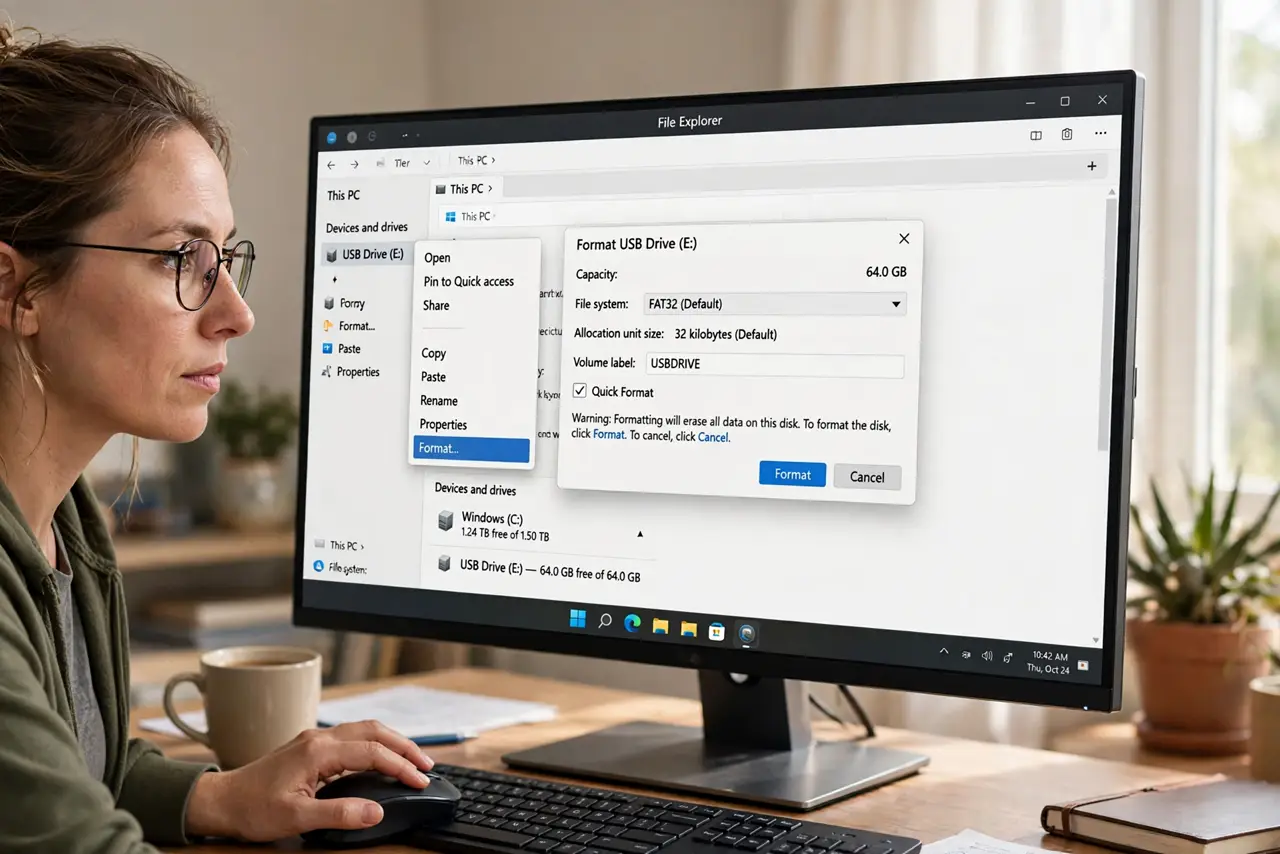
Quick fix: in File Explorer, right-click the drive and choose Format — pick NTFS or exFAT to suit its use, and leave Quick Format ticked. Triple-check the drive letter first: formatting erases everything with no undo. For full-disk control, use Disk Management instead.
Follow these steps
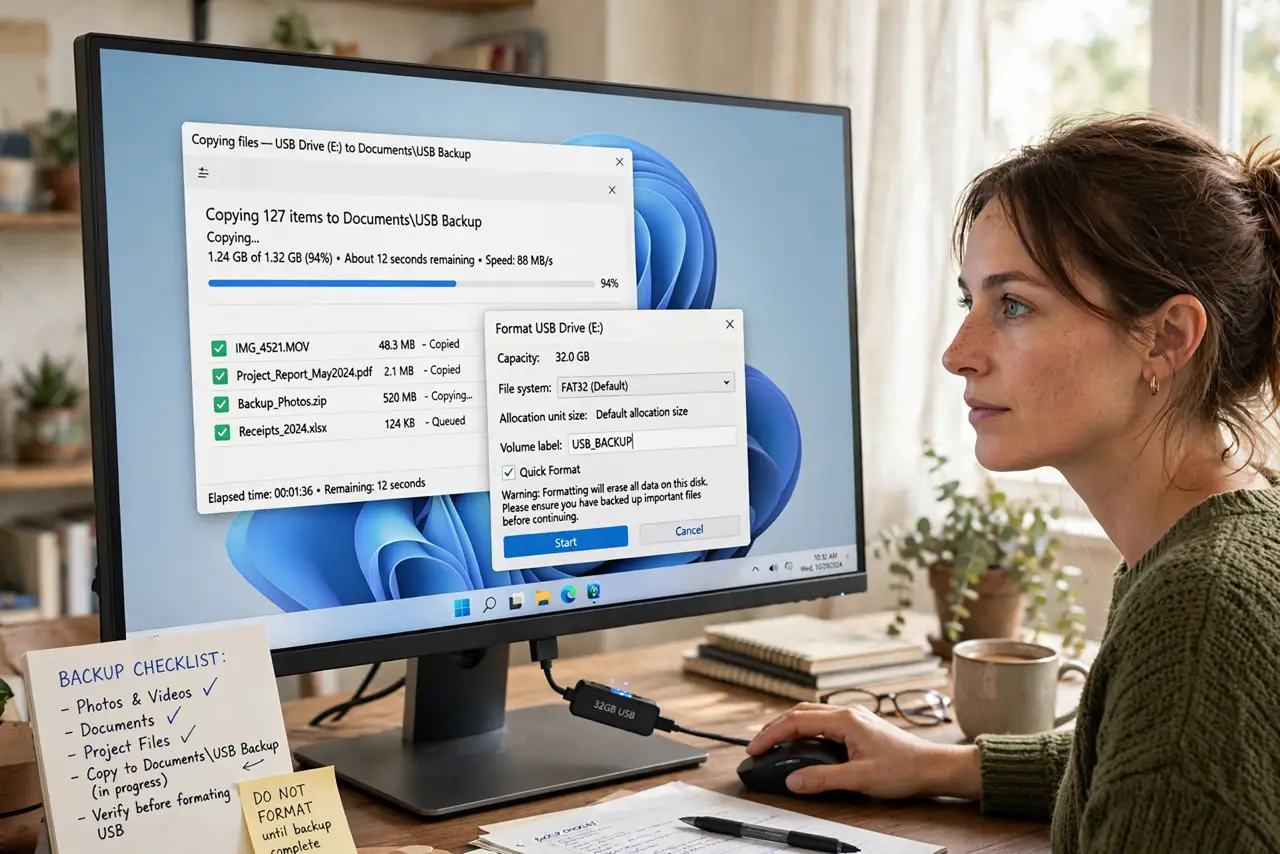
- Back up anything you want to keep. Formatting erases the entire drive — every file, no recycle bin, no undo. Copy what matters elsewhere first.
- Confirm the drive letter. In File Explorer, verify the letter and size match the drive you intend to wipe. Formatting the wrong drive is the classic disaster.
- Right-click and choose Format. The simple dialog handles USB sticks and external drives. Choose the file system for the drive's job: NTFS for Windows-only, exFAT for sharing with Mac.
- Leave Quick Format ticked. Quick Format is faster and fine for healthy drives. Untick it only for a drive you suspect has bad sectors — the full format scans the surface.
- Use Disk Management for trickier jobs. Search Disk Management when the drive does not appear in File Explorer, needs partitioning, or must be wiped completely including partitions.
- Verify the fresh drive. After formatting, open the drive and confirm it is empty and writable. Copy a test file to prove it works before trusting it.
What NOT to do
- Do not format without a backup. 'I thought it was empty' is the most expensive sentence in computing.
- Do not format the wrong drive. Letters shift when devices plug and unplug — verify by size and label every single time.
- Do not format a drive with your only copy of anything. Two copies or it did not happen.
- Do not interrupt a full format. Quick formats are instant, but a full surface scan needs to finish — let it run.
Frequently asked questions
Quick Format vs full format — which?
Quick for healthy drives you trust; full when the drive has shown errors and you want bad sectors mapped out. Quick is the everyday choice.
The drive does not appear in File Explorer — can I still format it?
Yes, through Disk Management, which sees drives File Explorer hides. If it appears there, you can initialize and format it.
Will formatting remove viruses?
A full format wipes the drive's contents including malware on that drive. It does not clean other drives or fix an infected Windows itself.