Sharpen Game Bar Recordings
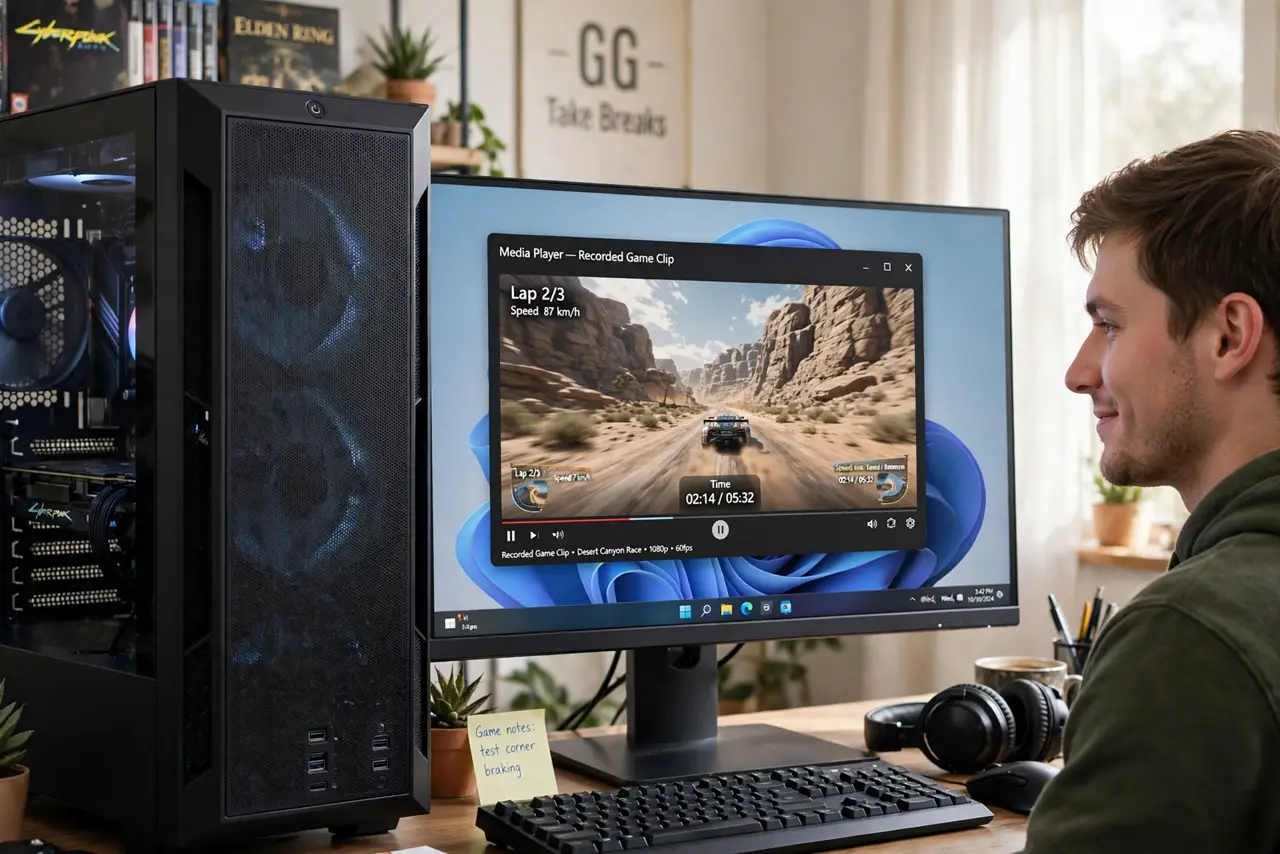
You captured an amazing play, watched the clip back, and it looks like it was filmed through fog — blocky, blurry, washed out. The Xbox Game Bar records at conservative quality by default to protect performance. Two minutes in the capture settings — resolution, frame rate, and bitrate — turn mushy clips into crisp ones worth sharing.
TL;DR / Quick Fix
Quick fix: blurry Game Bar clips come from low default recording quality — open Settings, Gaming, Captures, and raise the video quality, frame rate, and resolution to match your display. Record at 60 fps for smooth motion and keep background recording short to save disk.
Follow these steps
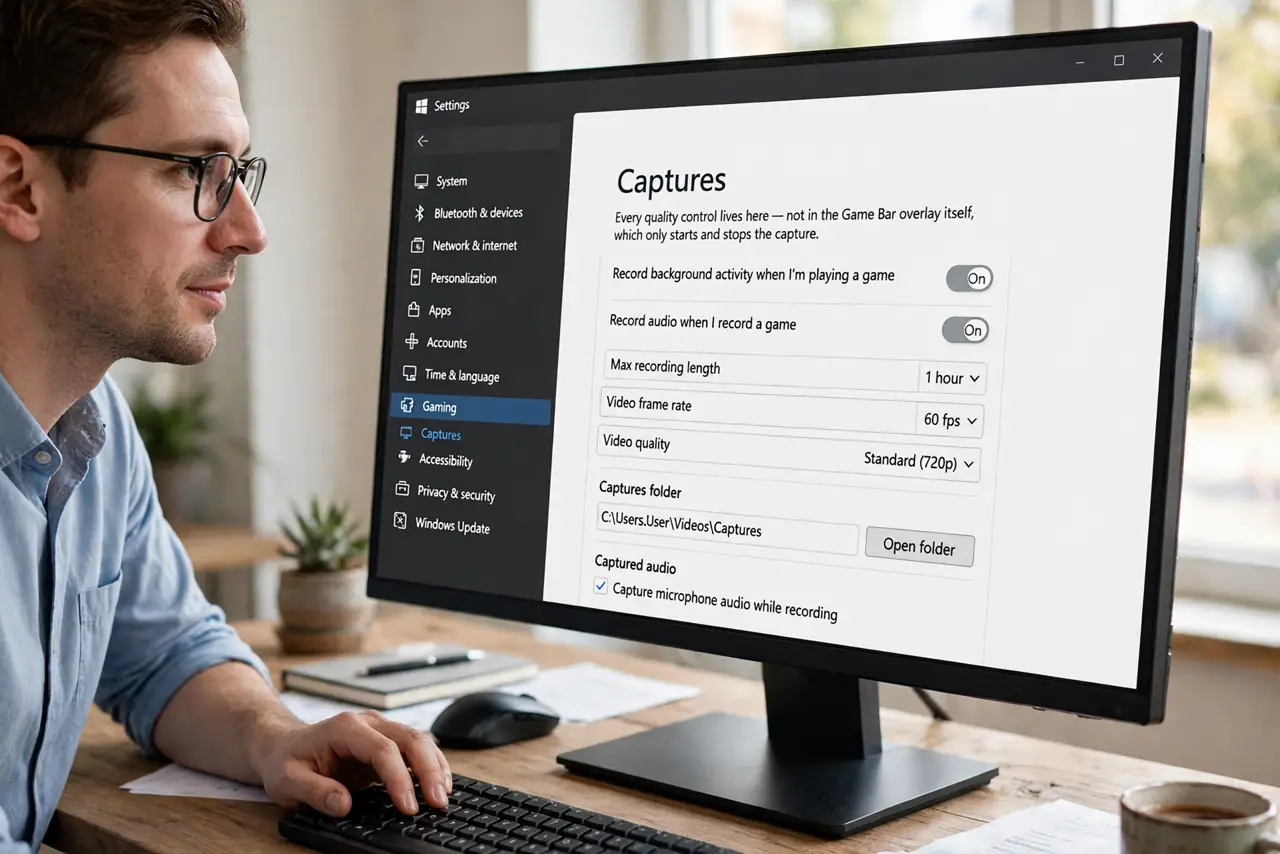
- Open the Captures settings. Go to Settings, then Gaming, then Captures. Every quality control lives here — not in the Game Bar overlay itself, which only starts and stops recording.
- Raise the video quality. Set video quality to High. The default balances file size over looks; High spends more disk for visibly sharper footage — the single biggest fix for mushy clips.
- Match the frame rate. Set 60 fps for fast games — 30 fps makes action look choppy on playback. If the PC struggles, this is the setting to lower first, not the resolution.
- Record at your display resolution. Set the capture resolution to match your monitor. Recording 1080p on a 1440p display then upscaling is where the soft look comes from.
- Check the audio sources. Enable the right mix: game audio, your mic, or both. Silent or wrong-audio clips are a settings issue — see the audio troubleshooting if sound misbehaves.
- Mind the disk and background load. High-quality capture eats gigabytes fast and competes with the game for resources. Keep background recording short and close heavy apps while capturing.
What NOT to do
- Do not record at 30 fps and wonder why action looks choppy. Frame rate is smoothness — match it to the game's pace.
- Do not leave background recording on for hours. It fills disks silently and taxes the system the whole session — set a short buffer.
- Do not upscale a low-res capture and expect sharpness. Record at native resolution; you cannot invent detail afterward.
- Do not ignore the mic toggle. Narrating a great play with the mic muted is a special kind of heartbreak — check before the moment.
Frequently asked questions
Why are my clips blurry but the game looks fine?
The game renders at full quality; the capture compresses it. Raising bitrate and quality settings closes most of the gap.
How much disk space do recordings need?
High-quality 1080p60 runs roughly several gigabytes per ten minutes. 4K multiplies that — watch the drive during long sessions.
Can Game Bar record non-game apps?
Yes — Win+G works in most apps, though some protected video apps block capture. It is a general screen recorder with a gaming name.