Game DVR? Basics
Windows quietly records your gameplay in the background — that is Game DVR, the feature behind 'that was amazing, I wish I had recorded it.' It can save the last 30 seconds with a keypress, but the background recording also costs performance and disk space, which is why some gamers want it off. Here is what it does, how to use it, and how to tame it.
TL;DR / Quick Fix
Quick fix: Game DVR records gameplay in the background so you can save highlights with Windows key + Alt + G. It costs performance and disk space, so competitive players often turn background recording off. Press Windows key + G for the controls.
Follow these steps
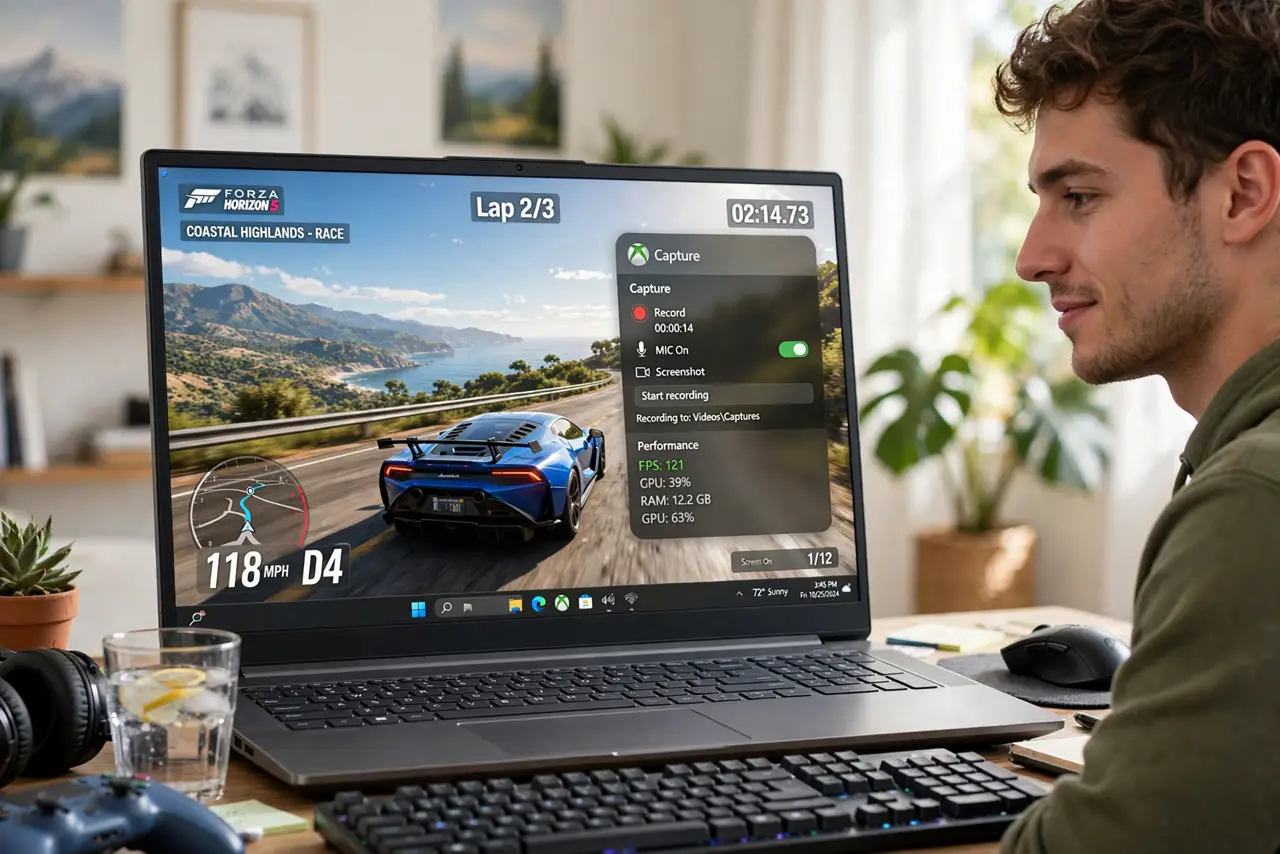
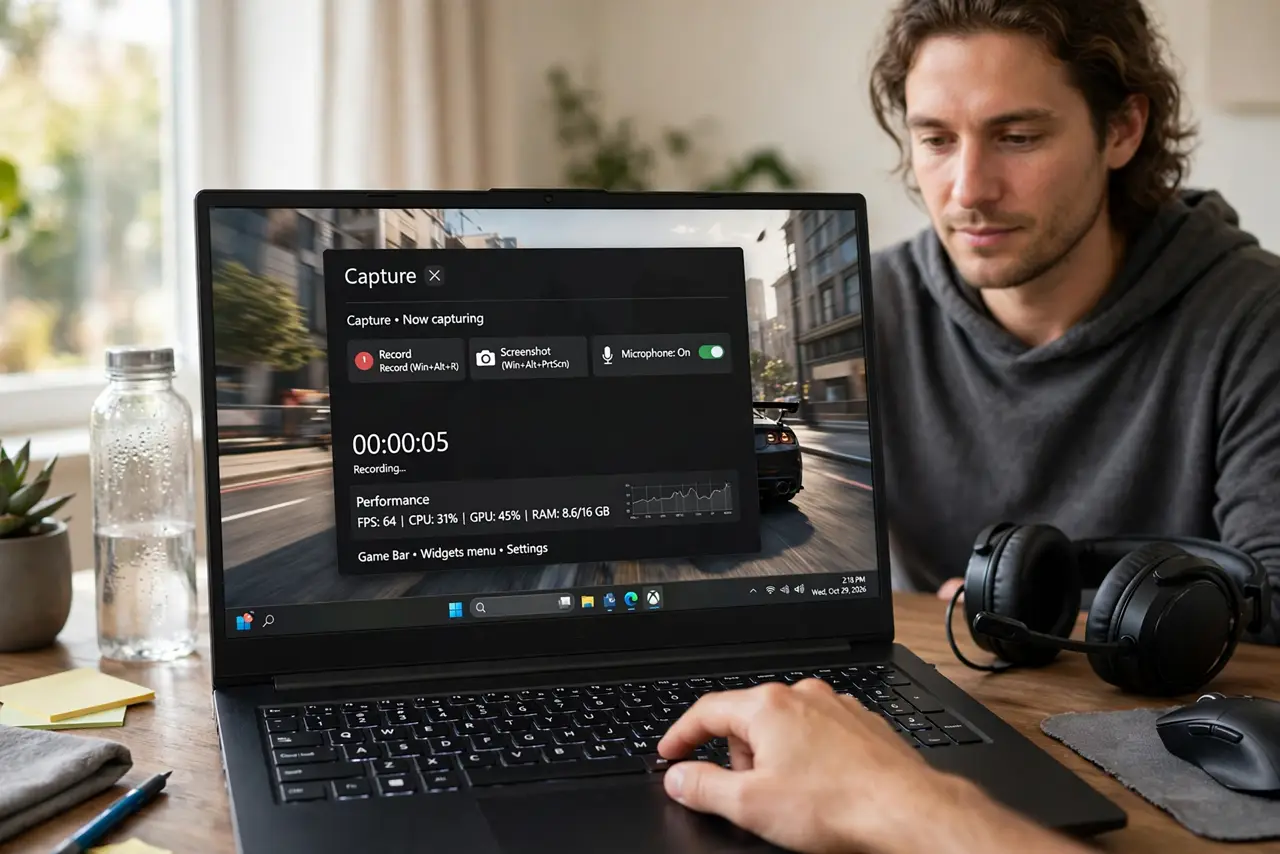
- Open the Game Bar to see the controls. Press Windows key + G during a game. The overlay shows record, screenshot, and performance widgets — this is Game DVR's control room, and everything starts here.
- Save a highlight after it happens. Windows key + Alt + G saves the last 30 seconds (adjustable up to 10 minutes). Missed the moment? It is already recorded — background recording is a rolling buffer, not a live decision.
- Start and stop manual recording. Windows key + Alt + R starts and stops a full recording. Clips save to your Videos, then Captures folder as MP4 — ready to share or edit without extra software.
- Tame background recording for performance. In Settings, then Gaming, then Captures, you can turn background recording off entirely. Competitive players do this first — the rolling buffer costs frames and gigabytes over long sessions.
- Set the recording quality deliberately. Higher quality means bigger files and more performance cost. For sharing clips online, 1080p at 30 fps is the sweet spot — 4K 60 fps is for people with the disk space and GPU to spare.
- Check capture settings for audio. Game DVR can record game audio, mic, or both — set this in the capture settings before the big moment, not after. Many 'my clip has no sound' complaints are one toggle in the capture settings.
What NOT to do
- Do not leave background recording on if frames matter to you. The rolling buffer is the single biggest Game DVR performance cost.
- Do not record for hours without checking disk space. High-quality capture eats gigabytes fast — an full drive mid-session is a bad surprise.
- Do not assume clips include your voice. Mic recording is a separate toggle — test it once before the stream or tournament.
- Do not disable the Game Bar to 'fix' stuttering without testing. Background recording is the usual culprit; the overlay itself is nearly free.
Frequently asked questions
Does Game DVR slow down games?
Background recording costs a few percent of performance and steady disk writes. Turning background recording off while keeping manual capture gives you clips without the constant cost.
Where do my clips go?
Videos, then Captures, as MP4 files. The Game Bar gallery also shows them with quick share and delete options.
Can I record non-game apps with Game DVR?
Yes — the Game Bar works in most apps, not just games. It cannot record the desktop itself or File Explorer, though.