Magnifier? The Plain Basics
Magnifier is Windows' built-in screen zoom — it enlarges whatever is on screen for low-vision users, or for anyone squinting at tiny text. It is more capable than most people realize, with full-screen, lens, and docked modes. But it also has a habit of turning on by accident and refusing to leave. This guide covers using it on purpose and escaping it when it gatecrashes.
TL;DR / Quick Fix
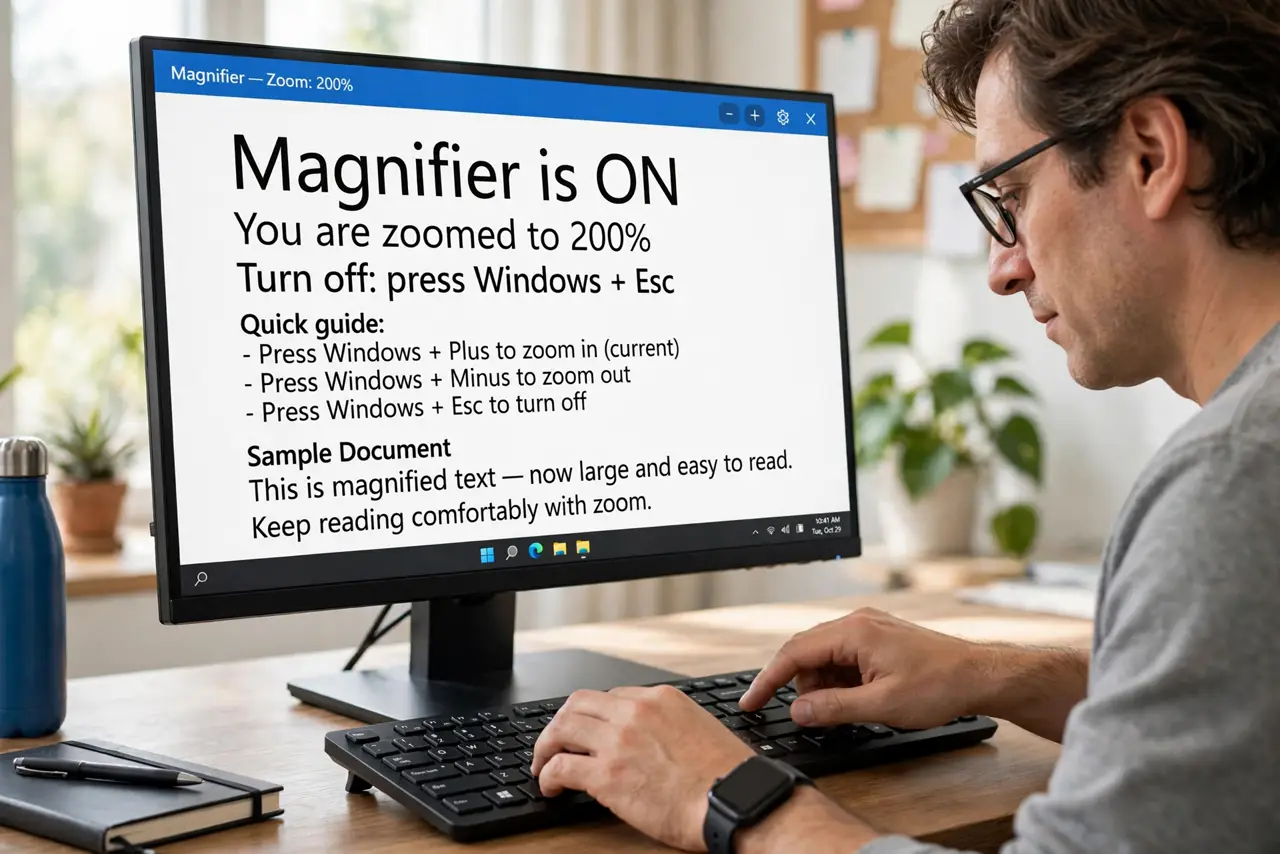
Quick fix: press Windows key plus Plus to turn Magnifier on and Windows plus Minus to zoom out; Windows plus Esc turns it off. Choose full-screen, lens, or docked view in Settings under Accessibility. If it starts by itself, check the Ease of Access startup settings.
Follow these steps
- Turn it on and off. Press Windows key + Plus to launch Magnifier, Windows key + Minus to zoom out, and Windows key + Esc to close it entirely. Those three shortcuts are the whole survival kit — the stuck zoomed-in guide rescues you if Esc seems to do nothing.
- Pick a view mode. Open Settings, Accessibility, Magnifier to choose: Full screen zooms everything, Lens follows your cursor with a magnified box, Docked pins a magnified strip at the top. Lens suits reading; full screen suits low vision.
- Adjust zoom increments. The default jumps can feel violent. In the same settings page, lower the zoom increments so each press changes magnification gently instead of leaping.
- Set it to start with Windows (or not). The 'start Magnifier before/after sign-in' checkboxes decide whether it launches automatically. If it keeps appearing uninvited, these boxes are the culprit — uncheck them.
- Try it for temporary needs. You do not need low vision to benefit: magnify a tiny serial number, read a blurry photo of a document, or check fine print. It is a tool, not a label.
- Learn the lens shortcuts. In lens mode, Ctrl + Alt + arrow keys move the lens, and Ctrl + Alt + R resizes it. The view settings reference lists every tweak in one place.
What NOT to do
- Do not leave 'start after sign-in' checked accidentally. That single checkbox is behind most 'Magnifier won't go away' complaints.
- Do not crank zoom to maximum immediately. Start low and step up — overshooting leaves you lost on a giant desktop with no landmarks.
- Do not forget Windows + Esc. People reinstall things trying to kill Magnifier when the close shortcut was there all along.
- Do not use full-screen zoom for presentations. Your audience sees the zooming too — lens mode or a second display is kinder to viewers.
Frequently asked questions
Why does Magnifier start every time I boot?
The 'start Magnifier after sign-in' box is checked in Accessibility settings. Uncheck it and the gatecrashing stops.
Can I magnify just one window?
Not directly — but lens mode following your cursor is the closest thing, keeping the rest of the screen normal while you inspect one area.
Does Magnifier work in games?
Inconsistently — full-screen games often fight with it. Lens mode tends to behave better, but games are not its home turf.