Hello Enhanced Sign-In
Face unlock is convenient — until you wonder whether a photo of you could fool it. Windows Hello has an enhanced anti-spoofing mode that uses the infrared camera to verify a real, live face, rejecting photos, videos, and masks. If your hardware supports it, turning it on takes a minute and meaningfully hardens your sign-in.

TL;DR / Quick Fix
Quick fix: open Settings, Accounts, Sign-in options, and turn on Enhanced anti-spoofing under Windows Hello Face — it makes face unlock reject photos and masks. Pair it with a PIN as backup. If your camera lacks infrared, face unlock stays basic; a fingerprint reader is the next step up.
Follow these steps
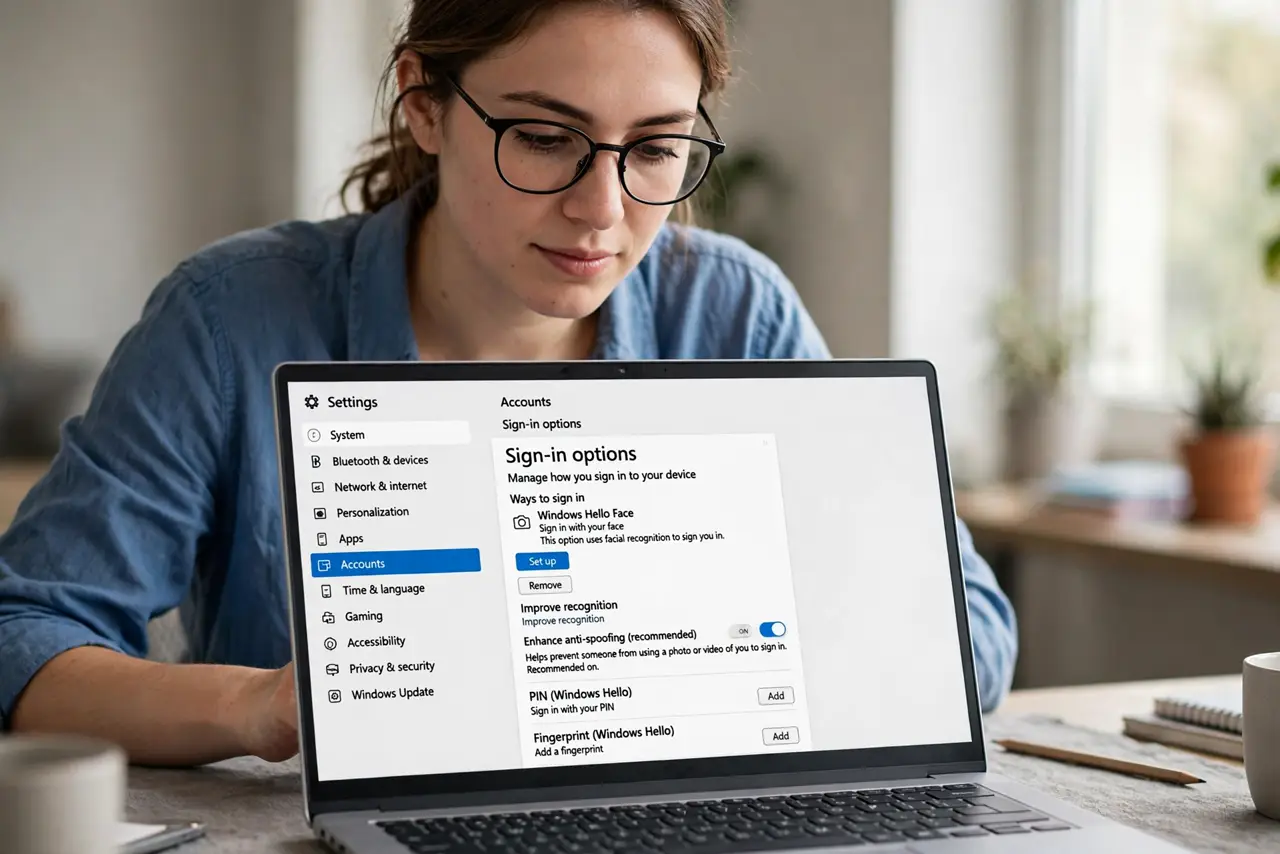
- Open Sign-in options. Go to Settings, Accounts, Sign-in options, then Windows Hello Face. This page holds every face-unlock setting including the anti-spoofing toggle.
- Turn on enhanced anti-spoofing. Enable the enhanced anti-spoofing option. It requires an infrared camera — most Hello-certified cameras have one. Without IR hardware the option may be missing entirely.
- Improve recognition. Use the Improve recognition button to add scans in different lighting and with or without glasses. More samples mean fewer failed unlocks and fewer fallback PIN prompts.
- Set a PIN as backup. Face unlock sometimes fails — sunglasses, odd angles, dark rooms. A Hello PIN is the instant fallback; set one if you have not already.
- Know the camera requirement. If your laptop's camera is not Hello-certified, face unlock will not appear at all. An external Hello camera or a fingerprint reader are the upgrade paths — see the face unlock basics for hardware details.
- Test it in real conditions. Try unlocking in the lighting where you actually work. If it struggles, re-run Improve recognition there rather than in ideal light.
What NOT to do
- Do not expect anti-spoofing without infrared. The enhanced mode needs an IR camera — a regular webcam cannot do liveness detection.
- Do not disable the PIN to 'simplify' sign-in. The PIN is your recovery path when face unlock fails; without it you are one bad scan from a headache.
- Do not assume it is foolproof. Enhanced anti-spoofing raises the bar enormously, but no biometric is perfect — keep the device physically secure too.
- Do not ignore camera recognition problems. If Hello stops recognizing you after an update, re-enroll rather than disabling it.
Frequently asked questions
Can a photo really unlock basic face sign-in?
On systems without anti-spoofing, simpler face unlock can be fooled — which is exactly why the enhanced IR mode exists.
Why is the anti-spoofing option missing?
Your camera lacks infrared or the right driver. Check for camera driver updates, or consider a Hello-certified external camera.
Is face unlock safer than a PIN?
They protect differently — face is convenient and hard to shoulder-surf, PIN is the reliable fallback. Use both, not one.