Edit the Hosts File
The hosts file is a tiny text file Windows checks before asking the network where a site lives. Editing it lets you block a site locally on your own PC — useful for cutting distractions, testing, or stopping one machine from reaching a bad address. It is more precise than fiddling with proxy settings, and this guide keeps every step reversible.
TL;DR / Quick Fix
Quick fix: edit the hosts file as an administrator — it lives at C:\Windows\System32\drivers\etc\hosts. Add a line like 127.0.0.1 example.com to block a site locally, save, then flush the DNS cache with ipconfig /flushdns. Always make a backup copy first so you can undo any mistake.
Follow these steps
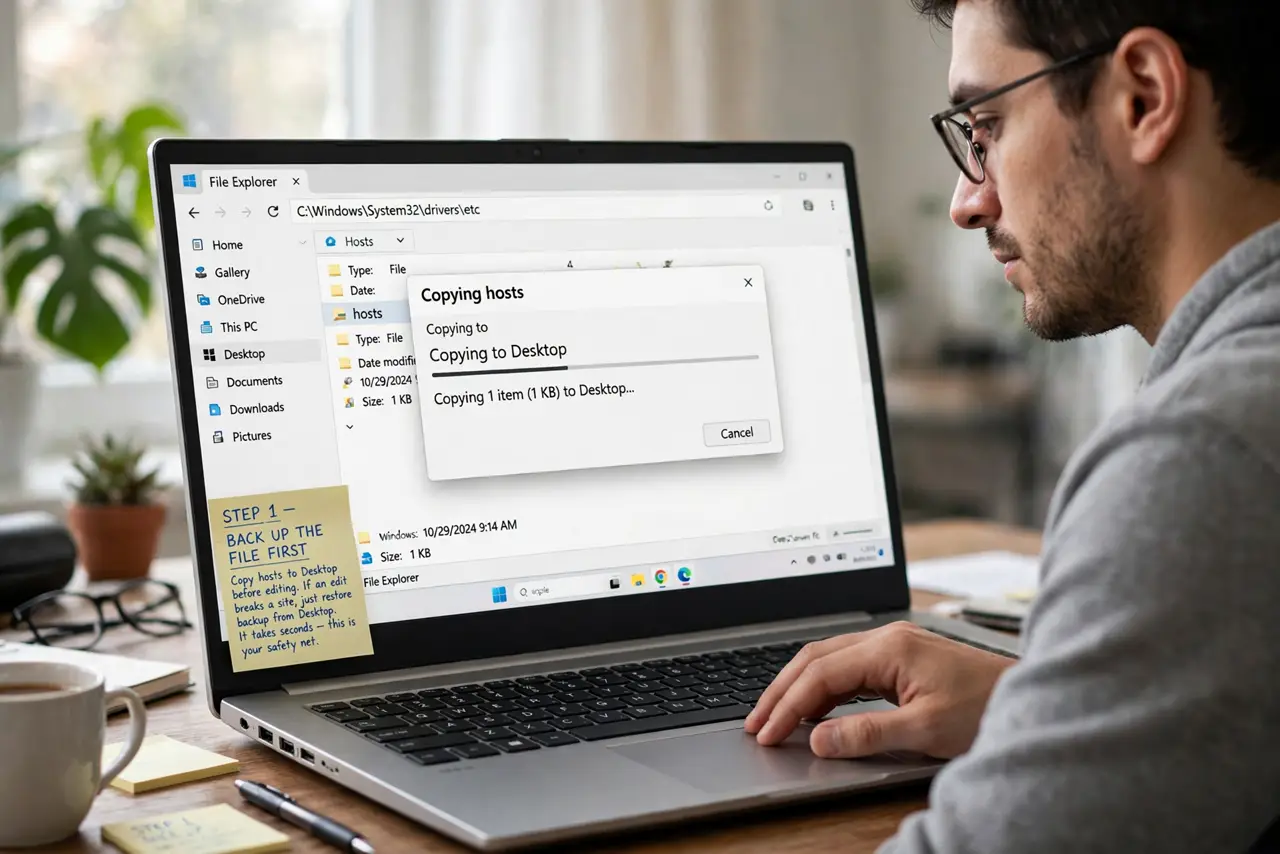
- Back up the file first. Copy C:\Windows\System32\drivers\etc\hosts to your Desktop or another safe spot before touching anything. If an edit breaks a site you need, restoring the backup takes seconds — and that backup is your entire safety net.
- Open Notepad as an administrator. Search for Notepad, right-click it, and choose Run as administrator. The hosts file is protected, so opening it normally leaves you with a copy you cannot save — elevation is required, not optional.
- Open the hosts file. In Notepad choose File > Open and navigate to C:\Windows\System32\drivers\etc\. Change the file filter to All Files (*.*) to see hosts, then open it. Never delete the lines already there — they belong to Windows.
- Add your entries at the bottom. Type one new line per site: 127.0.0.1 followed by the address you want to block, for example 127.0.0.1 distracting-site.com. That loops the address back to your own PC, where nothing answers — different from DNS filtering, which works at the network level.
- Save and flush the DNS cache. Save the file (Ctrl+S), then open Command Prompt and run ipconfig /flushdns so Windows picks up the change immediately. Test the blocked site in a fresh browser tab — a cached page can make it look like nothing happened.
- Keep the backup somewhere obvious. Leave the backup copy on your Desktop or in Documents labeled hosts-backup. Months from now, when a blocked site mysteriously ‘breaks,’ that file — not a reinstall — is the fix. Undo is a restore, never a scramble.
What NOT to do
- Do not delete the existing lines in the file. Windows and some apps depend on them — only add new lines at the bottom.
- Do not use the hosts file to protect other devices on the network. It only affects your own PC — router-level blocking covers the whole household.
- Do not edit hosts without a backup. One typo can break local tools or services that rely on specific entries.
- Do not expect blocks to stop everything. Apps with hardcoded IP addresses bypass the hosts file entirely.
Frequently asked questions
Does the hosts file need a reboot to work?
No — flushing the DNS cache is usually enough. If a site still loads, close and reopen the browser first, since browsers cache DNS results too.
Why can’t I save changes to the file?
Because Notepad was not run as an administrator. Close it, reopen with Run as administrator, and repeat the edit — that solves it almost every time.
Can I redirect a site to another server with hosts?
Yes — point the name at a different IP instead of 127.0.0.1. Developers use this to test sites before DNS changes go live, but a wrong entry can make a real site unreachable, so remove test entries when done.