Enable Hyper-V on Windows
Hyper-V turns Windows Pro into a virtual machine host — run Linux, test software safely, or experiment without risking your main system. It is built into Windows Pro and Enterprise but off by default, and enabling it needs two things: the right edition and virtualization switched on in the BIOS. Here is the full path.
TL;DR / Quick Fix
Hyper-V needs Windows Pro or Enterprise plus virtualization enabled in the BIOS/UEFI. Check the edition in Settings, enable virtualization in firmware settings, then turn on Hyper-V in 'Turn Windows features on or off' and reboot. The Hyper-V on Home guide covers Home edition; WSL is the lighter Linux alternative.
Follow these steps
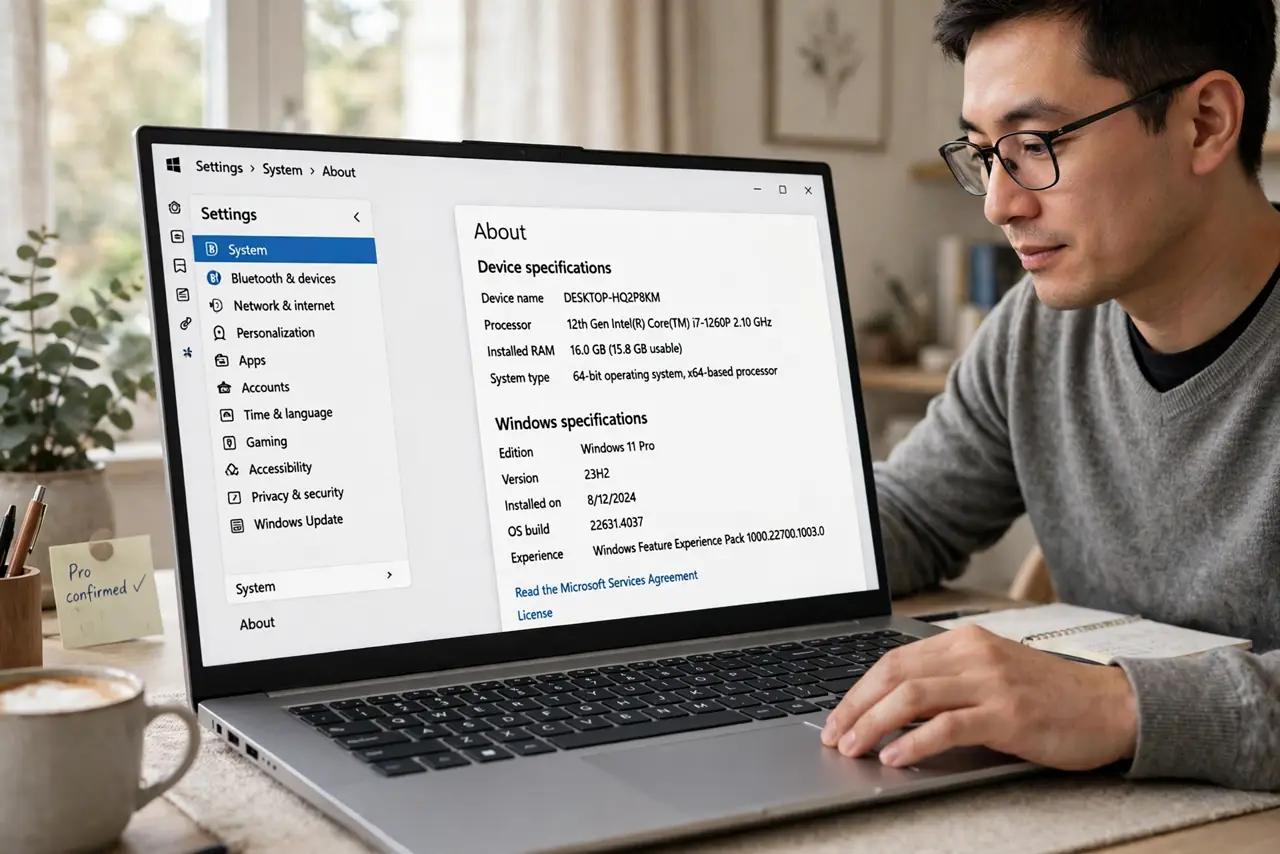
- Confirm you have Pro or Enterprise. Open Settings, System, About, and check the edition. Hyper-V is not included in Windows Home — no setting will make it appear there.
- Enable virtualization in the BIOS/UEFI. Restart into firmware settings (usually Del or F2 at boot) and enable Intel VT-x or AMD-V. This is the step most 'option missing' cases trace back to — Windows cannot offer Hyper-V without it.
- Open Windows Features. Search for 'Turn Windows features on or off' in the Start menu. This dialog controls built-in components like Hyper-V.
- Check the Hyper-V boxes and reboot. Tick Hyper-V (platform and management tools), click OK, and restart when prompted. The install takes a few minutes.
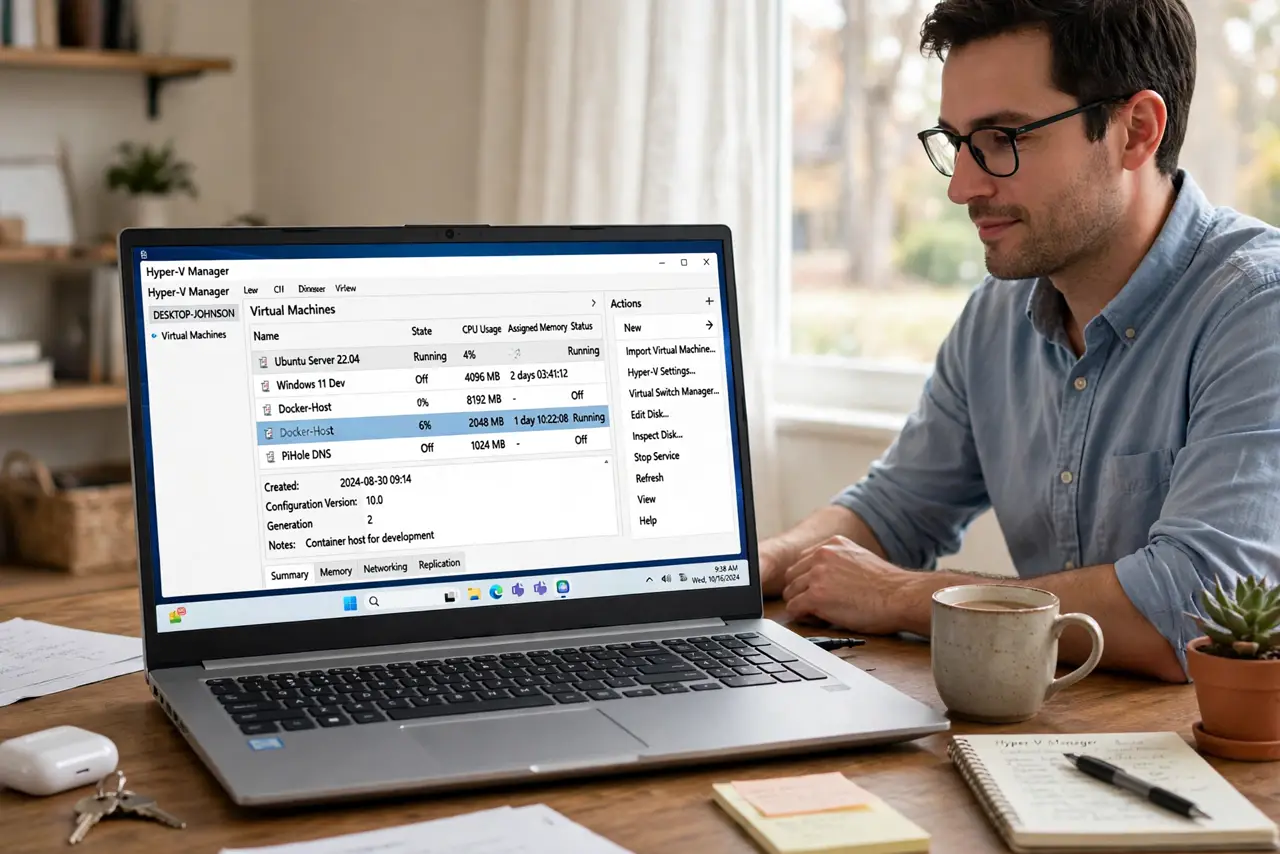
- Open Hyper-V Manager and create a VM. Search for Hyper-V Manager, connect to the local computer, and use the New Virtual Machine wizard. Start with a Linux ISO — lightweight and free.
- Learn the basics before going further. Practice snapshots (save states you can roll back to), virtual switches for networking, and allocating RAM sensibly. Snapshots make experimentation fearless.
What NOT to do
- Do not enable Hyper-V expecting it on Home edition. It is genuinely absent — the BIOS setting alone will not conjure it.
- Do not skip the BIOS virtualization step. Without VT-x/AMD-V enabled, the Hyper-V option may appear but virtual machines will refuse to start.
- Do not give a VM all your RAM. Leave at least 4 GB for the host Windows, or both the VM and your PC will crawl.
- Do not run Hyper-V alongside other hypervisors casually. VirtualBox and VMware can conflict with Hyper-V — pick one virtualization stack per machine.
Frequently asked questions
Hyper-V or VirtualBox — which should I use?
Hyper-V is built in and free on Pro; VirtualBox runs on Home and is simpler for casual use. For just running Linux tools, WSL is lighter than either.
Why is Hyper-V missing from Windows Features?
Either you are on Home edition, or virtualization is disabled in the BIOS. Check the edition first — it is the faster answer.
Can Hyper-V run macOS?
Not legally or practically on standard PCs — Apple's license restricts macOS to Apple hardware, and the technical hurdles are significant.