Open Old Sites in IE Mode
Some workplace portals, bank back-ends, and government pages were built for Internet Explorer and still misbehave in a modern browser. Microsoft Edge includes a built-in IE mode that renders a tab with the old Internet Explorer engine — no old browser to install, nothing shady to download. This guide shows how to switch it on safely and keep it limited to the sites that need it.
TL;DR / Quick Fix
Quick fix: open Edge Settings, then Default browser, and set Allow sites to be reloaded in Internet Explorer mode to Allow. Restart Edge, open the legacy site, click the three-dot menu, and choose Reload in Internet Explorer mode. Keep IE mode only for the old sites that need it.
Follow these steps
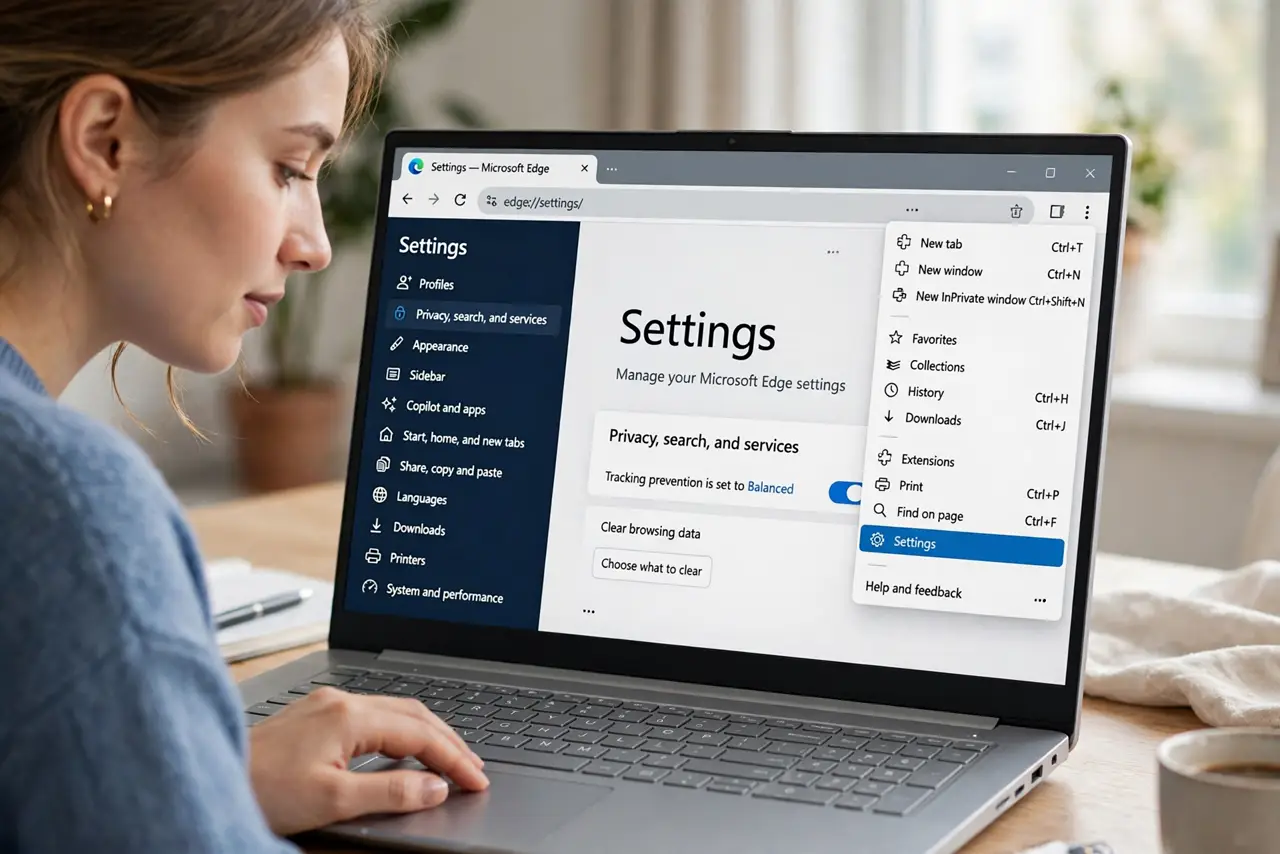
- Open Edge Settings. Click the three-dot menu in the top-right corner of Edge and choose Settings. The setting you need lives here, not in the old Control Panel.
- Go to the Default browser section. In the left sidebar of Settings, click Default browser. You will see an option labeled Allow sites to be reloaded in Internet Explorer (IE) mode.
- Set IE mode to Allow. Change the dropdown next to that option from Default or Don't allow to Allow. Edge will ask you to restart the browser for the change to take effect.
- Restart Edge completely. Close all Edge windows and reopen the browser. Until you restart, the IE mode menu option will not appear on any page.
- Load the legacy site and switch modes. Open the old site, click the three-dot menu, and choose Reload in Internet Explorer mode. The tab reloads with the IE engine — the legacy page should now behave as it did years ago.
- Limit IE mode to what needs it. Keep IE mode for the specific legacy sites only and browse everything else in normal Edge. IE's engine lacks modern security protections, so do not make it your default way of browsing.
What NOT to do
- Do not download Internet Explorer from random sites. The real IE is retired; Edge's IE mode is the safe, official way to render old pages.
- Do not use IE mode for banking or shopping beyond what you must. Its older engine is less protected than modern Edge — keep usage narrow.
- Do not change security settings to 'make the site work.' Lowering protection zones is riskier than the original problem.
- Do not assume every broken site needs IE mode. Try the site in normal Edge first — many 'legacy' pages work fine today.
Frequently asked questions
How long will IE mode be supported?
Microsoft has kept IE mode in Edge for enterprise legacy needs, but it is a bridge, not a future. Ask the site owner about a modern replacement when you can.
The IE mode option is missing from the menu. Why?
The setting was not enabled, or Edge did not restart after you changed it. Check Settings, Default browser again and restart fully.
Can I make a specific site always open in IE mode?
Yes — in Enterprise settings you can add a page to the IE mode page list. For home users, reloading the tab in IE mode when needed is the simple route.