Install a Website as an App
Your favorite site — webmail, a project board, a docs tool — keeps getting buried under forty browser tabs. Edge and Chrome let you 'install' any website as its own app: it gets a taskbar icon, its own window, and opens in one click, no tab-hunting. This guide shows the two-minute setup.
TL;DR / Quick Fix
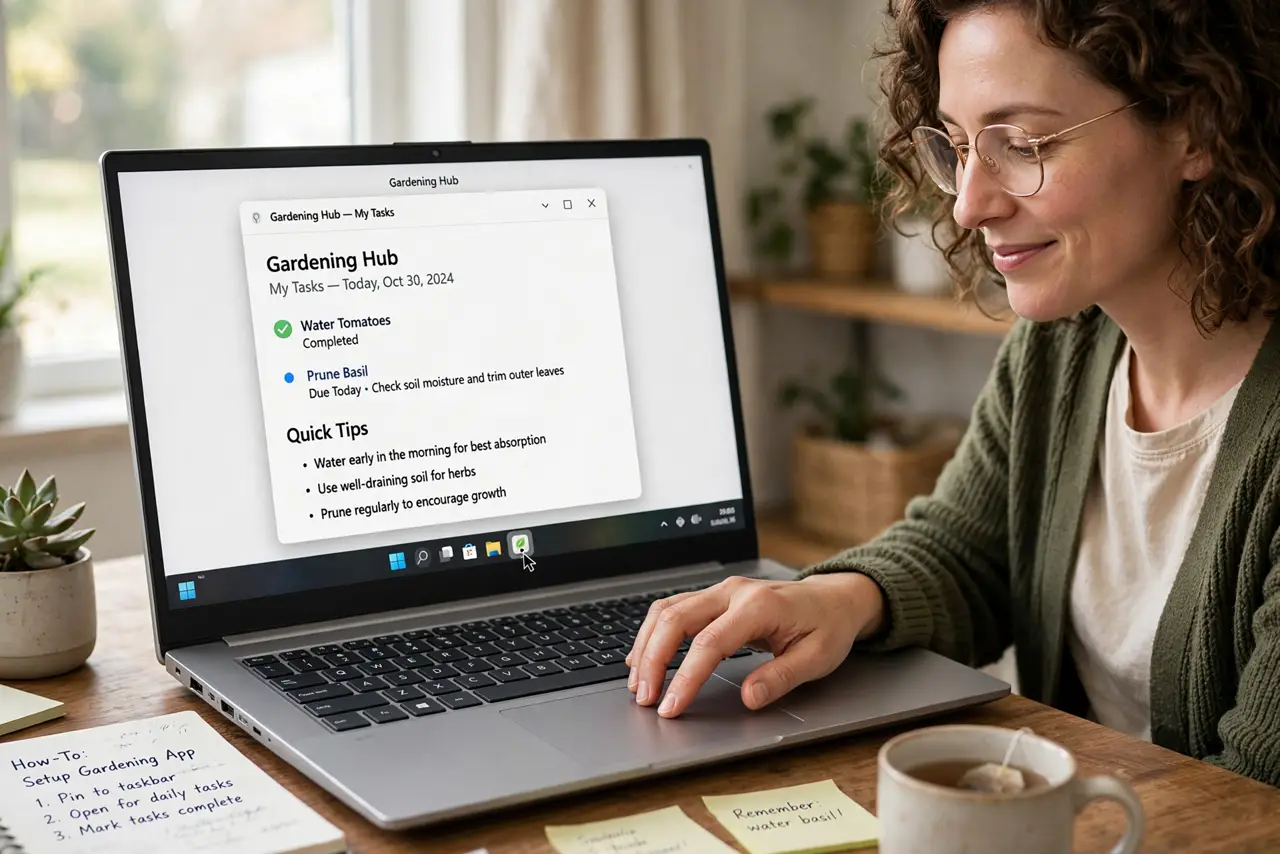
Quick fix: open the site in Edge or Chrome, click the three-dot menu, and choose Install this site as an app (Edge) or Install page as app (Chrome). Pin the new icon to the taskbar. The site now opens in its own clean window like a real program.
Follow these steps
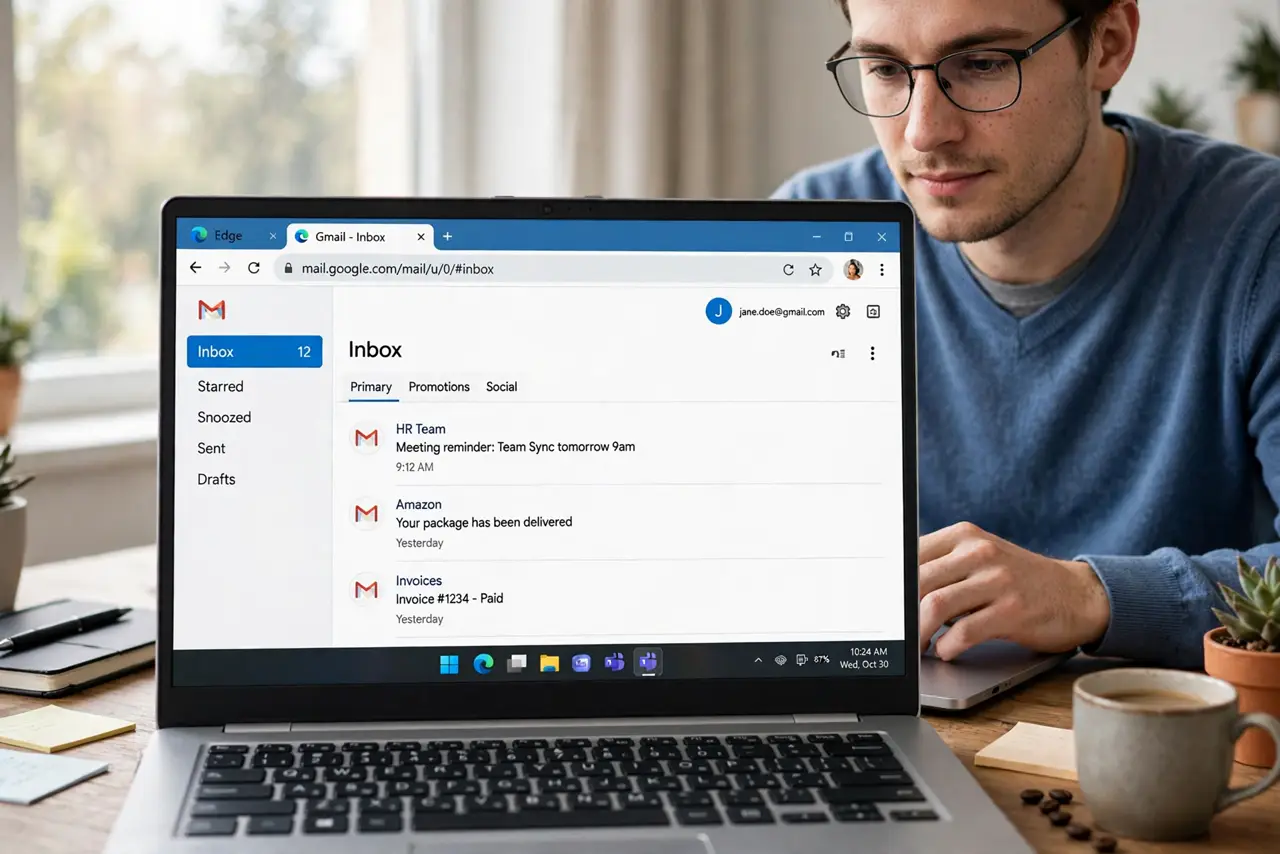
- Open the site in Edge or Chrome. Navigate to the site you use daily — webmail, a task board, a music service. Make sure you are logged in so the app window keeps your session.
- Open the browser's three-dot menu. In Edge, click the three dots, then Apps, then Install this site as an app. In Chrome, click the three dots, then Save and share, then Install page as app.
- Confirm the app name and install. The browser suggests a name and icon — accept or edit it, then click Install. A new app icon appears, and the site opens in its own window.
- Pin it to the taskbar. Right-click the new icon (or find it in Start) and choose Pin to taskbar. One click now opens the site — no browser, no tab-hunting.
- Tidy up: close the original tab. With the app installed, you can close the site's browser tab for good. The app keeps its own login session.
- Uninstall like any app if you change your mind. Right-click the icon and uninstall — it removes the shortcut cleanly. Your bookmarks and browser data are untouched.
What NOT to do
- Do not install every site as an app. Reserve this for the two or three sites you open daily — more becomes clutter again.
- Do not install apps from lookalike domains. Type the address yourself; a fake login page installed as an app looks convincing.
- Do not forget the app still uses the browser engine. It is a windowed website, not a separate program with extra security.
- Do not skip pinning it. An unpinned app icon is just as buried as the tab was — pin it or the habit dies.
Frequently asked questions
Does the installed app work offline?
Only if the site itself supports offline use. Most web apps still need a connection — the install just gives them their own window.
Will notifications work in the app?
Yes — allow notifications when the app asks, and they arrive like any desktop app's alerts.
Can I do this in Firefox?
Firefox does not offer the same install-as-app feature. Edge and Chrome (and browsers based on Chromium) do.