Install Fonts on Windows
A document calls for a font you don't have, or you downloaded a beautiful typeface for a project. Installing fonts on Windows is drag-and-drop simple — but grabbing font files from shady sites is how PCs pick up malware dressed as typography.
TL;DR / Quick Fix
Quick fix: download the font from a reputable source, then double-click the file and choose Install, or drag it into Settings under Personalization and Fonts. The font becomes available in all your apps immediately, no restart needed. Stick to well-known font sites to avoid malware bundled with downloads.
Follow these steps
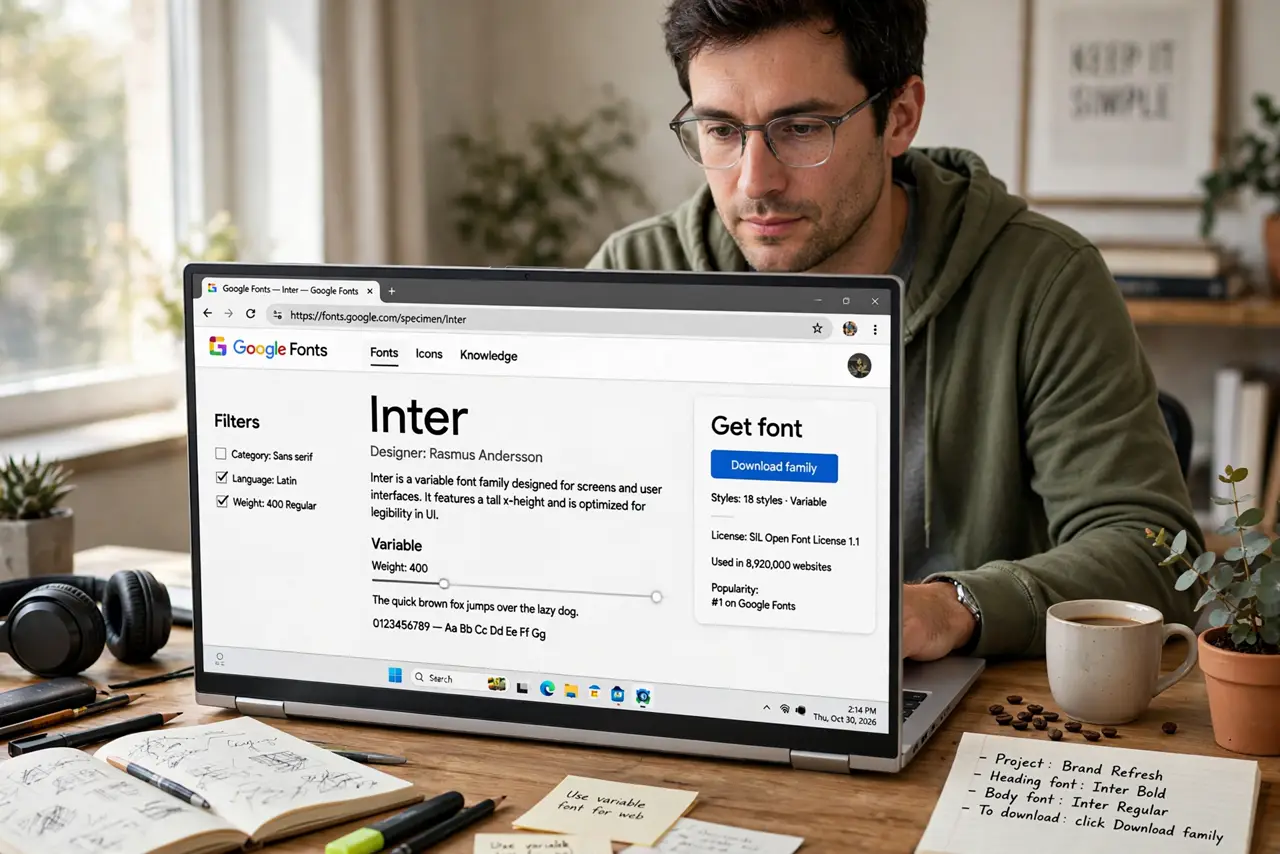
- Get the font from a reputable source. Google Fonts, Adobe Fonts, and the Microsoft Store are safe. Random 'free fonts' sites are a classic malware vector — the pretty preview isn't worth the risk.
- Check the file format. Windows installs TrueType (.ttf) and OpenType (.otf) files. If you downloaded a .zip, extract it first — you can't install the zip itself.
- Install with a double-click. Double-click the font file, preview it in the viewer, and click Install. That's the whole ceremony.
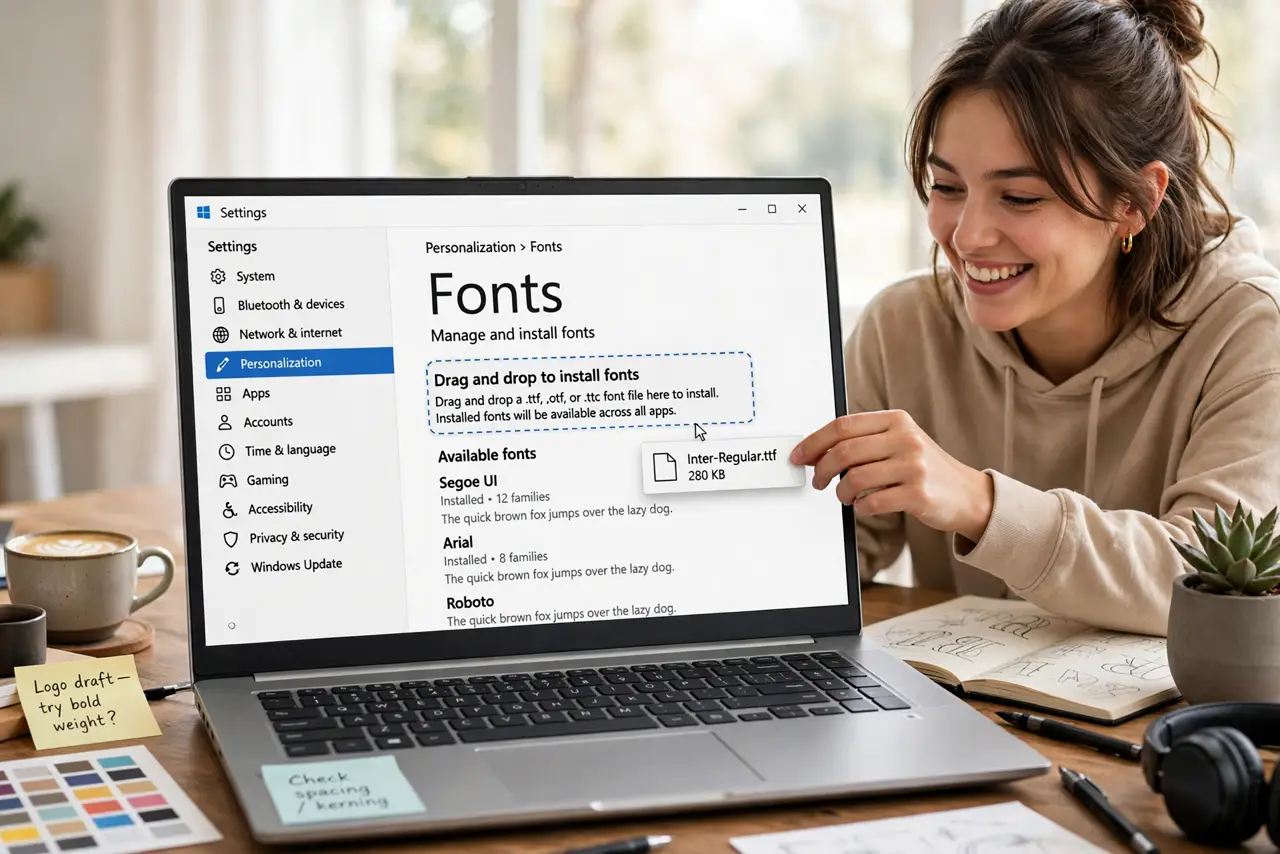
- Or drag it into Settings. Settings > Personalization > Fonts, then drag the file into the 'Add fonts' area. Useful when installing several at once.
- Choose per-user or for everyone. The default installs for your account only. Right-click the file > 'Install for all users' if other accounts on the PC need it too — that choice needs admin rights.
- Verify it in your app. Open Word or your design app and find the font in the list. If it's missing, close and reopen the app — most pick up new fonts without a restart. If text looks tiny on a big screen, that's a 4K scaling issue, not the font.
What NOT to do
- Do not download fonts from sketchy aggregator sites. Font files can carry malware, and 'free' bundles are a favorite disguise.
- Do not install 500 fonts at once. Huge font libraries slow down app launch and font menus — install what the project needs.
- Do not delete system fonts to 'clean up.' Windows and apps depend on them; removing Segoe UI and friends causes interface weirdness.
- Do not ignore the license. 'Free download' doesn't mean free for commercial use — check before using a font in client work.
Frequently asked questions
Why doesn't the font show in Word?
Word was open during the install and cached the old list. Close Word completely and reopen it — the font appears.
Can I use these fonts in Photoshop too?
Yes — installed fonts are system-wide. Every app that uses system fonts sees them immediately.
How do I uninstall a font?
Settings > Personalization > Fonts, click the font, and choose Uninstall. Per-user fonts vanish without affecting other accounts.