The Language Bar Keeps Coming Back
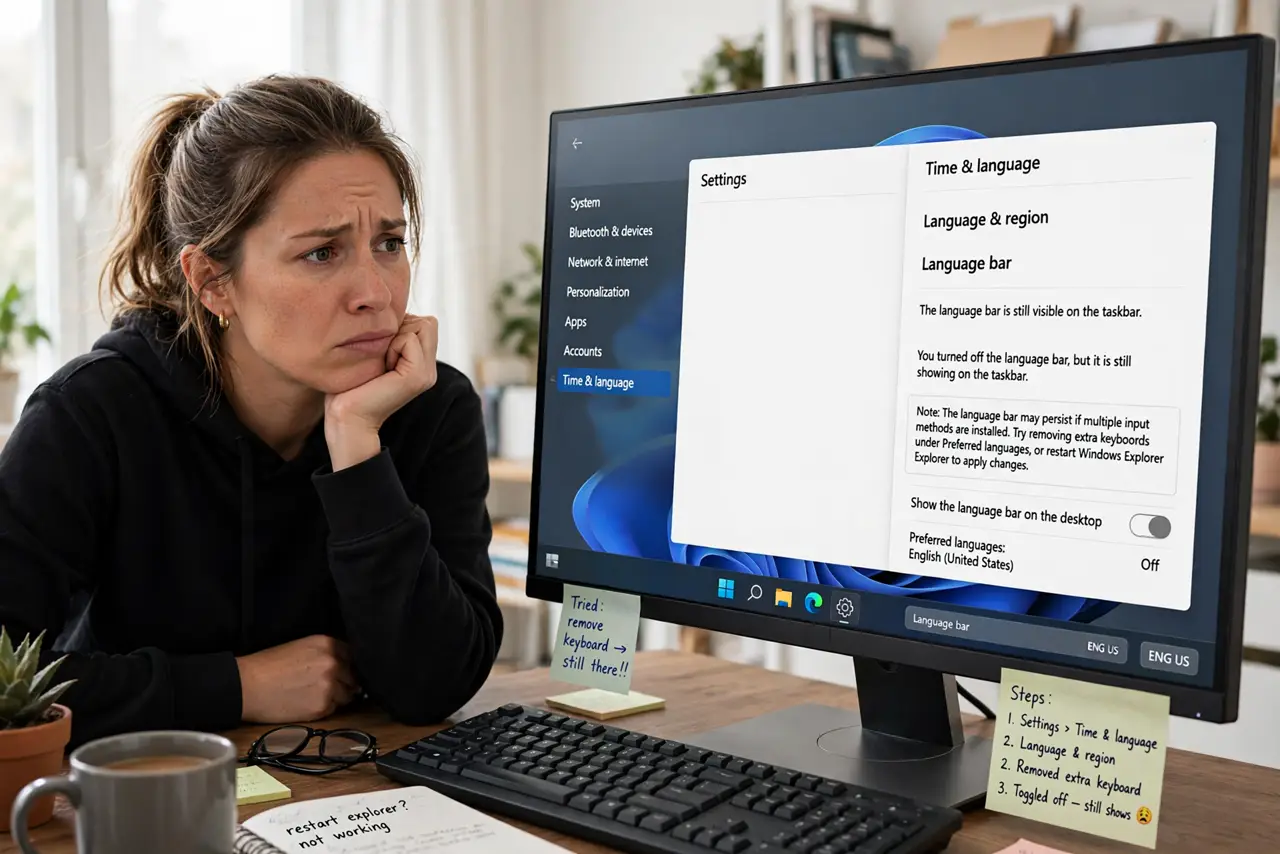
You hide the language bar and it returns like it was never gone — after reboots, after updates, sometimes mid-session. The bar follows the installed input languages and a per-setting that re-enables it, so hiding it without removing the cause never sticks. The real fix is in the language list, closely tied to the keyboard layout that switches by itself.
TL;DR / Quick Fix
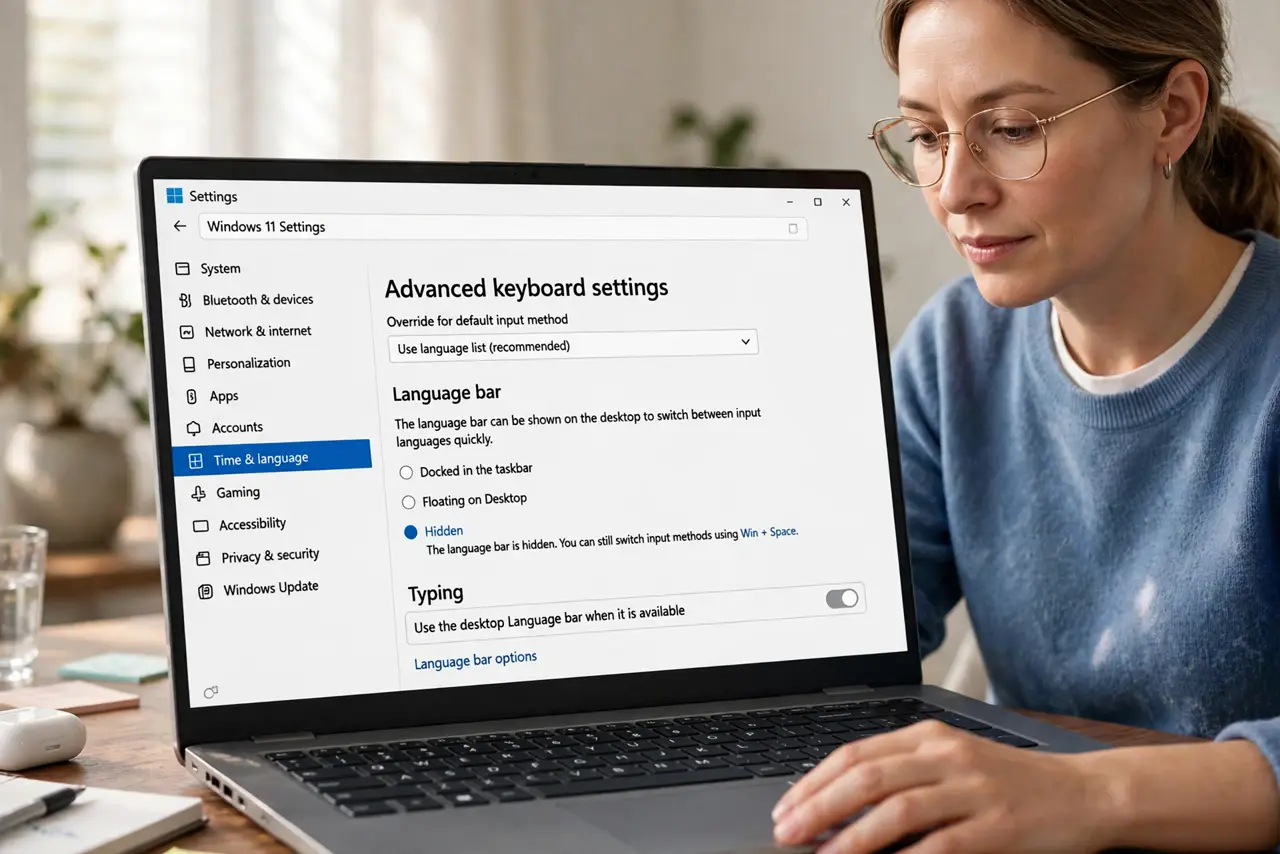
Quick fix: set the language bar to Hidden in advanced keyboard settings, then check installed input languages — the bar appears because extra keyboard layouts are installed. Remove the layouts you never use. With one layout left, the bar has nothing to switch between, so it stays gone.
Follow these steps
- Set the language bar to Hidden. Open the advanced keyboard settings through the language preferences and set the language bar option to Hidden. This is the official visibility switch.
- List your installed input languages. In the language settings, count the keyboards under your language. The bar exists to switch between them, so two or more layouts means the bar has a job.
- Remove the layouts you never use. Delete every input method you do not type with. Most people need exactly one, and each extra layout is a reason for the bar to return.
- Check the per-app input setting. Turn off letting Windows use a different input method per app window. That setting can summon the bar when you switch between programs.
- Test across a reboot. Restart the computer and check the taskbar. A bar that stays hidden across a reboot is fixed; one that returns points to a leftover layout.
- Check after the next Windows update. Feature updates sometimes reinstall removed layouts. If the bar returns after an update, repeat the layout cleanup once.
What NOT to do
- Do not just drag the bar away. Hiding without removing the extra layouts is why it keeps coming back.
- Do not remove your only input language. You need at least one keyboard, so prune down to one, not zero.
- Do not confuse the language bar with the touch keyboard. They are separate features with separate settings in different places.
- Do not edit the registry for this. The keyboard settings pages handle it officially, and registry edits for the bar are fragile across updates.
Frequently asked questions
Why does the language bar keep reappearing?
Because you still have multiple input layouts installed. The bar returns whenever Windows has more than one layout to offer.
I only use one language — why is the bar there?
Because one language can still carry two keyboard layouts, like US and US-International. Check the layouts, not just the languages.
Will this affect typing in other languages?
Only if you remove a layout you actually use. Keep the ones you type with and remove the rest.