Add Another Language
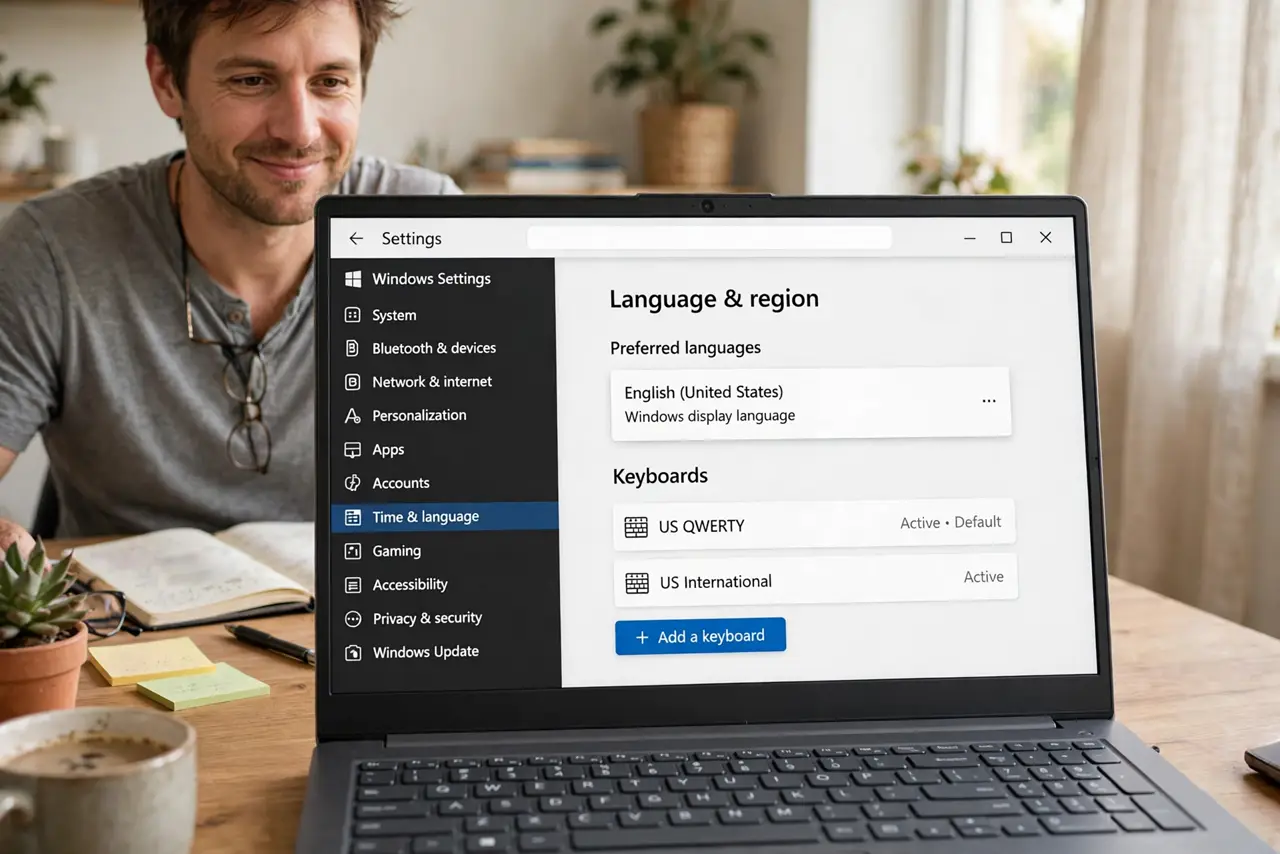
You type in two languages and Windows only speaks one — no accents, no second keyboard, spellcheck flagging every other word. Adding a language pack gives you the second keyboard layout, display language options, and proper spellcheck. It takes five minutes and changes nothing about your files.
TL;DR / Quick Fix
Quick fix: open Settings, Time and language, then Language and region, and add your second language. Switch keyboards anytime with Windows key plus Space. Your files and apps stay exactly as they are — this only adds input options, never changes existing content.
Follow these steps
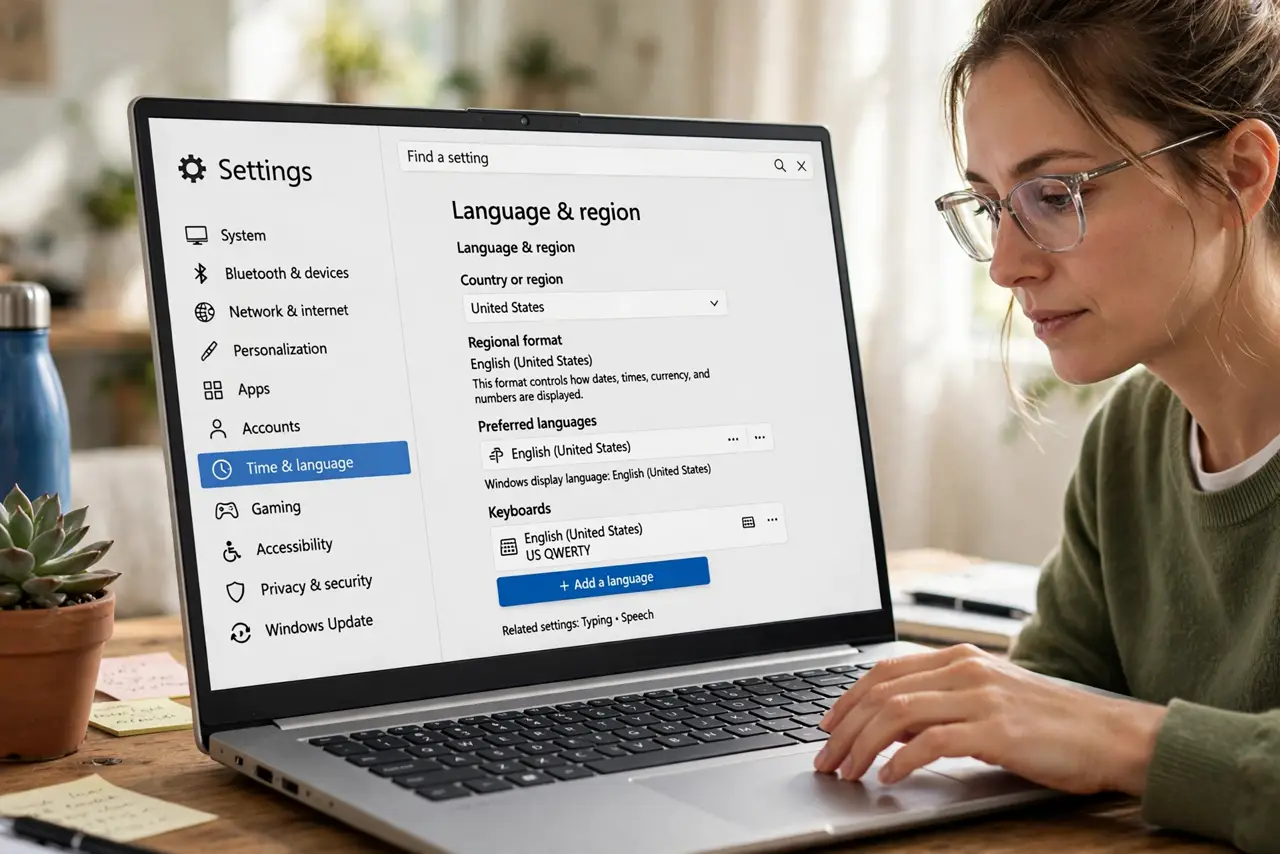
- Open the language settings. Go to Settings, then Time and language, then Language and region. This one page controls keyboards, display language, and regional formats.
- Add the language. Click Add a language, pick yours, and install. Windows downloads the keyboard layout and spellcheck data — a few minutes on a normal connection.
- Learn the quick switch. Press Windows key plus Space to cycle keyboards. If the language bar misbehaves, that shortcut plus the taskbar indicator keeps you oriented.
- Add the keyboard variant you need. Many languages offer several layouts. The extra keyboard guide covers adding a second layout under one language — useful for bilingual typists.
- Set display language separately. Keyboard language and Windows display language are independent. You can type in Spanish while menus stay in English — set each where you want it.
- Check your apps follow along. Most apps adopt the system keyboard automatically. If one sticks to the wrong language, its own settings usually override — check there, not Windows.
What NOT to do
- Do not change the system display language by accident. Adding a keyboard is safe; switching the whole display language confuses everyone else using the PC.
- Do not install every language pack offered. Each adds disk usage and update time — install what you type in.
- Do not panic when the keyboard seems wrong. You probably switched layouts with Windows-Space; switch back the same way.
- Do not download keyboard software from random sites. Windows built-in layouts cover virtually everything safely.
Frequently asked questions
How do I type accents?
With the right layout active, accents are built into the keys — or use the US-International layout where apostrophe plus vowel makes é.
Why does my keyboard switch by itself?
The Windows-Space shortcut is easy to hit accidentally, and some apps remember per-app layouts. Both are fixable in settings.
Can I remove a language later?
Yes — the same settings page lets you remove languages and keyboards in seconds, with no effect on files.