Magnifier Follows Wrong? Fix It
You pressed Win+Plus by accident and now the screen is zoomed, lurching after your mouse in a way that feels seasick. Windows Magnifier has three views and three follow modes, and the wrong combination is disorienting. Here is how to pick the setup that feels calm — or close it instantly.
TL;DR / Quick Fix
Quick fix: press Win+Esc to close Magnifier instantly. Reopen with Win+Plus, then open its settings to choose the view — Full screen, Lens, or Docked — and set it to follow the mouse pointer, keyboard focus, or text cursor. Pick one follow target; all three at once feels chaotic.
Follow these steps
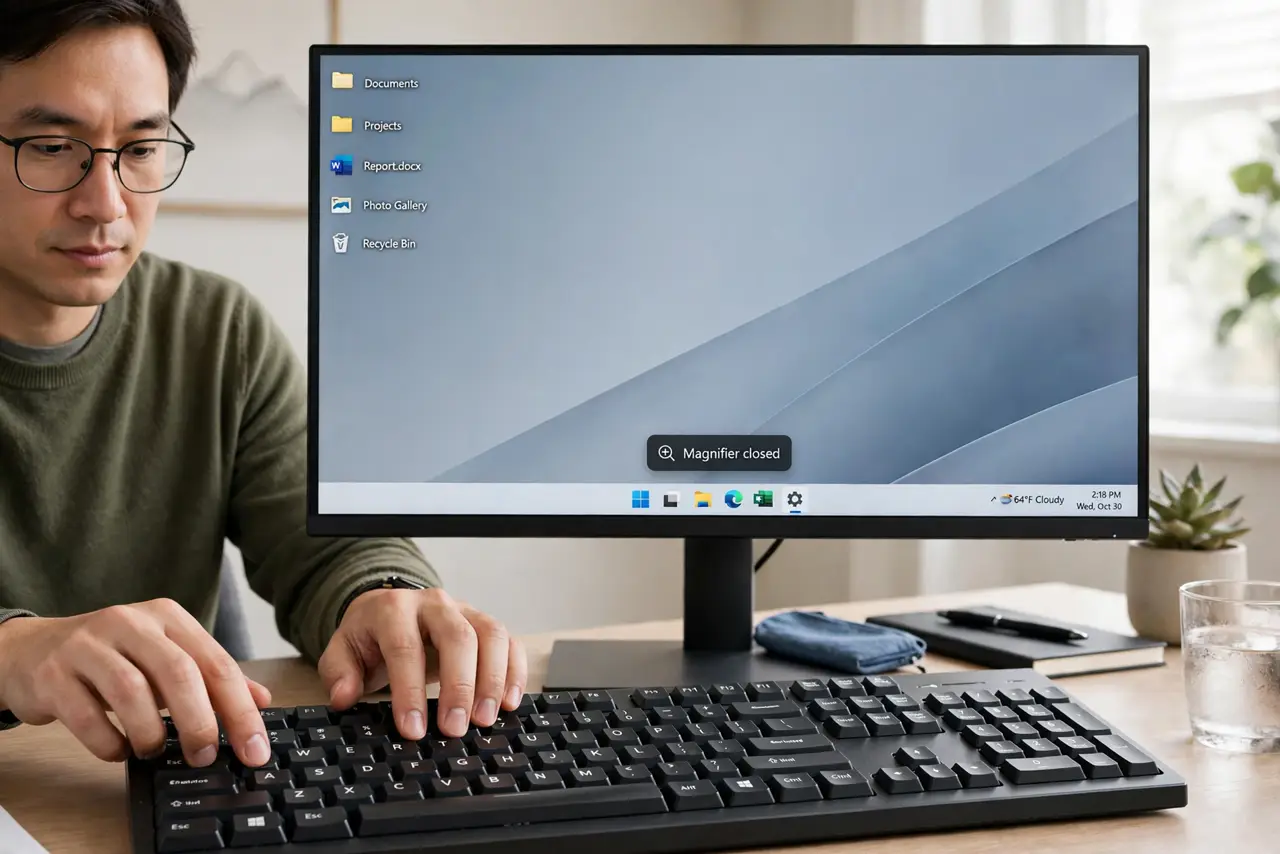
- Close it instantly. Press Windows key + Esc. Magnifier quits immediately, no matter which view trapped you — memorize this before changing anything else.
- Reopen it deliberately. Press Windows key + Plus. Magnifier starts at 200 percent; use Win+Plus and Win+Minus to step the zoom up and down.
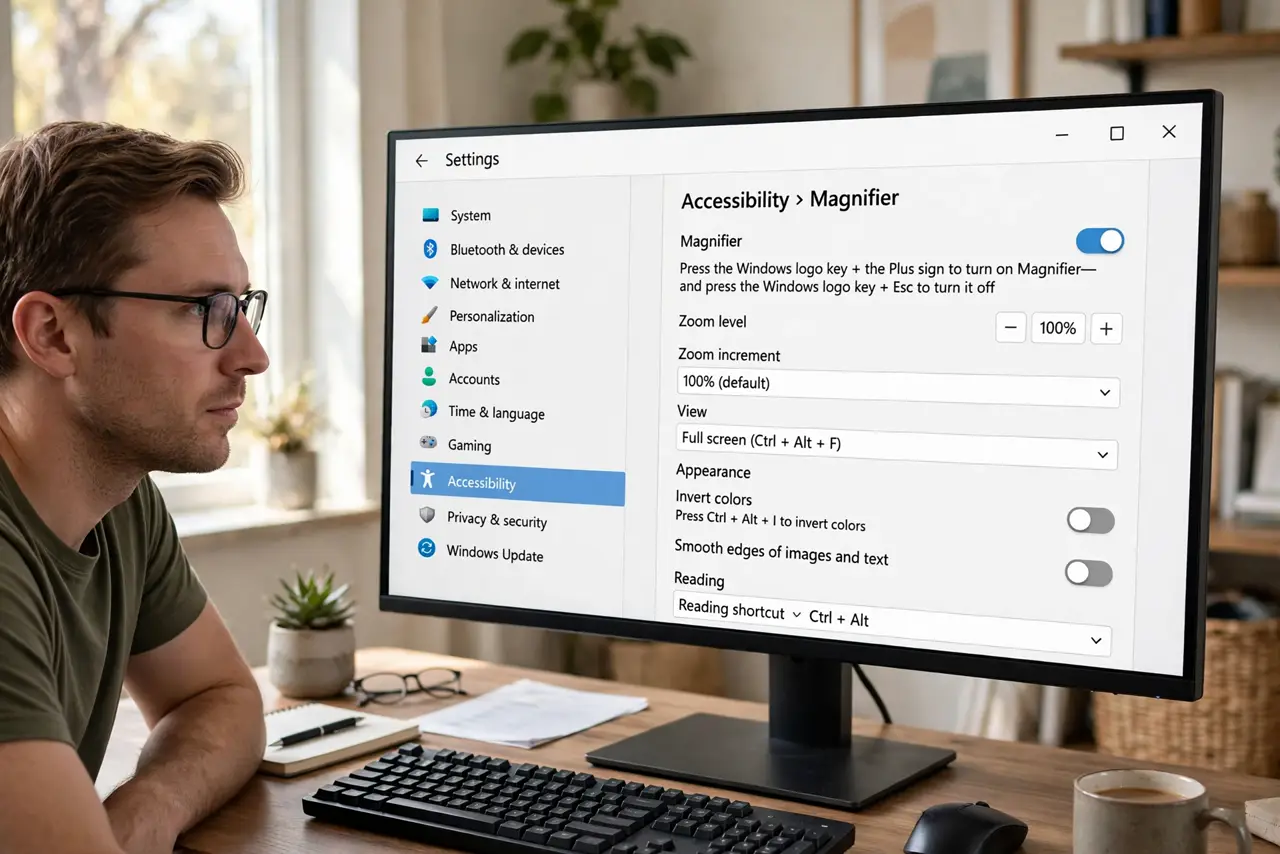
- Choose a view. Open the Magnifier settings from its toolbar: Full screen magnifies everything, Lens follows the pointer like a magnifying glass, Docked parks a strip at the top. Lens suits quick checks; Docked suits reading.
- Pick ONE follow target. Settings offers follow-the-mouse, follow-the-keyboard-focus, and follow-the-text-cursor. Enable one — all three together is what causes the seasick lurching.
- Set comfortable zoom steps. Lower the zoom increment so each press changes less. Small steps feel calmer than jumping from 200 to 400 percent.
- Stop it launching by accident. In Settings > Accessibility > Magnifier, turn off any start-at-sign-in option. If Magnifier ever gets stuck zoomed in, that guide covers the deeper fix.
What NOT to do
- Do not enable all three follow modes at once. That combination is the number-one cause of the disorienting jumping.
- Do not confuse Magnifier with screen resolution. It zooms the view, not the display — your resolution setting is untouched.
- Do not leave it running in the background. A forgotten Magnifier at 200 percent makes the next login genuinely confusing.
- Do not reinstall anything over this. Magnifier is a settings puzzle, never a broken component.
Frequently asked questions
Why does the magnified view jump around?
More than one follow target is active — typically mouse plus keyboard focus. Turn off all but one and the view settles down.
Which view is best for reading?
Docked: a magnified strip stays at the top while the rest of the screen stays normal. Lens is better for inspecting small details.
Can I make the shortcut harder to hit?
Yes. The Settings page lets you change how Magnifier starts, so Win+Plus stops ambushing you during games or presentations.