Pause Windows Updates Temporarily
An update wants to restart your PC in the middle of a deadline, a presentation, or a long download. You do not want to fight Windows — you want it to wait. The pause button does exactly that: it tells Windows Update to hold off for a set number of weeks, then resume on its own. Here is how to use it properly, and where the safe limits are.
TL;DR / Quick Fix
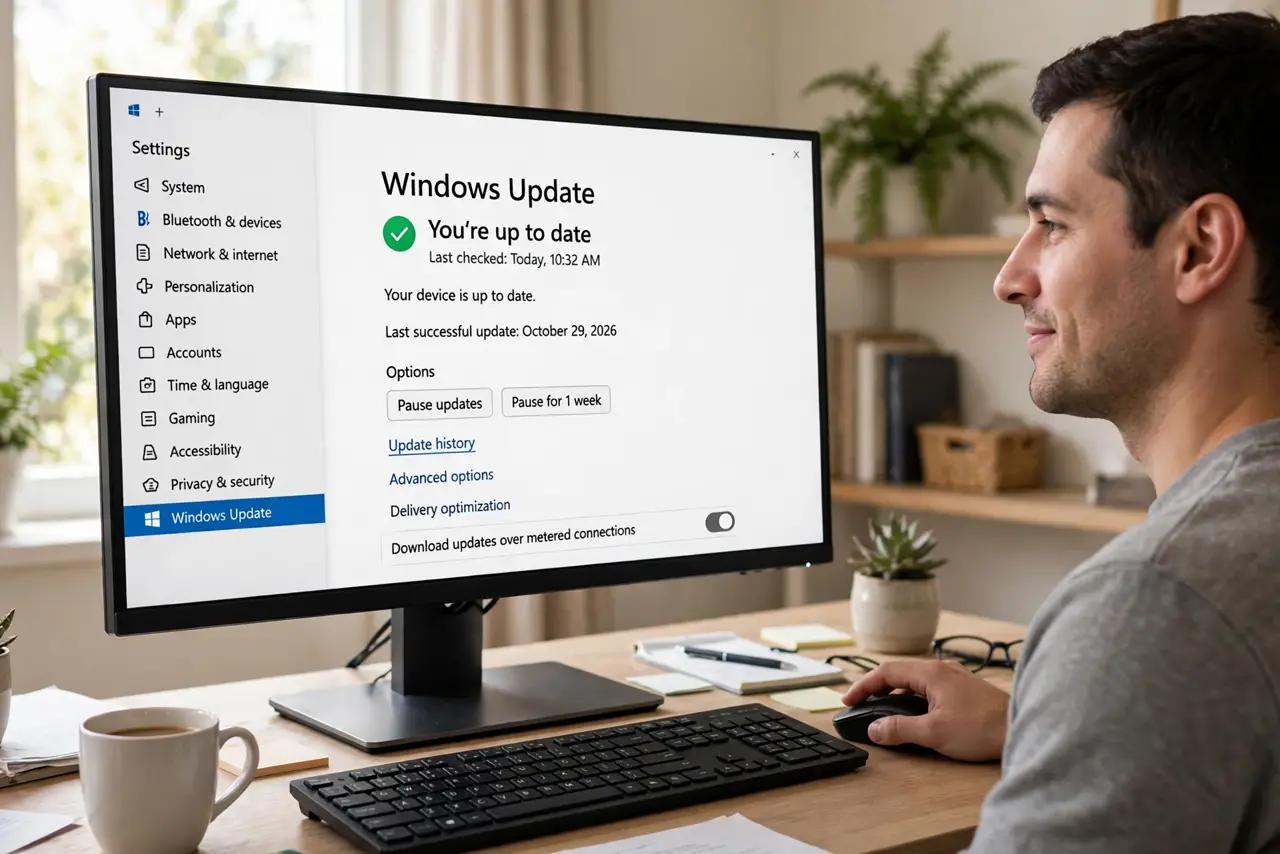
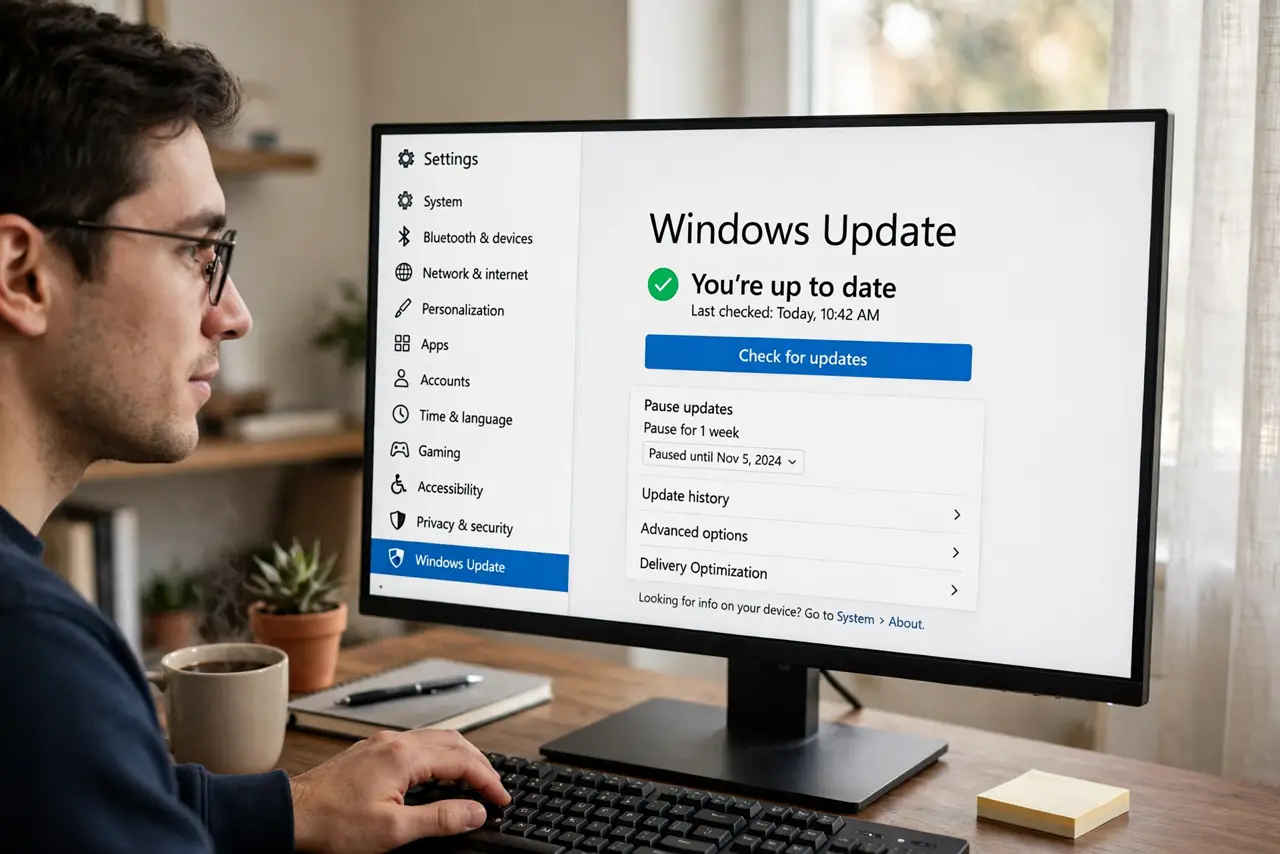
Quick fix: open Settings, go to Windows Update, and choose Pause updates — you can pause for one to five weeks. Updates resume automatically when the pause ends, or tap Resume updates sooner. Pausing is safe and temporary; do not leave updates paused forever, because security fixes stop arriving too.
Follow these steps
- Open Windows Update settings. Press Win+I, then choose Windows Update. On older versions it lives under Update & Security > Windows Update. This page holds every update control you need.
- Find the pause option. Look for Pause updates near the top of the page. Clicking it pauses immediately for the default stretch, usually one week.
- Pick a longer pause if offered. Some versions show a dropdown letting you choose up to five weeks. Pick the shortest pause that covers your need — a busy workweek, a trip, a project deadline.
- Confirm updates are paused. The page should show a paused banner with a resume date. If you do not see it, the click did not register — try once more.
- Resume when the time comes. Updates return on their own after the pause, or click Resume updates sooner. Install them promptly — a pause is a delay, not a cancellation.
- Use a metered connection for longer relief. If you need downloads held back beyond five weeks, marking your Wi-Fi as metered tells Windows to download less. Never disable updates permanently — that leaves you unprotected.
What NOT to do
- Do not leave updates paused and forget them. A pause with no end date in your head is how PCs miss security fixes for months.
- Do not use registry hacks or update-blocker tools to kill updates permanently. They break future updates in ways that are hard to undo.
- Do not confuse pausing with uninstalling. Pausing stops new downloads; it does not remove updates you already have.
- Do not pause just to dodge one annoying update. Undo the bad update instead and let the rest through.
Frequently asked questions
How long can I pause Windows updates?
Up to five weeks in current versions, in one-week increments. After the pause expires, Windows requires at least one round of updates before you can pause again.
Does pausing stop security updates too?
Yes — the pause holds back everything, including security fixes. That is why pauses should be short and deliberate, not a permanent habit.
Can I pause updates on a work or school PC?
Often not — organizations manage updates through their own policies, and the pause option may be grayed out. Check with your IT admin rather than fighting it.