Set Microphone Levels
You sound distant and quiet on every call while everyone else comes through loud and clear — and the fix is usually one slider buried in Windows sound settings. Microphone level is separate from speaker volume, which is why turning your speakers up never helps. Here is the two-minute setup.
TL;DR / Quick Fix
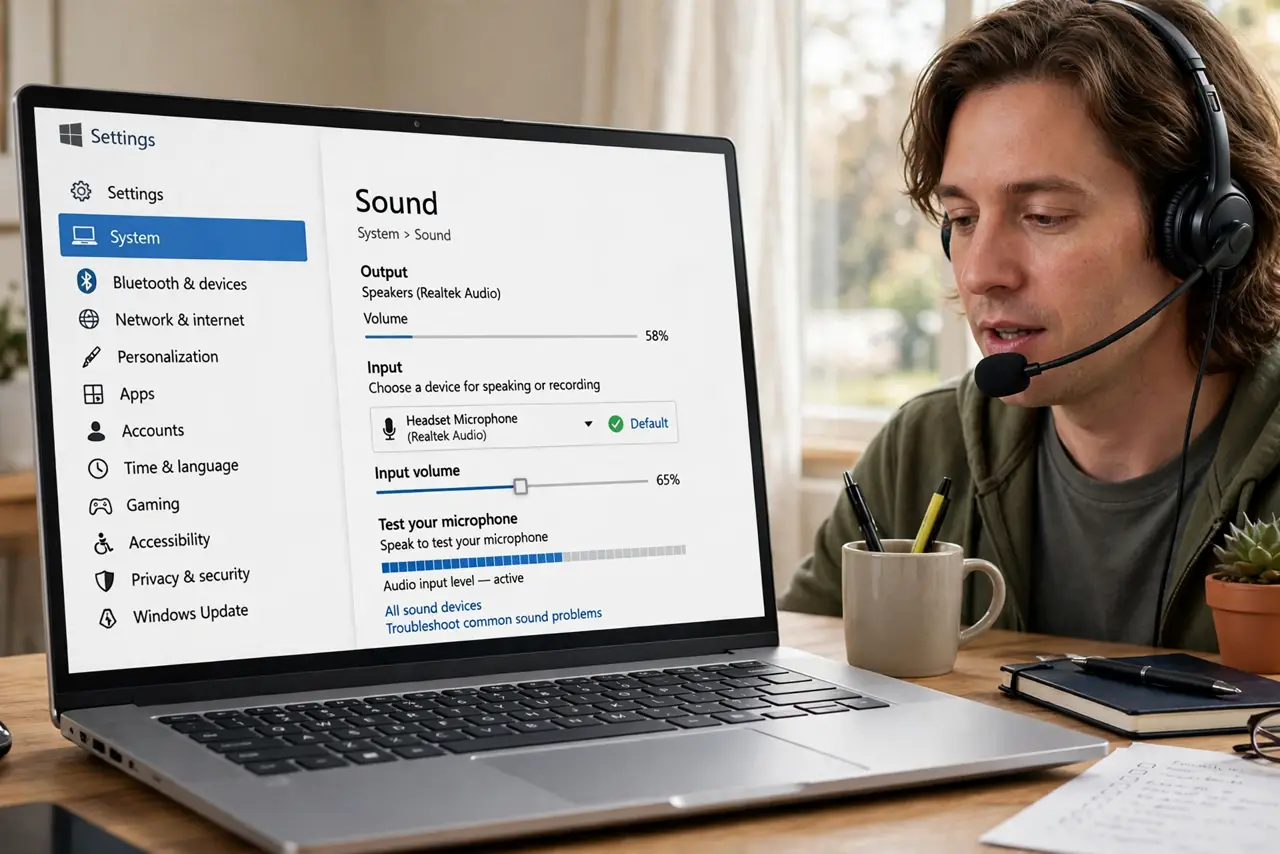
Quick fix: right-click the speaker icon, open Sound settings, choose your microphone under Input, and set the volume to around 70-80% while speaking normally — the test bar should bounce in the upper half without hitting the top. Then turn on noise suppression in your call app.
Follow these steps
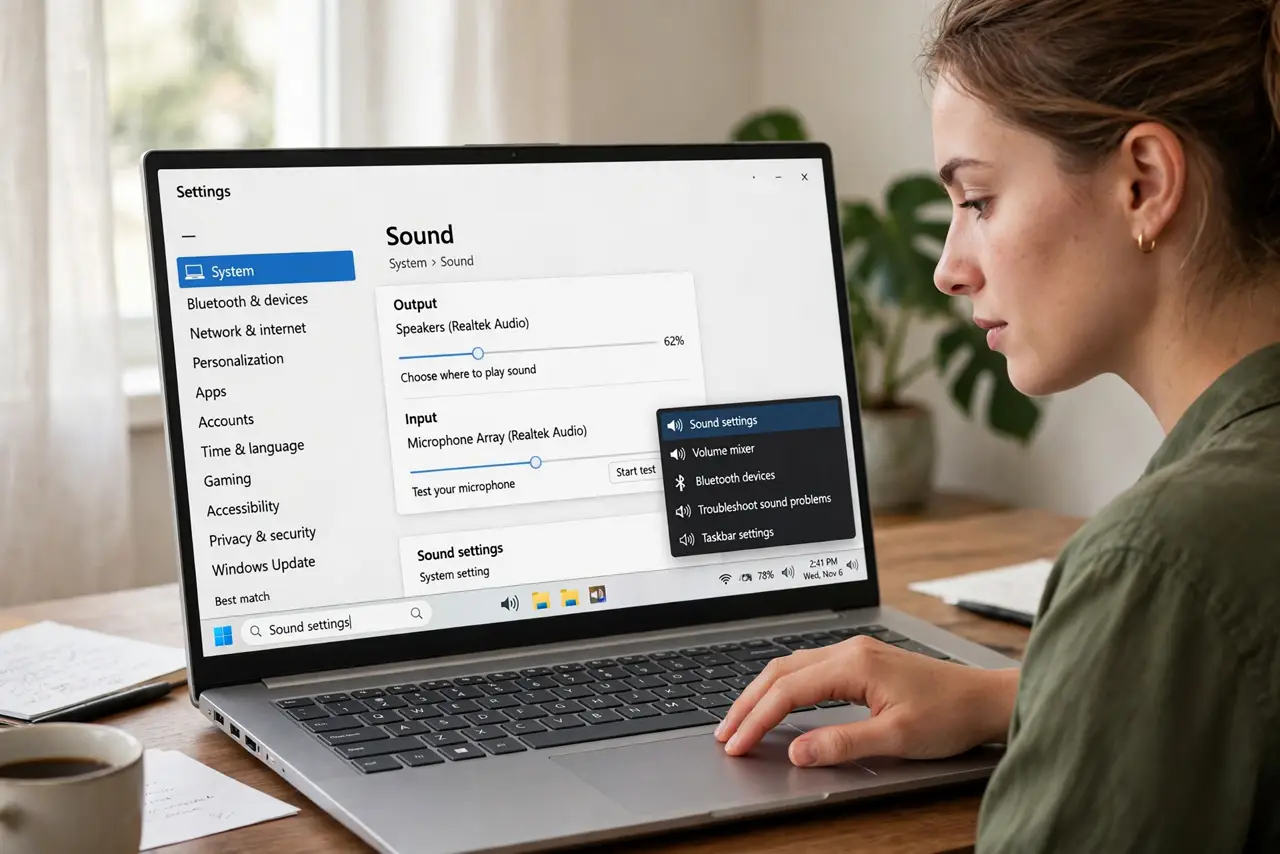
- Open the Sound settings. Right-click the speaker icon in the taskbar and choose Sound settings — or search 'Sound settings' in Start. This is the control panel for all audio devices.
- Select the right microphone. Under Input, pick the mic you actually use — headset, webcam, or laptop mic. Windows often defaults to the wrong one, which is half of all 'quiet mic' complaints.
- Set the input volume to 70-80%. Drag the Input volume slider while speaking normally. The test bar should bounce in the upper half without pegging at the top — maxed out means distortion, not loudness.
- Check the app's own mic setting. Zoom, Teams, and Discord each have their own input device and volume. If Windows looks right but calls are quiet, the app is using a different mic.
- Turn off exclusive-mode weirdness. In the classic Sound control panel > microphone Properties > Advanced, unchecking 'Allow applications to take exclusive control' fixes apps fighting over the mic.
- Test with a real recording. Use Voice Recorder to capture ten seconds and play it back. If it sounds right there, any remaining problem is in the call app's settings, not Windows.
What NOT to do
- Do not crank the mic to 100%. Maximum gain adds hiss and distortion — 70-80% with the mic closer to you sounds far better.
- Do not confuse mic level with speaker volume. Turning your speakers up makes others louder for you; it does nothing for how they hear you.
- Do not leave 'microphone boost' maxed. The +20/+30 dB boost is a last resort that amplifies noise along with your voice.
- Do not test only inside the call app. A quick Voice Recorder test isolates Windows settings from app settings — Mac users should see the Mac mic input guide.
Frequently asked questions
Why does my mic work in one app but not another?
Each app picks its own input device. Check the mic selection inside the silent app — it is probably pointed at the wrong device.
People hear an echo of themselves — is that my mic?
Usually yes: your speakers are feeding back into your mic. Headphones fix it instantly; otherwise lower speaker volume and mic gain.
Should I use the boost setting?
Only if the mic is still too quiet at 80% volume. Boost adds noise, so move the mic closer first — distance beats gain.