Wireless Display? Basics
You want your laptop screen on the TV without a cable snaking across the room — for movies, slides, or just a bigger picture. Windows can beam its display wirelessly to Miracast TVs and adapters, and setup takes about a minute when everything is compatible. This guide covers the connection and the usual gotchas.
TL;DR / Quick Fix
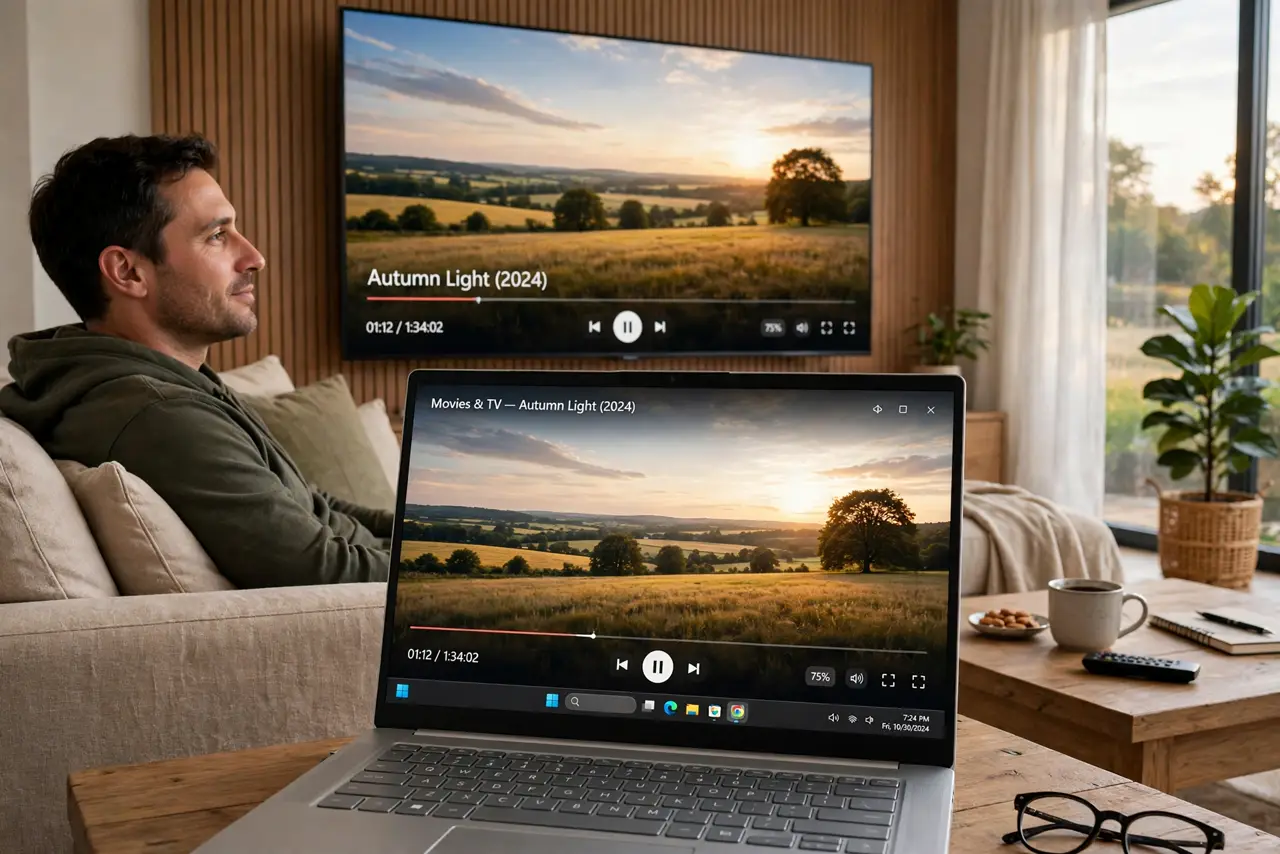
Quick fix: press Windows key plus K to open the Cast panel and pick your TV or adapter. Both devices must be on the same Wi-Fi network. On the TV, open its screen-mirroring or Miracast input first. Expect slight lag — great for video and slides, not for fast gaming.
Follow these steps
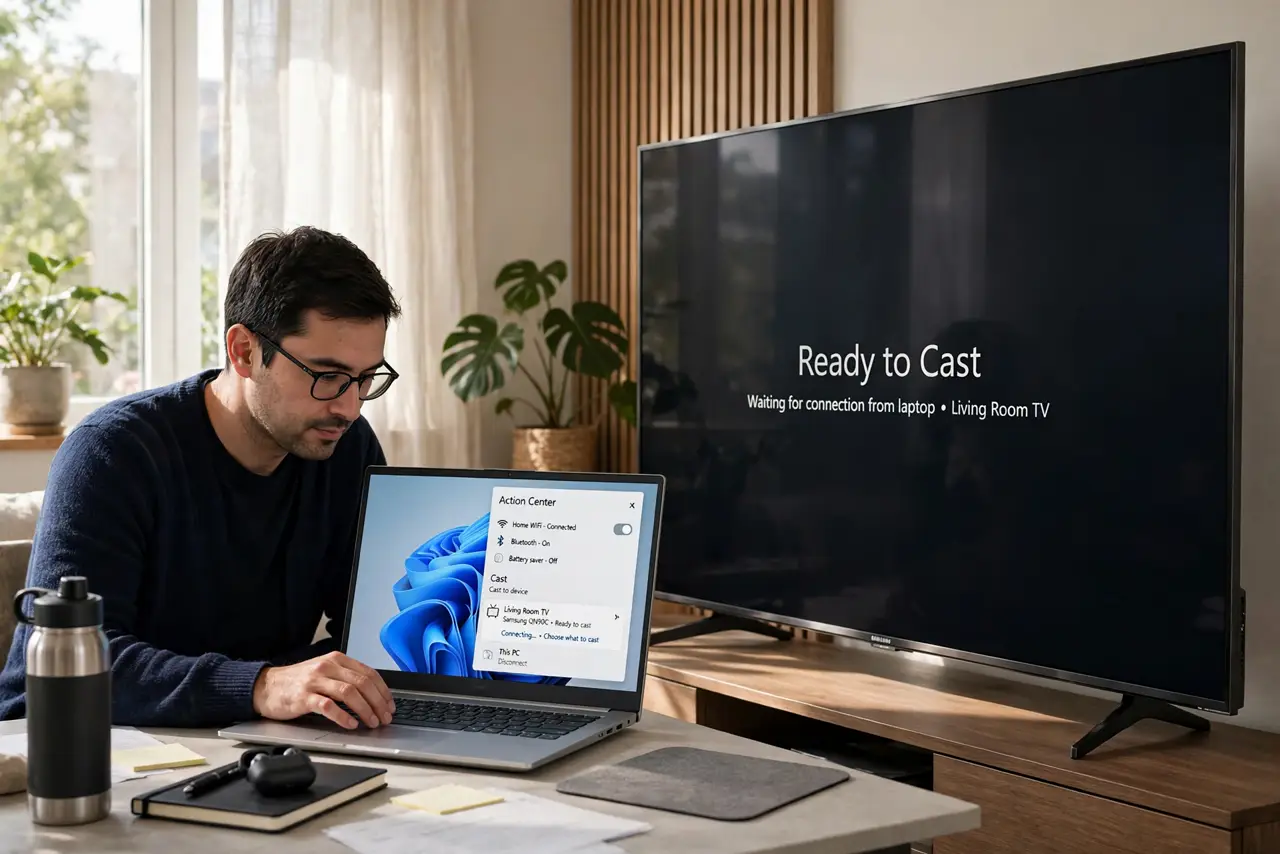
- Open the Cast panel. Press Windows key plus K. Windows scans for wireless displays nearby — your TV or adapter appears in the list within seconds if it is ready and on the network.
- Ready the TV first. On the TV, open the screen mirroring, Miracast, or Smart View input before casting. A TV sitting on HDMI will never appear in the Cast list.
- Check the network. Both devices must share the same Wi-Fi network — not just the same house. A phone hotspot or guest network splits them invisibly; see the same-network fixes for the pattern.
- Pick the projection mode. After connecting, press Windows key plus P to choose Duplicate or Extend. Duplicate mirrors for movies; Extend turns the TV into a second monitor.
- Reduce lag for video. Sit closer to the router, pause background downloads, and use 5 GHz Wi-Fi. Wireless display always has some delay — minimizing network load keeps it watchable.
- Disconnect cleanly. Use Windows key plus K and Disconnect when done. Lingering connections can block the next device from casting.
What NOT to do
- Do not expect gaming-grade latency. Wireless display lags by a fraction of a second — fine for movies, terrible for competitive games.
- Do not cast over a guest network. Guest networks isolate devices from each other by design — casting requires the main network.
- Do not leave the TV on the wrong input. The TV must be in mirroring mode before Windows can see it — this is the top fix.
- Do not stream 4K over weak Wi-Fi. Choppy wireless display is usually choppy Wi-Fi — move closer to the router or use a cable.
Frequently asked questions
Why can't Windows find my TV?
The TV is not in mirroring mode, the devices are on different networks, or the TV lacks Miracast. Check all three in that order.
Is wireless display secure?
The connection is encrypted between your devices on your local network. Do not cast sensitive documents on a network you do not trust.
Can I use my laptop as a wireless display?
Yes — Windows has a Wireless Display optional feature that turns a PC into a Miracast receiver for another device.