Project to Another Screen?
You need your laptop on the big TV for a movie night or on the conference room display for a presentation, and the screen just will not appear. Windows can project to another display over a cable or wirelessly, but the right mode — duplicate, extend, or second-screen-only — and the right connection order decide whether it works first try. This guide gets the picture up.
TL;DR / Quick Fix
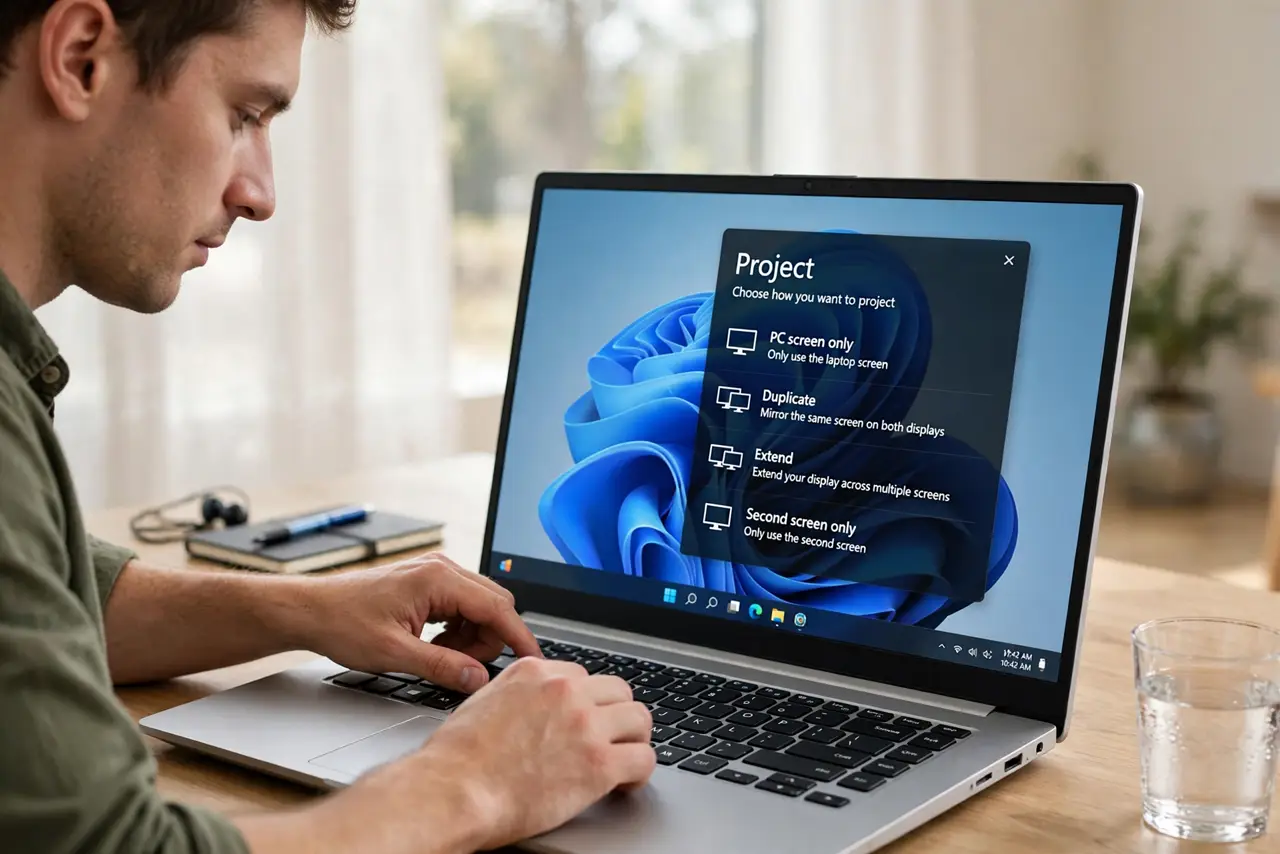
Quick fix: press Windows key plus P to open the project menu and choose Duplicate or Extend. For a cable, plug in HDMI before turning the display on. For wireless, both devices must share the same Wi-Fi network. If nothing appears, check the display's input source matches your cable.
Follow these steps
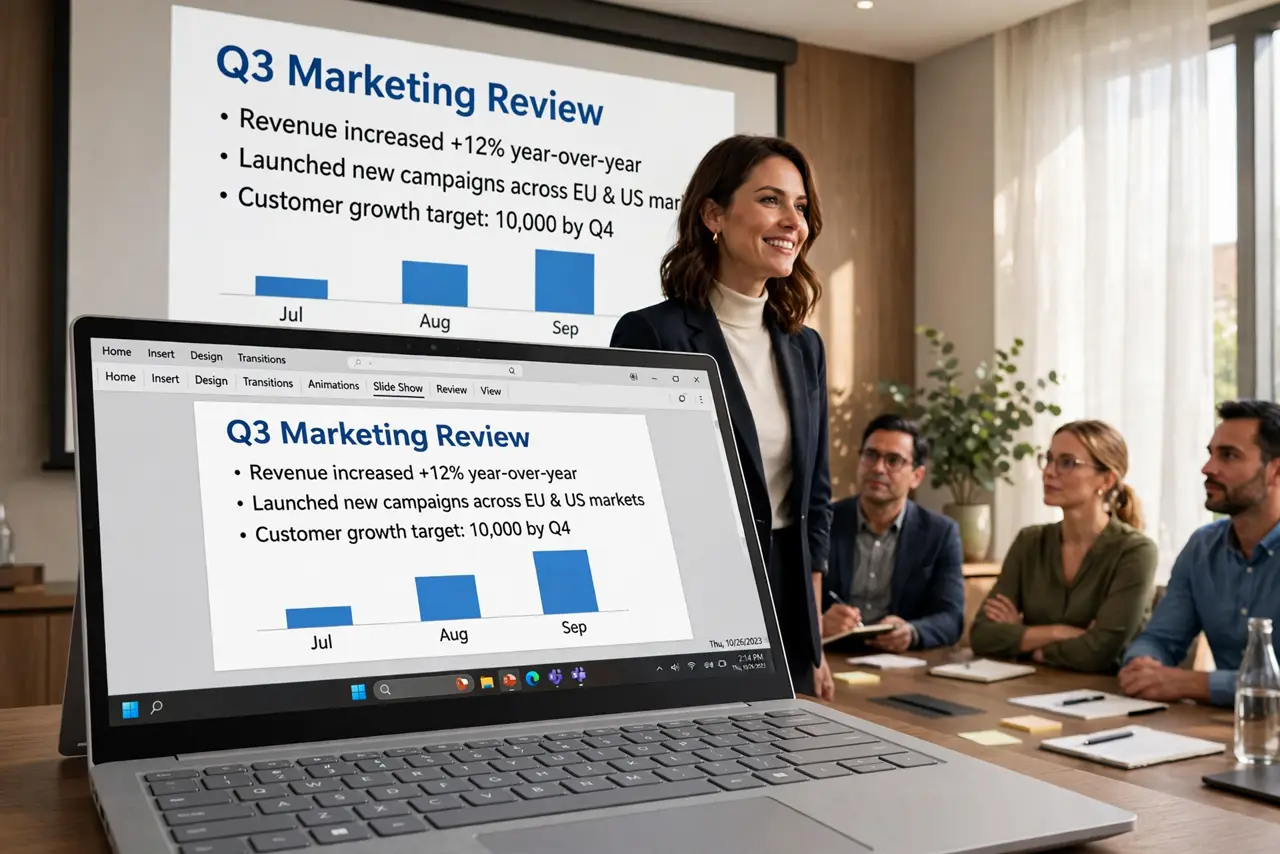
- Open the project menu. Press Windows key plus P. You get four modes: PC screen only, Duplicate, Extend, and Second screen only. Duplicate mirrors for presentations; Extend gives you more desktop space.
- Connect the cable first, then power. Plug HDMI or DisplayPort into the laptop, then turn on the external display and select the right input. The order matters — displays detect signals best when the cable is already connected.
- Try wireless projecting. For a wireless display, open Settings, System, then Display, and connect to a wireless display on the same network. No cable, slightly more lag — fine for slides, not for gaming.
- Use Miracast for TVs. Many smart TVs accept Miracast directly from Windows. Open the TV's screen-mirroring input, then Windows key plus K to find it.
- Fix resolution mismatches. If the projected image looks stretched or tiny, open Display settings and set the external display's resolution to its native value. Duplicate mode forces one resolution on both — Extend lets each run native.
- Check the input source. The number one 'broken projector' fix: the display is on HDMI 1 while the cable is in HDMI 2. Cycle the display's input button before troubleshooting Windows.
What NOT to do
- Do not buy an adapter before checking ports. Many laptops need USB-C to HDMI — but check what you actually have first.
- Do not present in Extend mode by accident. Your notes on the laptop and slides on the projector require choosing Extend deliberately.
- Do not forget the display's remote. Half of all projection failures are the wrong input source, fixed with one button.
- Do not run a 4K display over a cheap cable. Old or bargain cables cap resolution — a certified cable costs little and saves headaches.
Frequently asked questions
Why does my TV say 'no signal'?
Usually the wrong input source, a loose cable, or the laptop asleep. Check inputs first, then wake the laptop, then reseat the cable.
Can I project wirelessly to any TV?
Only to Miracast-capable TVs or ones with a wireless display adapter. Same Wi-Fi network is required either way.
Duplicate or Extend for movies?
Duplicate — the TV shows exactly what the laptop shows. Extend is for working across two screens.