Monitor Order Swaps After Sleep on Windows
Monitors that swap left and right after sleep, moving your windows with them, are usually a detection-order problem: the monitor that wakes first gets counted first. This guide steadies the order with cable, detection, and main-display checks. If the second monitor has no taskbar at all, see the guide on the second monitor having no taskbar.
TL;DR / Quick Fix
Quick fix: Note the correct order while awake. Wake monitors before the PC. Then work through the remaining steps in order, checking one change at a time, and stop for a technician if you see damage, swelling, or a burning smell.
Follow these steps
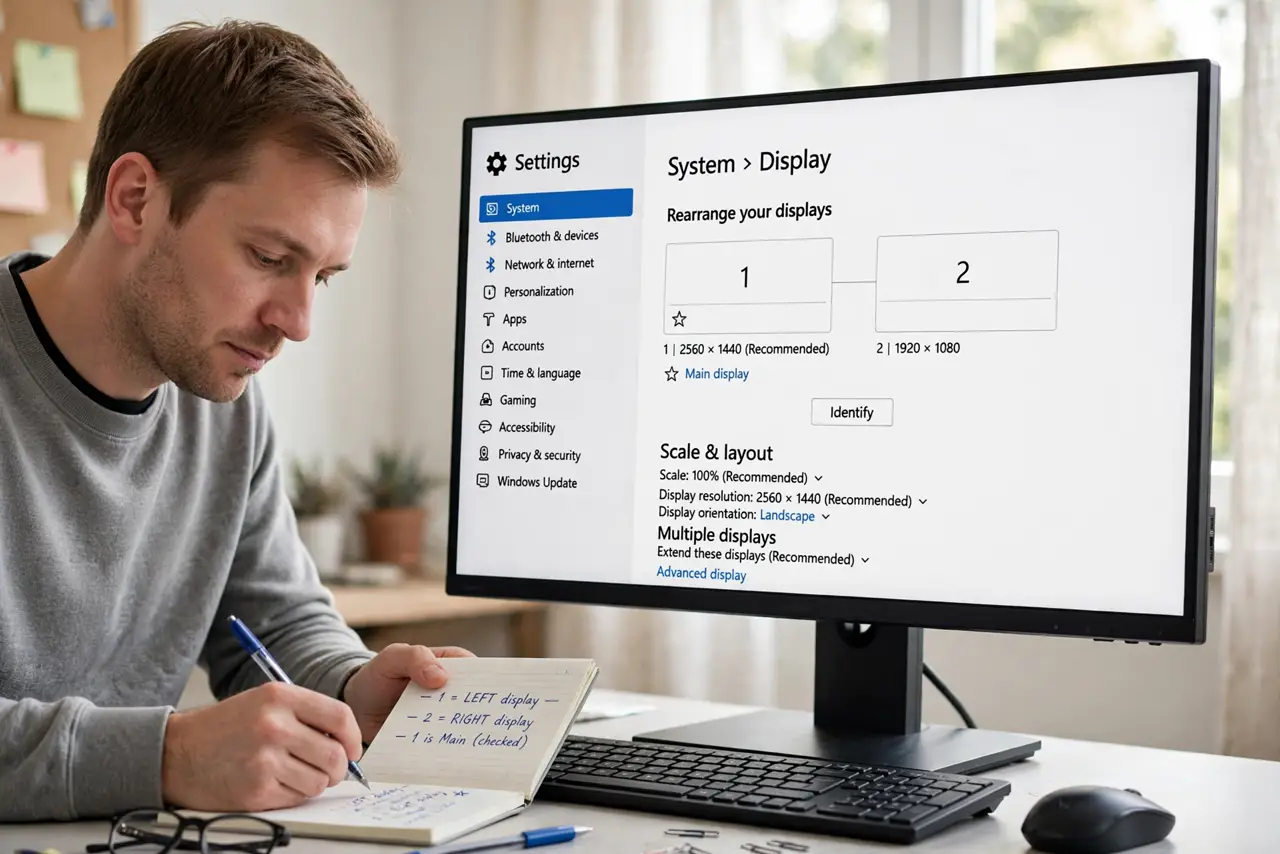
- Note the correct order while awake. Open Settings, then System, then Display, and note which numbered box is left and which is right, plus which is main. A written note makes it easy to spot a swap later.
- Wake monitors before the PC. After sleep, turn on the monitors first, wait a few seconds, then wake the PC. Giving the slower monitor time to wake keeps Windows from counting it second.
- Use the same connection types if you can. Where possible, connect both monitors with the same type of port and cable, such as two DisplayPort cables. Mixed connections can wake at different speeds, which invites swaps.
- Re-detect displays after a swap. In Display settings, click Detect if the order looks wrong after wake. Detection re-reads the monitors in their current state and often restores the right order without moving cables.
- Set the main display again. In Display settings, select your preferred main monitor and tick Make this my main display if it lost that status. The main display anchors taskbar and new windows, so restoring it fixes much of the confusion.
- Test sleep twice in a row. Put the PC to sleep, wake it, check the order, then repeat once. A fix that survives two sleep cycles is trustworthy, while a single good wake can be luck.
What NOT to do
- Do not rearrange the Display boxes every morning as the fix. That treats the symptom, while wake order and detection treat the cause.
- Do not swap cables blindly. Note the current order first, because random cable swaps can make the layout harder to follow.
- Do not disable sleep to avoid swaps. Sleep saves power, and the wake-order steps above keep the layout without losing it.
- Do not install a display manager before testing wake order. Built-in detection plus a steady wake routine solves most swaps.
Frequently asked questions
Why do my windows move to one monitor after sleep?
Windows moves windows off a monitor it thinks disconnected during sleep, usually the slower one to wake.
Does turning monitors off cause swaps?
It can, if Windows detects a monitor as gone. Use sleep for the PC and leave monitors to their own power saving where possible.
Will a docking station fix swaps?
Sometimes, because a dock wakes monitors together, but test the wake-order steps first before buying one.