Move the Documents Folder
Your system drive is full but the big second drive sits half empty — because Documents, Pictures, and Downloads all live on C: by default. Windows lets you relocate these special folders properly, so programs keep finding them while the files live elsewhere. Done right, nothing breaks and the paths update themselves.
TL;DR / Quick Fix
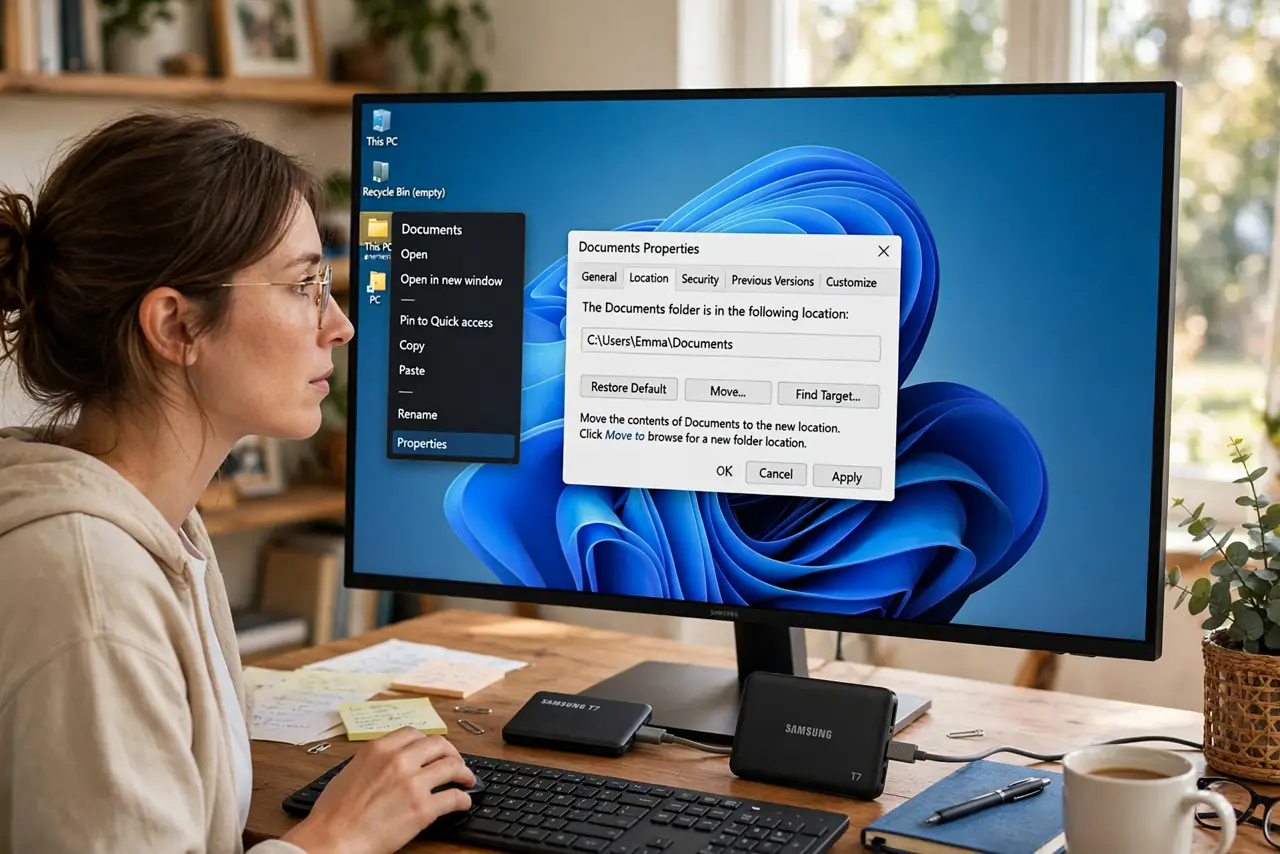
Quick fix: right-click the Documents folder, open Properties, go to the Location tab, and click Move — pick a folder on the roomier drive. Windows moves the files and updates every program's path automatically. Do it for Pictures, Videos, and Downloads too if they are the real space hogs.
Follow these steps
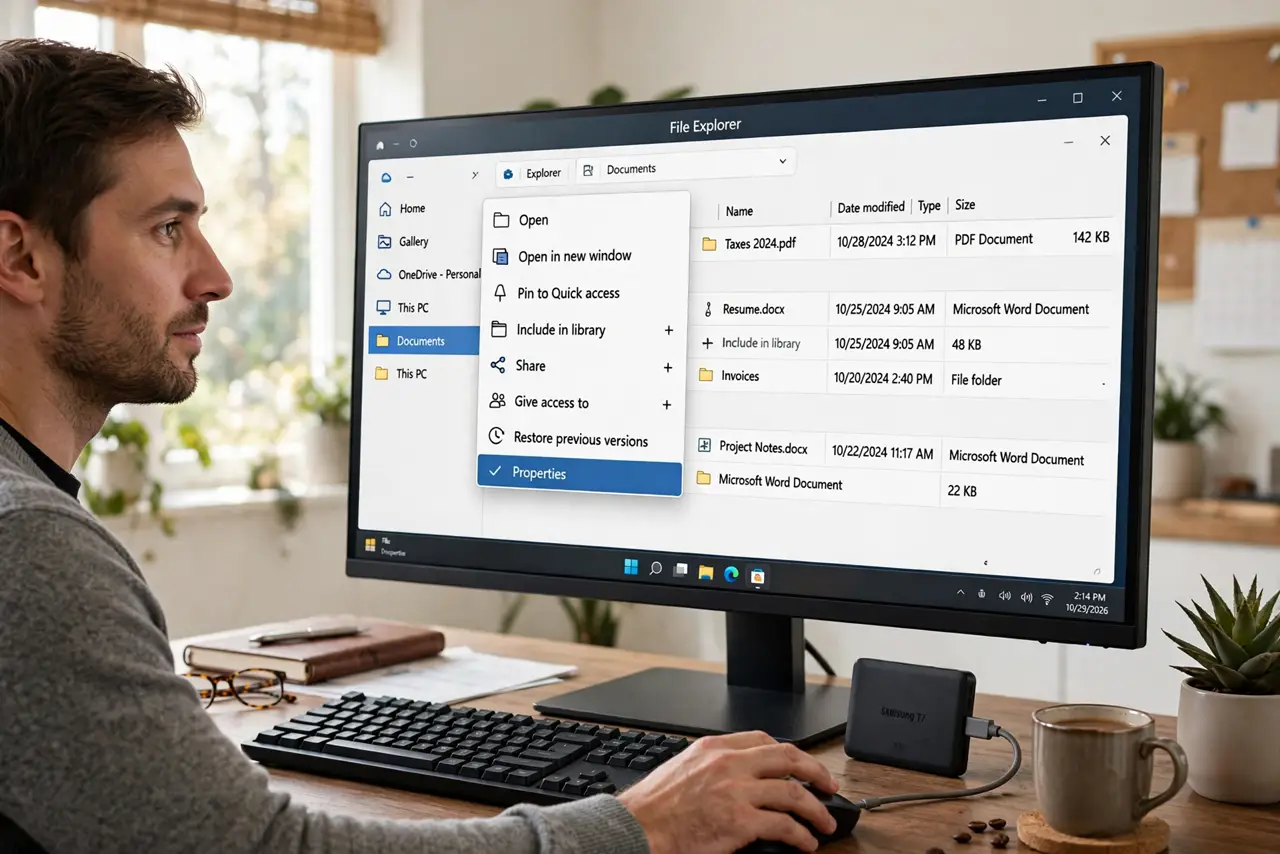
- Open the folder's Properties. In File Explorer, right-click Documents (or Pictures, Videos, Downloads) and choose Properties. Do not just drag the folder — that breaks the special-folder link.
- Go to the Location tab. This tab exists only on Windows' special folders. It shows the current path and offers the official Move button.
- Click Move and choose the new home. Pick or create a folder on the target drive — for example D:/Documents. Windows asks to move all existing files there; say yes.
- Repeat for the other heavy folders. Pictures, Videos, and Downloads are usually the real giants. Move each the same way; Desktop and Music too if they are large.
- Confirm programs still find things. Open a program that saves to Documents and check its default path updated. The Location-tab method updates these automatically.
- Update your backup to the new paths. Your backup routine may still point at C:. Repoint it to the new locations so nothing goes unprotected.
What NOT to do
- Do not drag special folders to a new drive manually. Programs keep looking at the old path and save into a void.
- Do not move the folders to a removable drive you unplug often. Programs will error the moment the drive is missing.
- Do not move AppData or the whole user profile this way. The Location tab method is for Documents-class folders only — deeper moves break things.
- Do not forget OneDrive. If Documents syncs to OneDrive, unlink or reconfigure it first to avoid sync chaos mid-move.
Frequently asked questions
Will my programs still find my files?
Yes — that is the whole point of the Location tab method. It updates the official path every program asks Windows for.
Can I move it back later?
Yes. Open Properties > Location again and click Restore Default, or Move to another spot. The process is fully reversible.
What about new user accounts?
Each account has its own special folders. Repeat the move per account, or set it up in your account template.