Unlink OneDrive From Your PC
OneDrive keeps resurrecting itself, syncing folders you never asked it to, or you simply want the cloud off this PC. Unlinking signs the PC out of OneDrive without deleting a single file — local or cloud. It is the clean 'leave me alone' button, and it is fully reversible.
TL;DR / Quick Fix
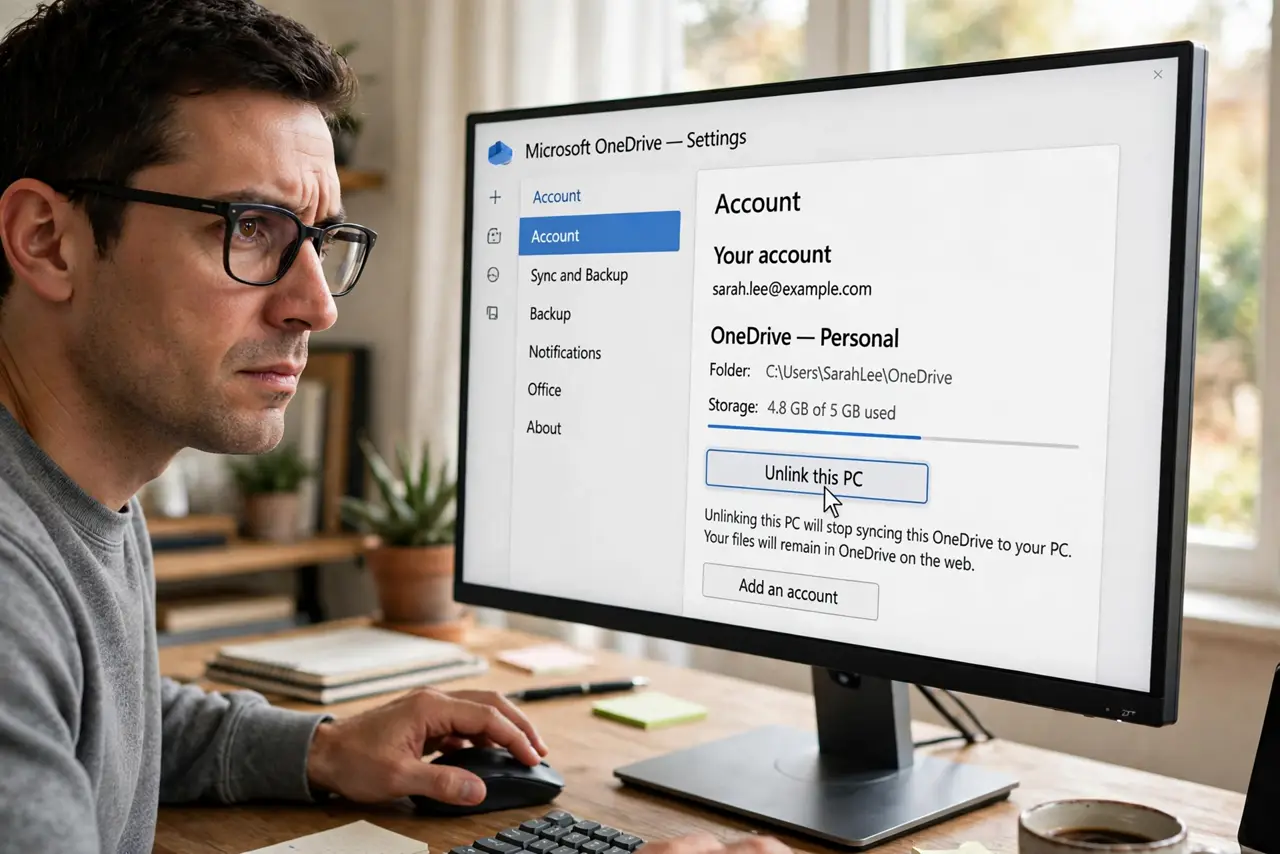
Quick fix: open OneDrive Settings, go to the Account tab, and click Unlink this PC — then confirm. Syncing stops immediately, but every file stays exactly where it is, locally and in the cloud. To bring it back later, just sign in again. This is not deletion; nothing is lost.
Follow these steps
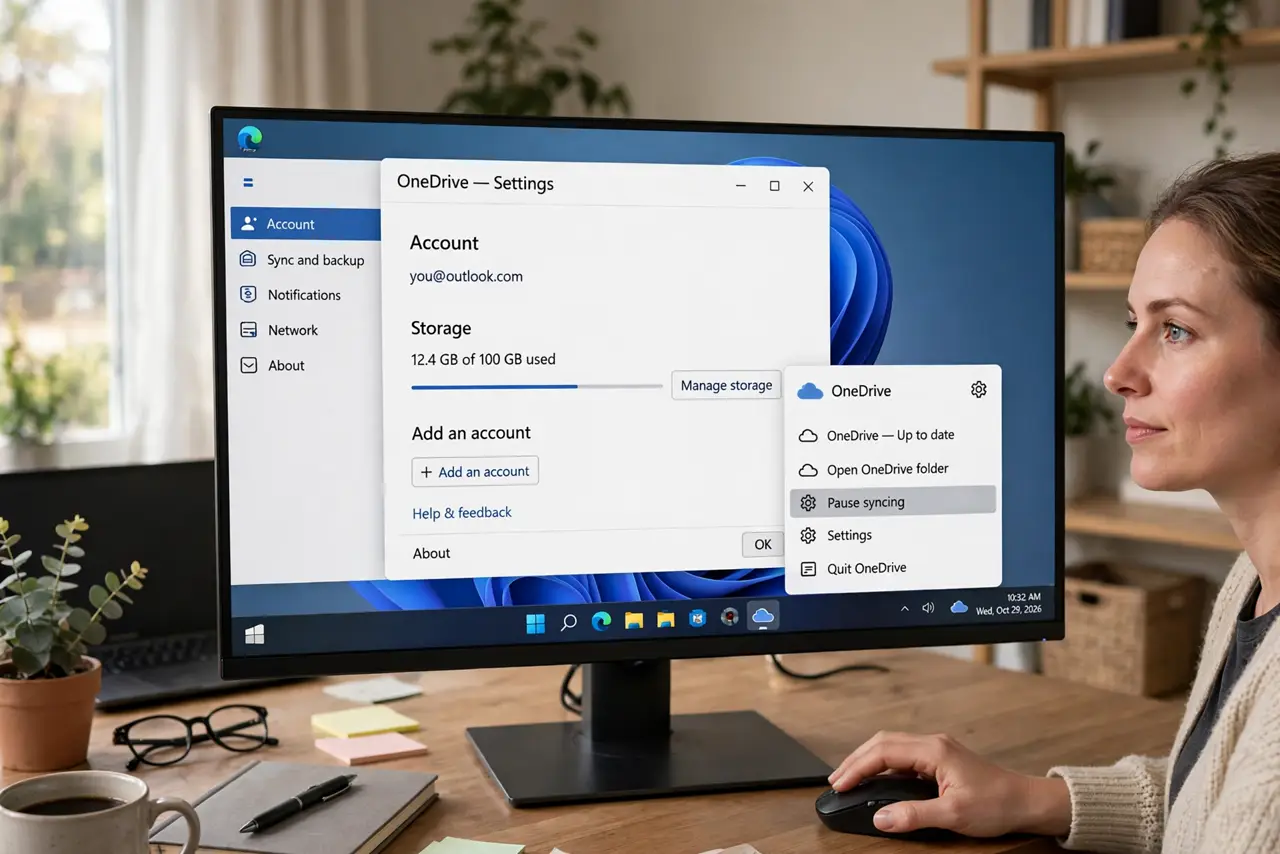
- Open OneDrive Settings. Click the cloud icon in the system tray, open the gear menu, and choose Settings.
- Go to the Account tab. Your linked account shows here with its storage usage. This is mission control for the link itself.
- Click Unlink this PC. Confirm the prompt. Syncing stops at once — the cloud icon vanishes from the tray and the sync badges disappear from File Explorer.
- Verify your files are still there. Open your OneDrive folder in File Explorer: the local copies remain. Check the cloud in a browser too — untouched. Unlinking deletes nothing.
- Decide what to do with the local folder. Keep it as a plain local folder, or delete it to reclaim space now that the cloud holds the copies. Your call — the files are safe either way.
- Re-link anytime by signing in. Search OneDrive, sign in, and walk the setup. Choose your folders fresh — a good moment to sync less than before.
What NOT to do
- Do not confuse unlinking with deleting. Unlink signs out; files stay. Deleting the account is a different, far more serious action.
- Do not delete the local OneDrive folder before checking the cloud. Confirm the cloud copies exist in a browser first — then delete locally with confidence.
- Do not unlink to fix a sync error without diagnosing. Unlinking is a reset of the relationship; some errors just come back after re-linking.
- Do not forget other devices. Unlinking this PC changes nothing on your phone or other computers — each link is independent.
Frequently asked questions
Will I lose my files?
No. Unlinking stops syncing and signs out; local files stay local and cloud files stay cloud. Nothing is deleted on either side.
What is the difference from pausing sync?
Pausing is a temporary hush that resumes automatically. Unlinking is a full sign-out until you deliberately sign back in.
OneDrive came back after an update — why?
Major Windows updates sometimes re-enable it. Unlink again and check the startup apps if it keeps returning uninvited.