Narrator? The Plain Basics
Narrator is Windows' built-in screen reader — it reads aloud what is on screen for blind and low-vision users. Most people meet it by accident, when a stray keystroke starts a robotic voice narrating their desktop and they cannot make it stop. Whether you need it or it ambushed you, here is how it works and how to control it.
TL;DR / Quick Fix
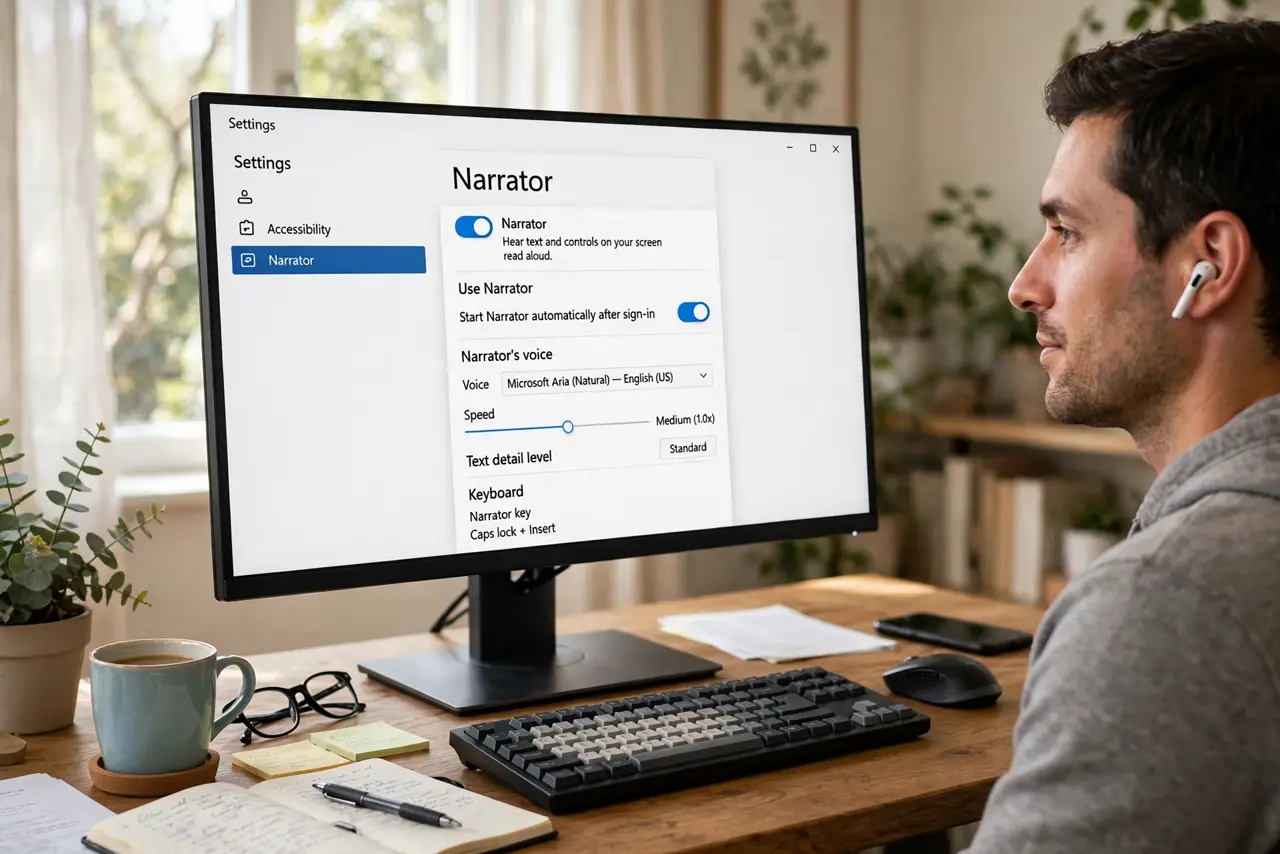
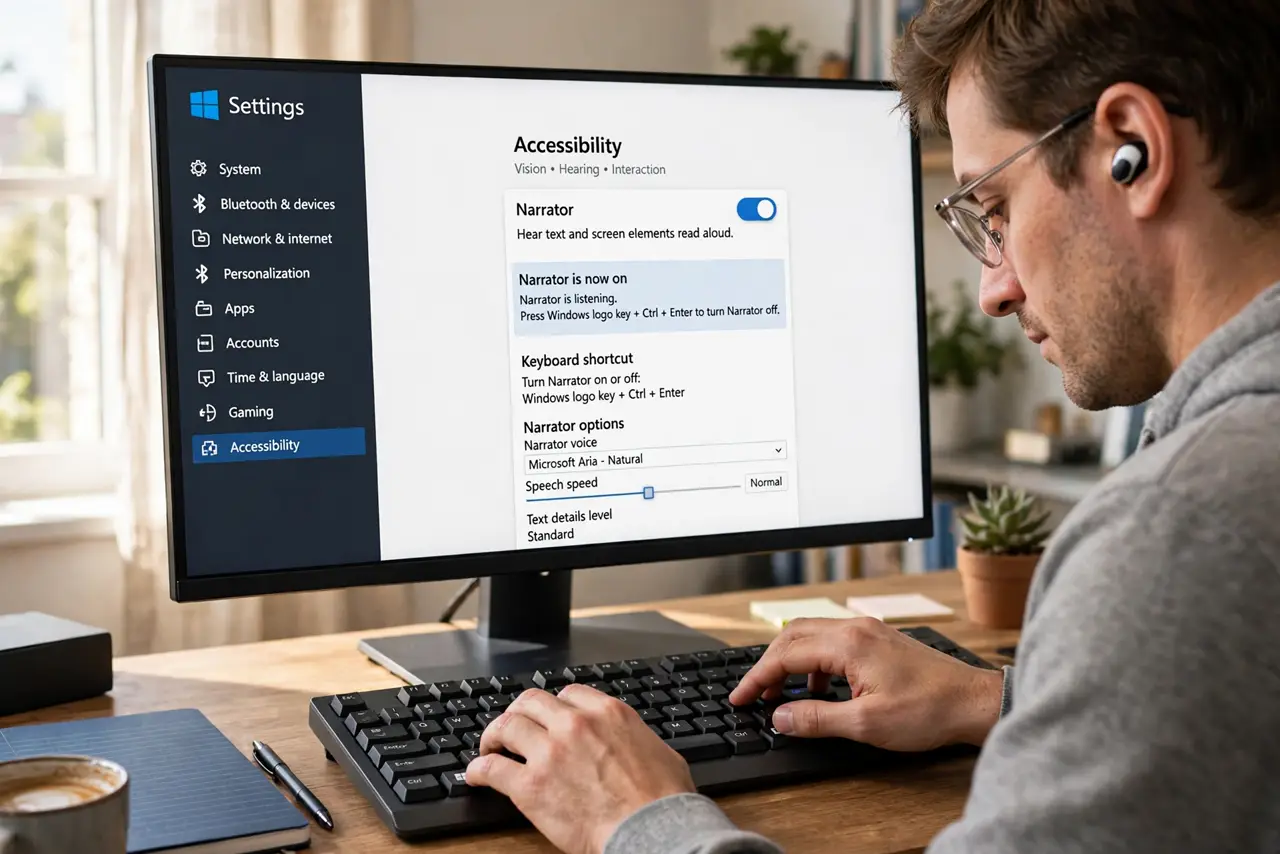
Quick fix: Narrator reads your screen aloud for accessibility. Toggle it with Windows key + Ctrl + Enter. If it started by itself, that shortcut is almost always why — press it again to stop. Find full settings under Accessibility, then Narrator, including voice and speed.
Follow these steps
- Toggle it with the shortcut. Windows key + Ctrl + Enter turns Narrator on and off. Memorize this — it is both the entrance and the exit, and the starts-by-accident guide explains the usual trigger.
- Understand what it is for. Narrator reads UI elements, text, and notifications aloud, and describes what has focus. It is a full assistive technology, not a toy — millions rely on it daily.
- Adjust voice and speed. In Settings, Accessibility, Narrator, pick a natural voice and set a comfortable speed. The default is deliberately slow; experienced users run it much faster.
- Learn the Narrator key. Caps Lock (or Insert) becomes the Narrator modifier — Caps Lock + arrows reads, Caps Lock + Space toggles, and so on. The settings page lists the full command map.
- Stop it properly. Press the toggle shortcut again, or open Narrator settings and switch it off. If it resists, the will not turn off guide covers the stubborn cases — usually a stuck modifier key.
- Try it before you need it. If you support a low-vision family member, spend twenty minutes with Narrator on. Understanding the experience makes you infinitely better at helping.
What NOT to do
- Do not panic when the voice starts. It is Narrator, not malware — the toggle shortcut stops it in one second.
- Do not hold Caps Lock expecting normal behavior while Narrator runs. It becomes the Narrator key, which is why typing feels possessed.
- Do not disable it permanently out of annoyance if someone in the house needs it. Learn the toggle instead of removing an accessibility lifeline.
- Do not judge all screen readers by Narrator. Third-party readers exist with different strengths — Narrator is the built-in starting point, not the ceiling.
Frequently asked questions
Why did a robot voice start talking?
You pressed Windows + Ctrl + Enter, probably while reaching for something else. Press it again to stop — that is the entire mystery.
Can Narrator read PDFs and web pages?
Yes — it reads browsers, documents, and most apps. Complex layouts confuse it sometimes, but for text content it works well.
Is Narrator enough for daily blind use?
For many people, yes — it has improved enormously. Power users sometimes prefer third-party readers, but Narrator is a complete tool, not a demo.