Use Tabs in Notepad
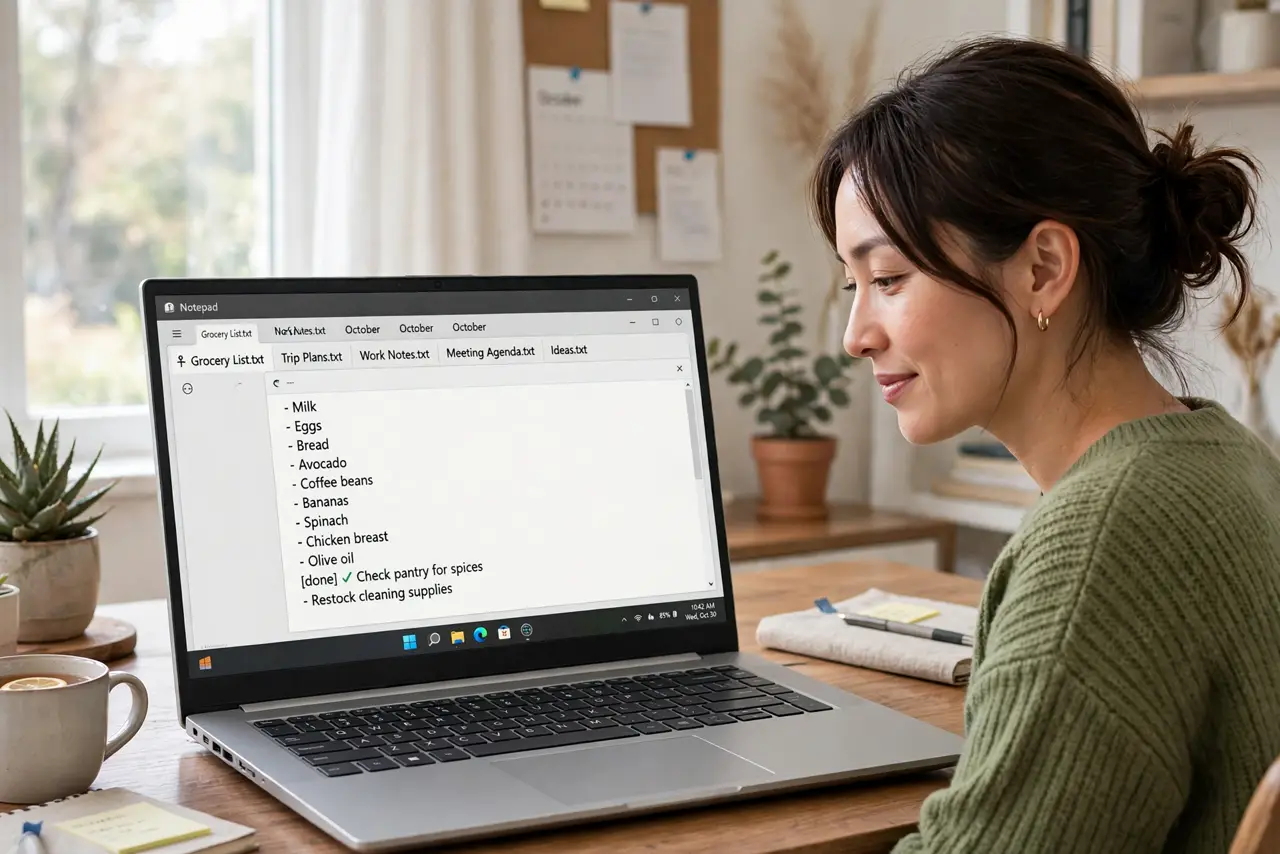
Windows 11's Notepad finally has tabs, which means you can stop juggling a dozen open Notepad windows. Tabs let you keep several text files in one window, switch between them instantly, and close the whole set at once. If you have ever lost track of which untitled file was which, this small change removes the mess. This guide shows you how to use tabs well — and how autosave keeps the contents safe.
TL;DR / Quick Fix
Quick fix: Windows 11 Notepad has tabs — open one with Ctrl+T, switch with Ctrl+Tab, and drag tabs to rearrange or pull one out. Right-click a tab to close the others or save all at once. Turn on autosave in Settings so a crash never eats an untitled note.
Follow these steps
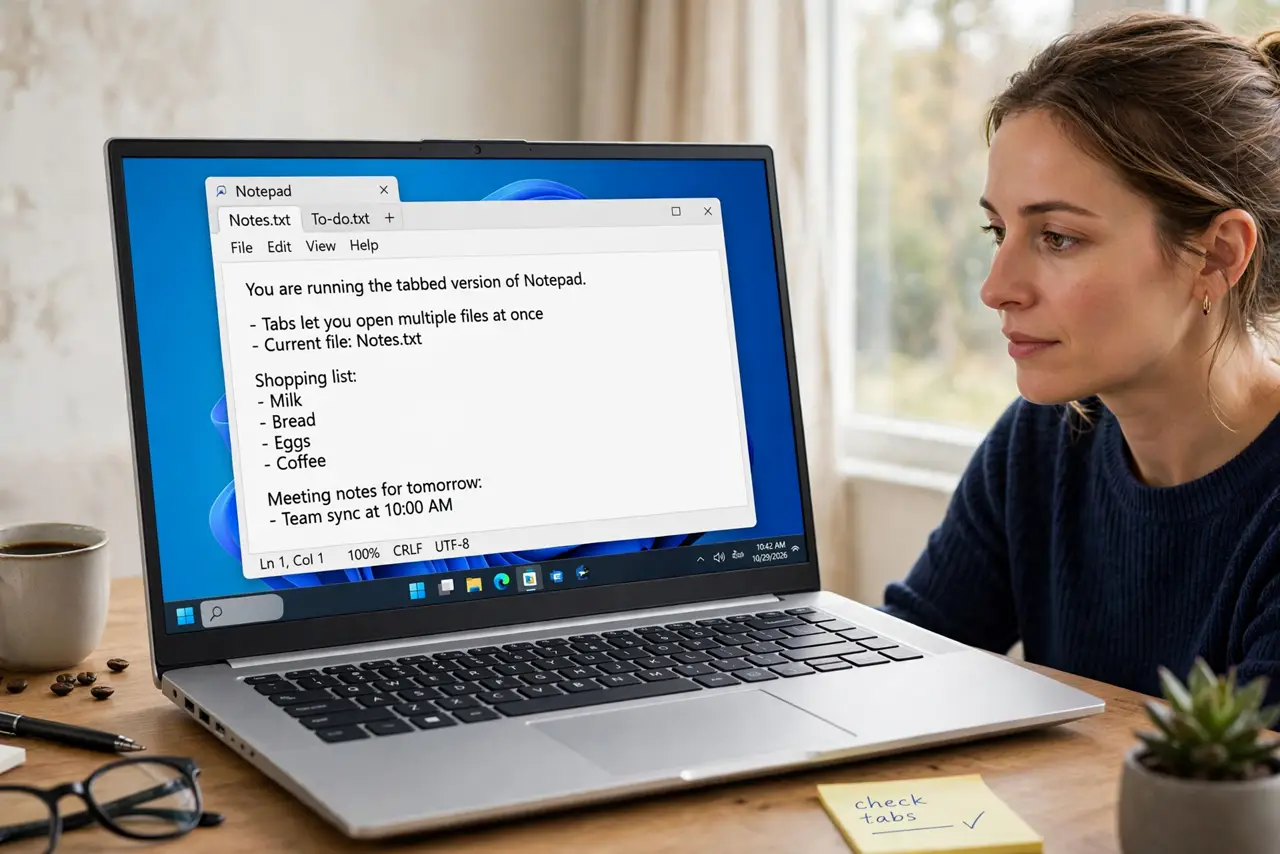
- Open Notepad and check you have the tabbed version. Tabs arrived with Windows 11, so update Notepad from the Microsoft Store if you only see one window at a time. The tabbed version shows a plus button next to your open file, just like a web browser.
- Open a new tab with Ctrl+T. Press Ctrl+T or click the plus sign to start a fresh note without opening another window. Each tab keeps its own file, so your to-do list and your meeting notes stop fighting for screen space.
- Switch tabs with Ctrl+Tab or a click. Ctrl+Tab moves to the next tab, Ctrl+Shift+Tab goes back. You can also just click any tab — faster than Alt-Tabbing through a stack of separate windows.
- Drag tabs to rearrange or tear one off. Drag a tab left or right to reorder it, or drag it out of the window to turn it into its own Notepad window. This is handy when you want two notes side by side for copying between them.
- Right-click a tab for bulk actions. The right-click menu lets you close other tabs, close tabs to the right, or save all open files at once. When you are done with a project, one menu clears the whole cluster.
- Turn on autosave so tabs survive a crash. In Notepad settings, enable saving without prompting. Your unsaved work stays safe even if the PC restarts — every tab reopens exactly where you left it.
What NOT to do
- Do not keep twenty tabs open as a to-do system. Tabs are for active files — save finished notes with real names into folders, or the tab bar becomes its own clutter.
- Do not rely on tabs alone to protect unsaved text. Autosave and real saved files are the safety net; tabs just organize the view.
- Do not name every file 'Untitled'. A quick Ctrl+S with a real name now saves a search later.
- Do not confuse Notepad tabs with browser tabs. Closing the Notepad window still prompts about unsaved work — tabs do not auto-close files silently.
Frequently asked questions
How many tabs can Notepad hold?
There is no practical limit — dozens work fine. But readability drops fast, so save and close tabs you are not actively using.
Do Notepad tabs come back after a restart?
Yes, if autosave is on — Notepad reopens your tabs with their content. Without autosave, unsaved tabs may be lost, so enable it in Settings.
Can I have two Notepad windows with tabs each?
Yes — tear a tab off by dragging it out, and you get a second tabbed window. Useful for comparing two files side by side.