Use Offline Files
You work from a laptop that leaves the office network — the train, home, a client site — but your files live on the company server. Offline Files keeps a synced local copy of chosen network folders, so you work normally offline and Windows merges changes when you reconnect. Here is how to set it up without sync disasters.
TL;DR / Quick Fix
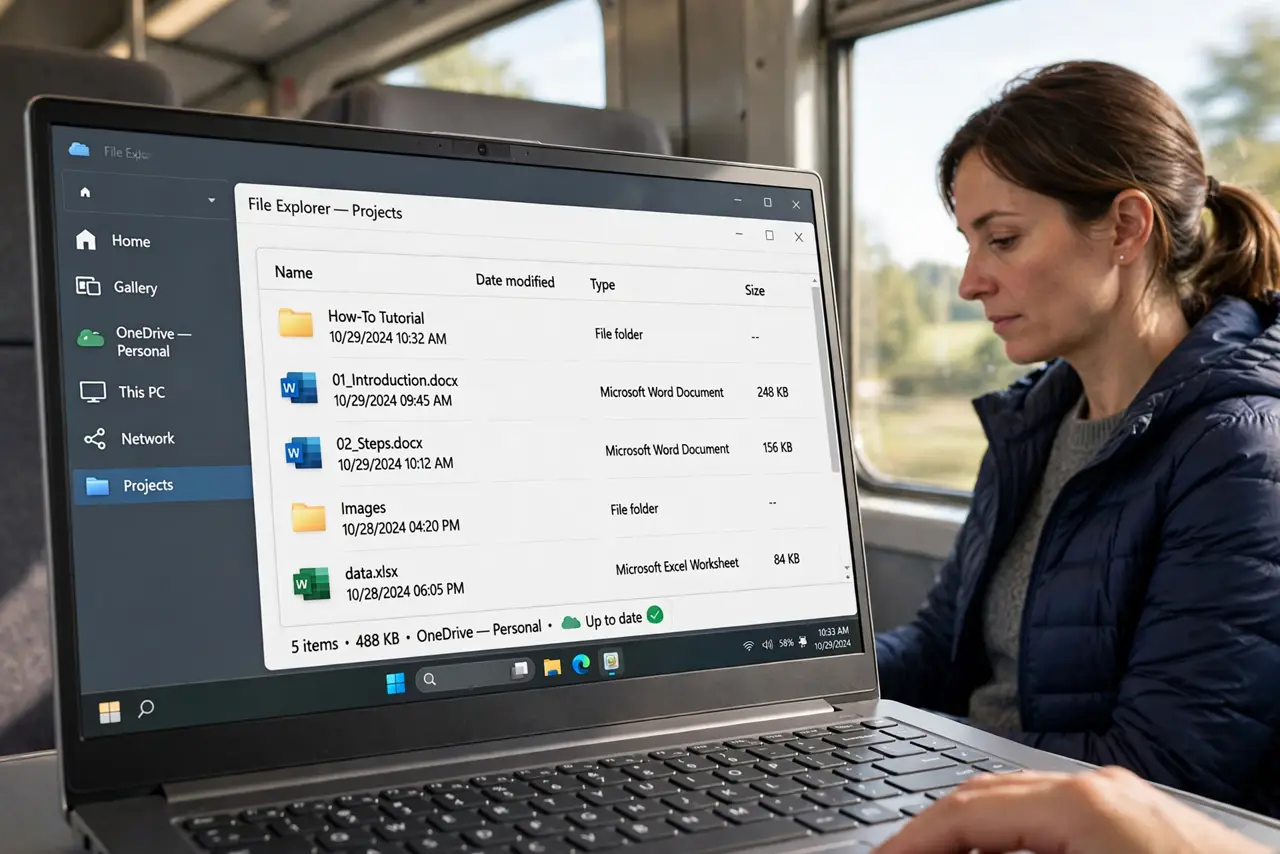
Quick fix: right-click the network folder you need offline, choose Always available offline, and let the first sync finish — that copy lives on your PC. Work normally; Windows syncs changes back when you reconnect. Check the sync status icons before closing the laptop at day’s end.
Follow these steps
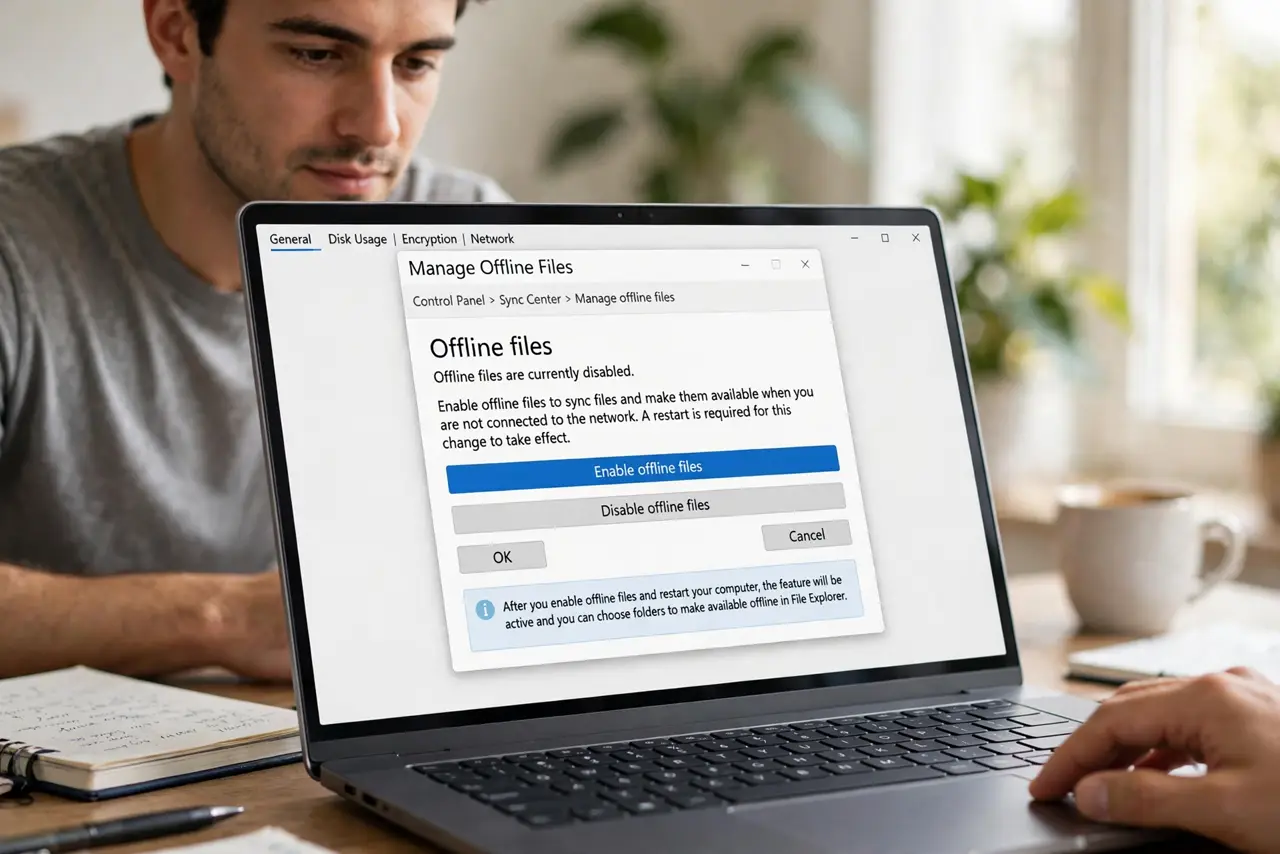
- Enable Offline Files. Open Control Panel > Sync Center > Manage offline files and click Enable. A restart is required — after it, the feature is live and waiting for you to choose folders.
- Mark folders for offline use. Browse to the network share, right-click the folder, and choose Always available offline. Windows copies everything down now — the first sync of a big folder takes a while, so start it before you need it.
- Let the first sync complete. Do not close the lid mid-sync. Watch the Sync Center until it reports success — an interrupted first sync leaves a partial copy that confuses everything later.
- Work normally offline. Open and edit the files exactly as if you were on the network. Windows tracks every change locally and queues it — you will not notice any difference while disconnected.
- Reconnect and let it merge. When you rejoin the network, Windows syncs your changes up automatically. If someone else edited the same file, you get a conflict prompt — read it carefully rather than clicking through.
- Check status icons before shutting down. Green checkmarks mean synced; other icons mean pending or conflicted. Glance at them before closing the laptop — leaving with unsynced changes defeats the purpose. See Drive offline files for the cloud equivalent.
What NOT to do
- Do not mark the entire server offline. Sync only the folders you actually need — syncing everything wastes disk and hours.
- Do not close the lid during the first sync. Partial copies cause the most confusing sync errors later.
- Do not ignore conflict prompts. Clicking through blindly overwrites someone’s work — usually yours or theirs, never nobody’s.
- Do not use Offline Files for huge media libraries. It is built for documents, not terabytes of video — a network share on demand suits big files better.
Frequently asked questions
What happens if two people edit the same file?
You get a sync conflict and choose which version wins — or keep both. Coordinate with teammates on shared files to avoid it.
How much disk space does it use?
Exactly the size of the folders you marked, plus a little overhead. Check the folder sizes before marking — surprises here fill small SSDs.
Can I use this with a NAS?
Yes, if the NAS share supports the right protocol features. Some consumer NAS boxes play nicer than others — test with one folder first.