OneDrive Personal Vault? Basics
Tax returns, passports scans, and banking letters sit in your OneDrive next to vacation photos — protected by nothing but your login. Personal Vault is a locked folder inside OneDrive that demands a second verification to open and locks itself again after inactivity. Your most sensitive files get their own safe.
TL;DR / Quick Fix
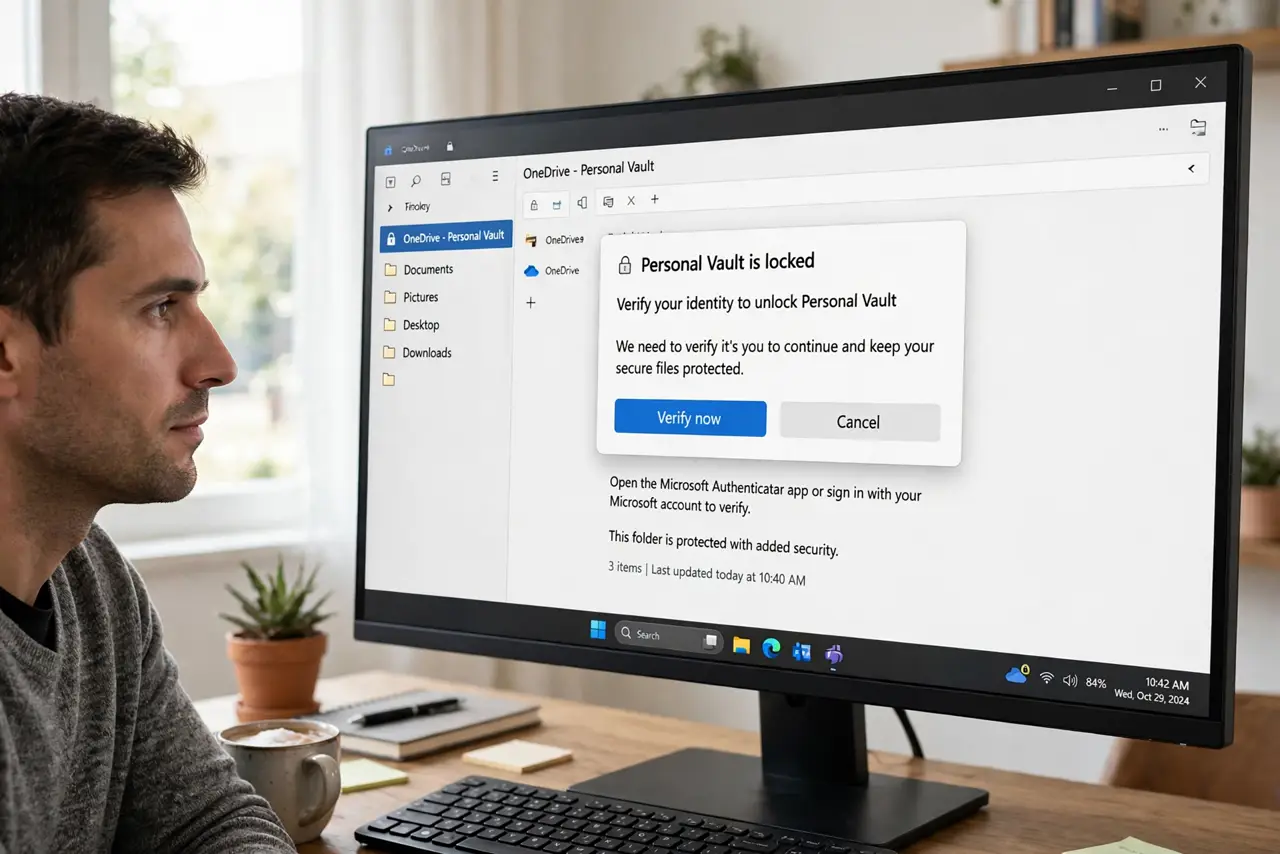
Quick fix: open your OneDrive folder in File Explorer and double-click Personal Vault — verify your identity once to set it up. Move sensitive documents inside; the vault locks itself after 20 minutes of inactivity. It also syncs encrypted, so the extra protection follows your files everywhere.
Follow these steps
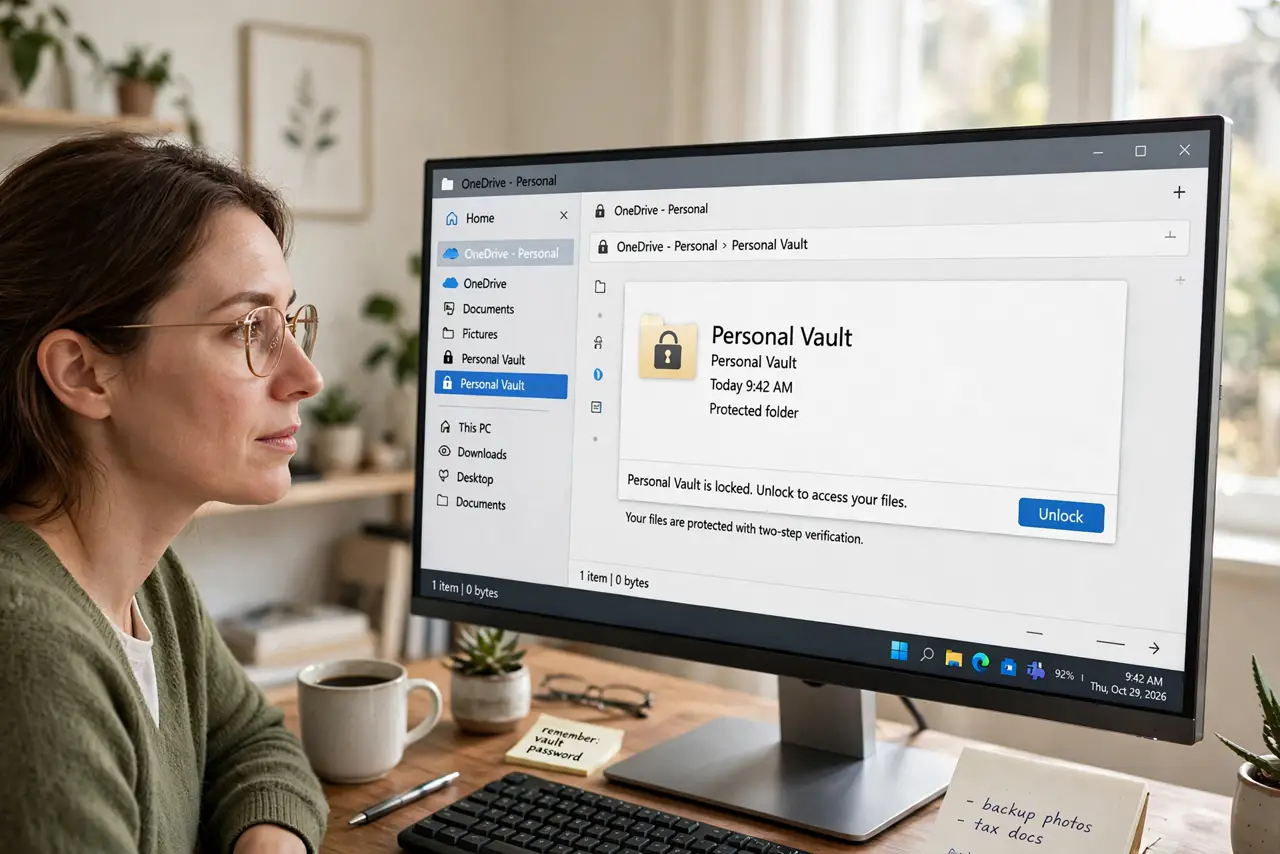
- Find Personal Vault. In File Explorer, open your OneDrive folder. Personal Vault sits there with a lock icon — or set it up from the OneDrive website if it is missing.
- Verify your identity to unlock it. Opening the vault triggers a second verification: authenticator app, SMS, or Windows Hello. This extra gate is the entire point.
- Move sensitive files inside. Drag tax documents, ID scans, and financial records into the vault. They leave the regular OneDrive folders and gain the extra lock.
- Know it auto-locks. Twenty minutes of inactivity locks the vault again on PC. On the web it is even stricter — assume it is locked unless you just opened it.
- Do not treat the vault as your only copy. It is secure storage, not a backup. Keep copies of critical documents somewhere independent too — back up properly.
- Use it on every device. The vault follows your OneDrive account to phone and web. Unlock it the same way everywhere — one habit, all devices.
What NOT to do
- Do not store the only copy of critical documents in the vault. Secure is not the same as backed up — keep an independent copy.
- Do not share vault files casually. The vault's protection assumes limited access; sharing links from inside undermines it.
- Do not forget which verification method you set. If you lose the authenticator and the backup codes, the vault becomes very hard to open.
- Do not put everyday files in the vault. Constant unlocking trains you to verify mindlessly — reserve it for genuinely sensitive documents.
Frequently asked questions
Is Personal Vault free?
Yes, with a limit on the number of files for free accounts — plenty for documents. Paid storage plans raise the cap.
What happens if I forget and leave it open?
It locks itself after inactivity, so an unattended PC does not stay exposed. The timeout is the safety net.
Is it safer than a password-protected ZIP?
For most people, yes — the encryption is managed properly and the identity check beats a password you might reuse.