Pause OneDrive Sync
OneDrive is hogging the upload on a video call, syncing gigabytes over hotel Wi-Fi, or hammering the disk while you work. You do not need to unlink it or turn it off forever — just pause it. The pause button freezes syncing for a set time, then resumes on its own, with nothing lost in between.
TL;DR / Quick Fix
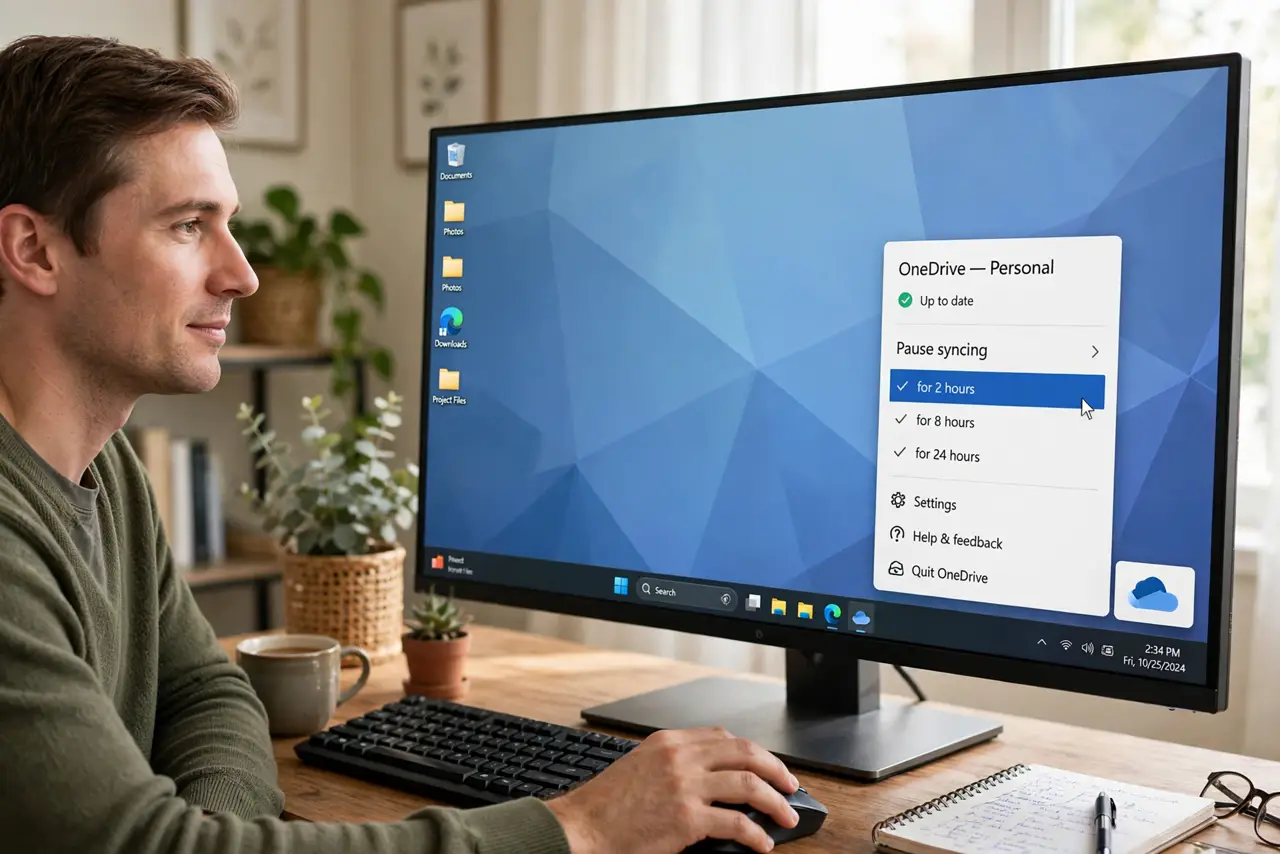
Quick fix: click the OneDrive cloud icon in the system tray, open the gear menu, and choose Pause syncing — pick 2, 8, or 24 hours. Syncing resumes automatically when the pause ends. Nothing uploads or downloads while paused, and no files are deleted. Unpause early from the same menu.
Follow these steps
- Find the OneDrive icon. Click the cloud icon in the system tray near the clock. If it is hidden, click the up-arrow to reveal it.
- Open Pause syncing. Click the gear icon in the OneDrive panel and choose Pause syncing, then pick 2, 8, or 24 hours. Match the pause to the need — a call, a flight, a workday.
- Confirm it is paused. The cloud icon shows a pause symbol. Files you change now wait quietly instead of uploading mid-call.
- Keep working normally. Pausing only stops syncing. You can open, edit, and save everything — changes queue up and upload when syncing resumes.
- Resume early if needed. Open the same menu and choose Resume syncing. The queue uploads in the background without further input.
- For longer breaks, use settings. If you need days of quiet, unlinking is cleaner than stacking pauses — your files stay put either way.
What NOT to do
- Do not unlink OneDrive in frustration when a pause would do. Unlinking triggers a full re-setup; pausing is one click to undo.
- Do not pause and forget for weeks. Changes pile up unsynced — fine for a day, risky as a lifestyle.
- Do not confuse pausing with stopping uploads permanently. The queue is patient; it all uploads when the pause ends.
- Do not pause to hide a sync error. If syncing was already broken, pausing just postpones the diagnosis — fix the error instead.
Frequently asked questions
How long can I pause syncing?
Two, eight, or twenty-four hours per pause. You can re-pause when it expires, but repeated pausing suggests you need a different setup.
Will I lose files while paused?
No. Pausing stops transfers only — local files stay local, cloud files stay cloud, and changes merge when syncing resumes.
Does pausing stop OneDrive using disk space?
No. It stops network activity, not storage. To reclaim disk, use Files On-Demand and free up space instead.