Optional Driver Update Never Appears? Fix It
When an optional driver update never appears, it usually means Windows has no newer driver for that device, or the update is listed somewhere you have not looked. Before you chase third-party tools, confirm the device, check the right page, and confirm you actually need a newer driver.
TL;DR / Quick Fix
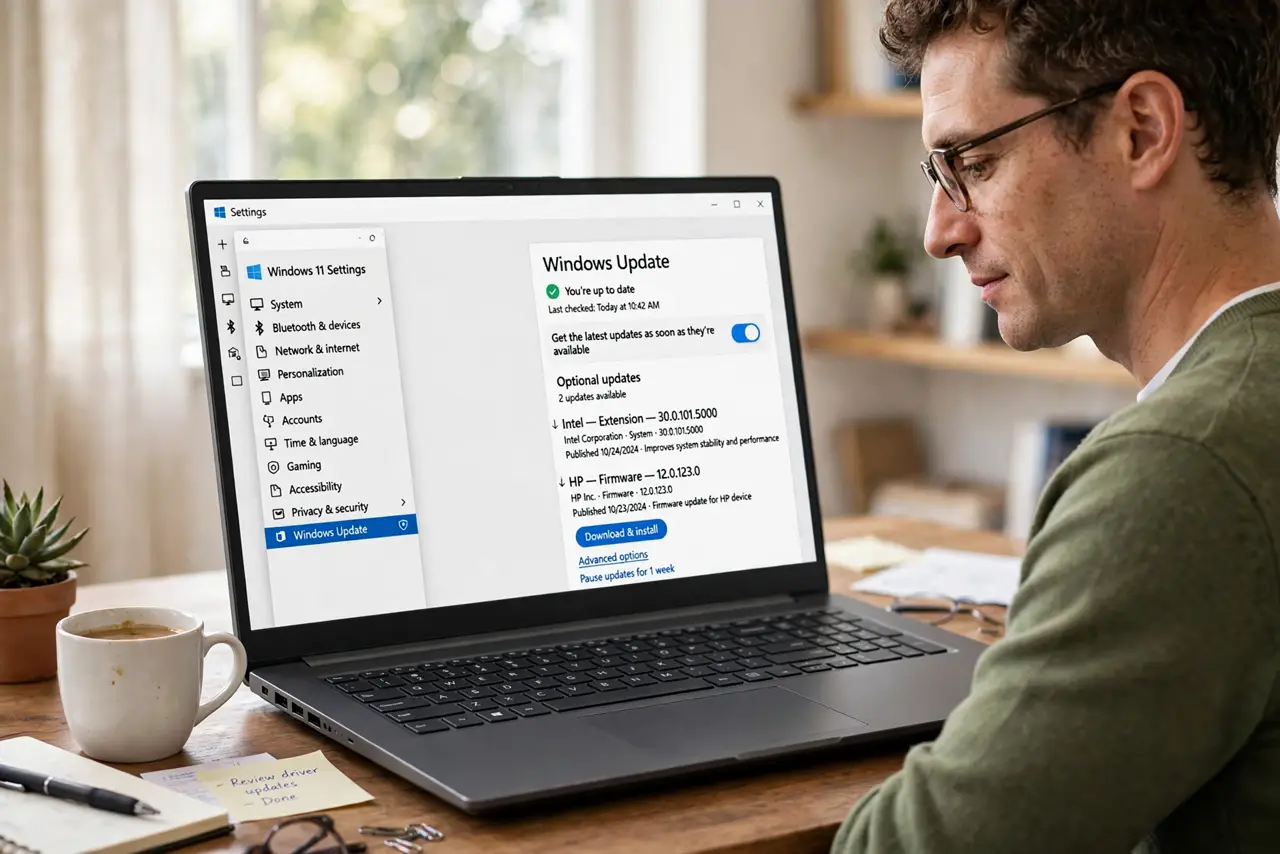
Quick fix: open Settings, then Windows Update, then Advanced options, then Optional updates, and check Driver updates. If nothing is listed for your device, open Device Manager, check the device status, and only then consider the device maker official support page.
Follow these steps
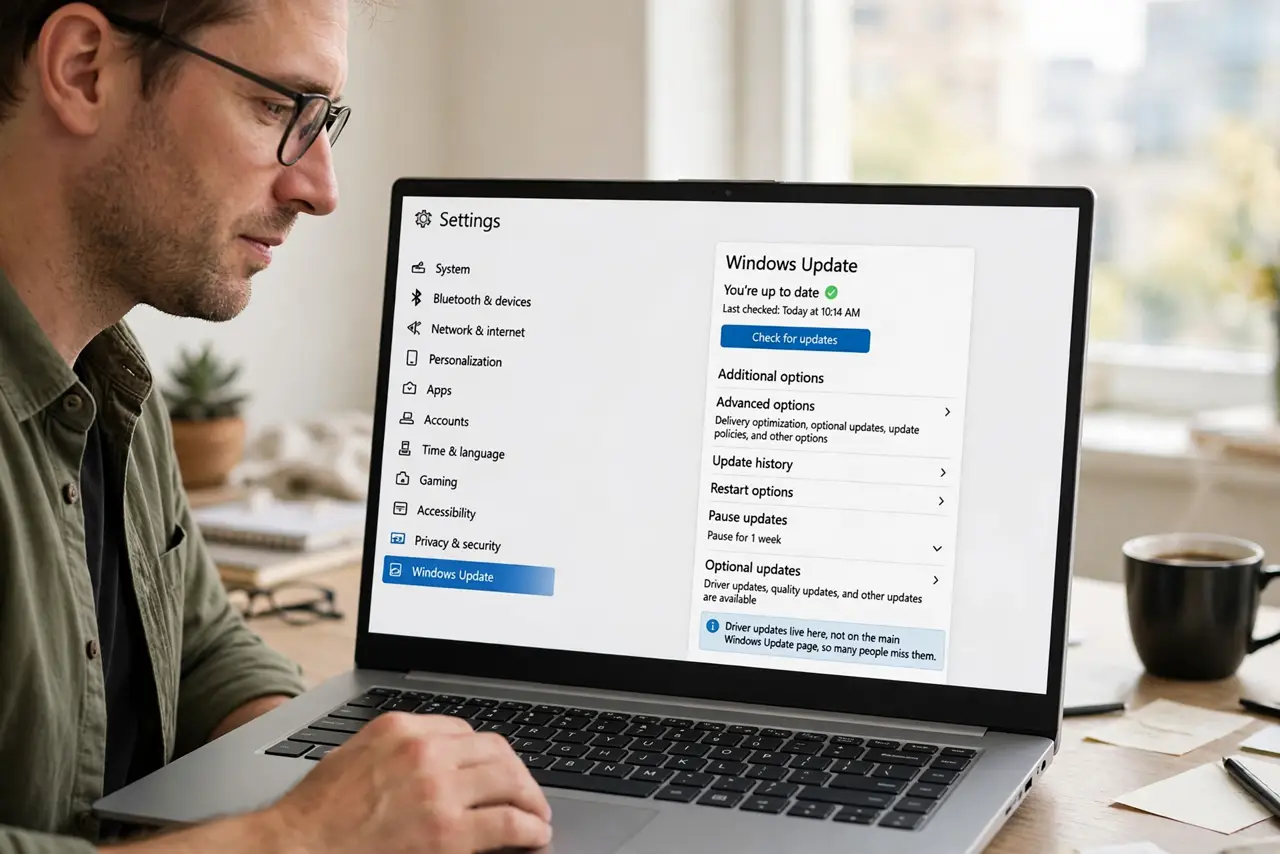
- Open Optional updates correctly. Open Settings, then Windows Update, then Advanced options, then Optional updates. Driver updates live there, not on the main Windows Update page, so many people miss them.
- Check for Windows updates first. Go back to Windows Update and choose Check for updates. Optional driver updates sometimes appear only after the main update check runs.
- Confirm the device in Device Manager. Open Device Manager, find the device, and check its status. If the device reports working properly, Windows may simply have no newer driver to offer.
- Note the current driver version. In the device Properties, note the driver version and date. That detail helps you compare fairly if a newer version appears later.
- Check the maker official support page. If you need a fix for a real problem, visit the device maker official support page for your exact model. Download only the driver listed for your model, and nothing else.
- Install one driver at a time. If you update a driver, restart afterwards and test the device before updating anything else. One change at a time makes it clear which update helped or caused a problem.
What NOT to do
- Do not install a driver updater tool from a pop-up or an ad. These tools often install the wrong driver, add unwanted software, or charge for a free update.
- Do not update a driver that is working fine. A newer version is not automatically better, and an unnecessary driver change can create a problem you did not have.
- Do not download drivers from random file sites. Only the device maker official support page or Windows Update can be trusted for your exact model.
- Do not install several drivers at once. If something breaks, you will not know which change caused it, and undoing them all takes far longer.
Frequently asked questions
Why would Windows offer no driver update?
Because the current driver is already the newest Windows has for that device, or because the maker delivers that driver through its own support page instead.
Is it bad to keep an older driver?
No, if the device works correctly. Drivers only need updating when they fix a problem you actually have, or add a feature you need.
What if Device Manager shows a warning on the device?
That is different from a missing optional update. Note the warning, check the device connection, and then look for that exact device on the maker official support page.