What Is the Pagefile?
Disk cleanup reveals pagefile.sys, a giant file you never created, sitting at the root of your drive and refusing deletion. It is Windows' virtual memory — overflow space for RAM — and it grows and shrinks on its own. Here is what it actually does, why it gets huge, and the safe ways to tame it.
TL;DR / Quick Fix
Quick fix: pagefile.sys is Windows' virtual memory — disk space used as overflow when RAM fills up. Let Windows manage it automatically; that is the safe default. Only shrink it manually if you have lots of RAM and need disk space, and never disable it entirely.
Follow these steps
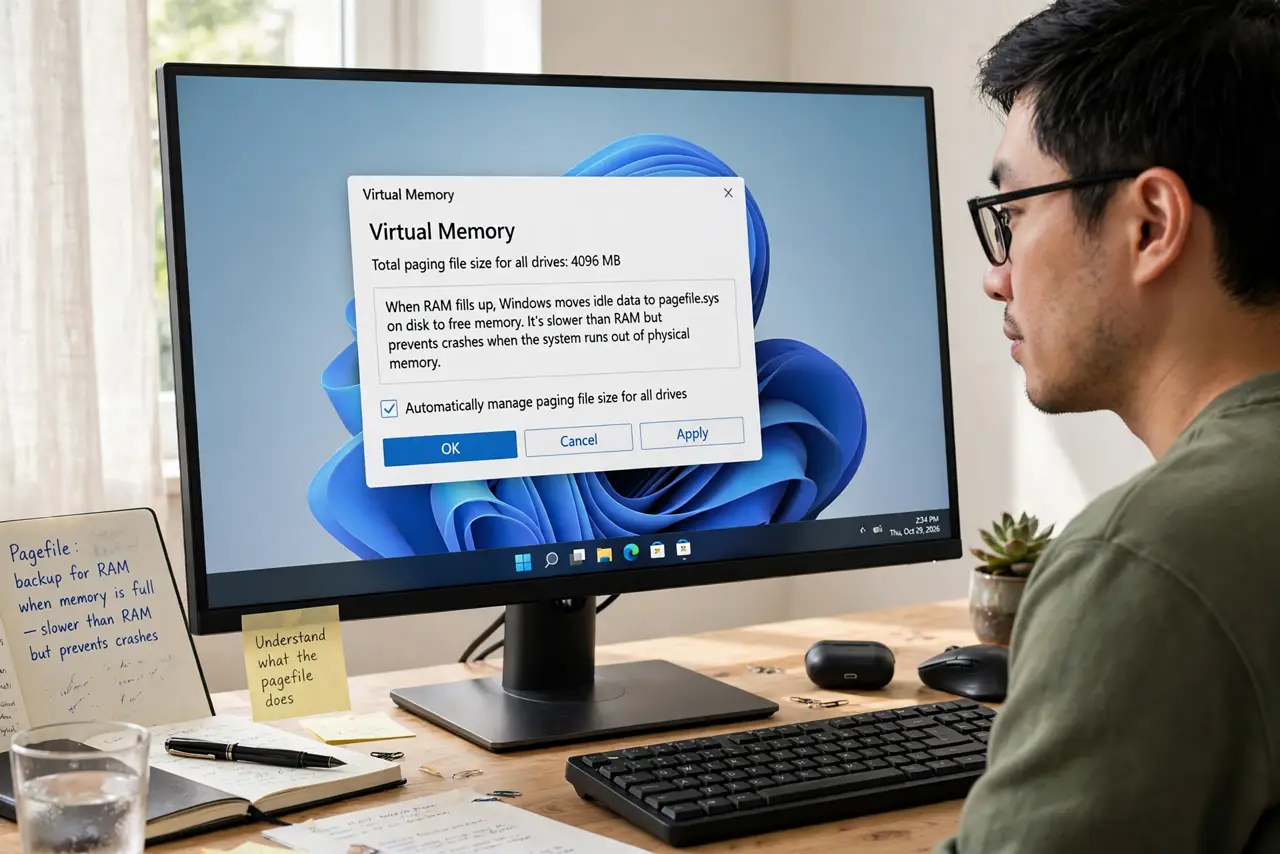
- Understand what the pagefile does. When RAM fills up, Windows moves idle data to pagefile.sys on disk to free memory. It is slower than RAM but prevents crashes when memory runs short — virtual memory is a safety net, not a performance feature.
- Leave it on automatic if unsure. Windows sizes it sensibly by default. For most PCs the automatic setting is correct, and manual tweaks cause more problems than they solve — see the huge pagefile guide if yours looks abnormal.
- Check how much RAM you actually have. A huge pagefile often just mirrors a RAM-heavy system. With 32GB of RAM, a multi-gigabyte pagefile is normal and harmless — it is not a problem to fix.
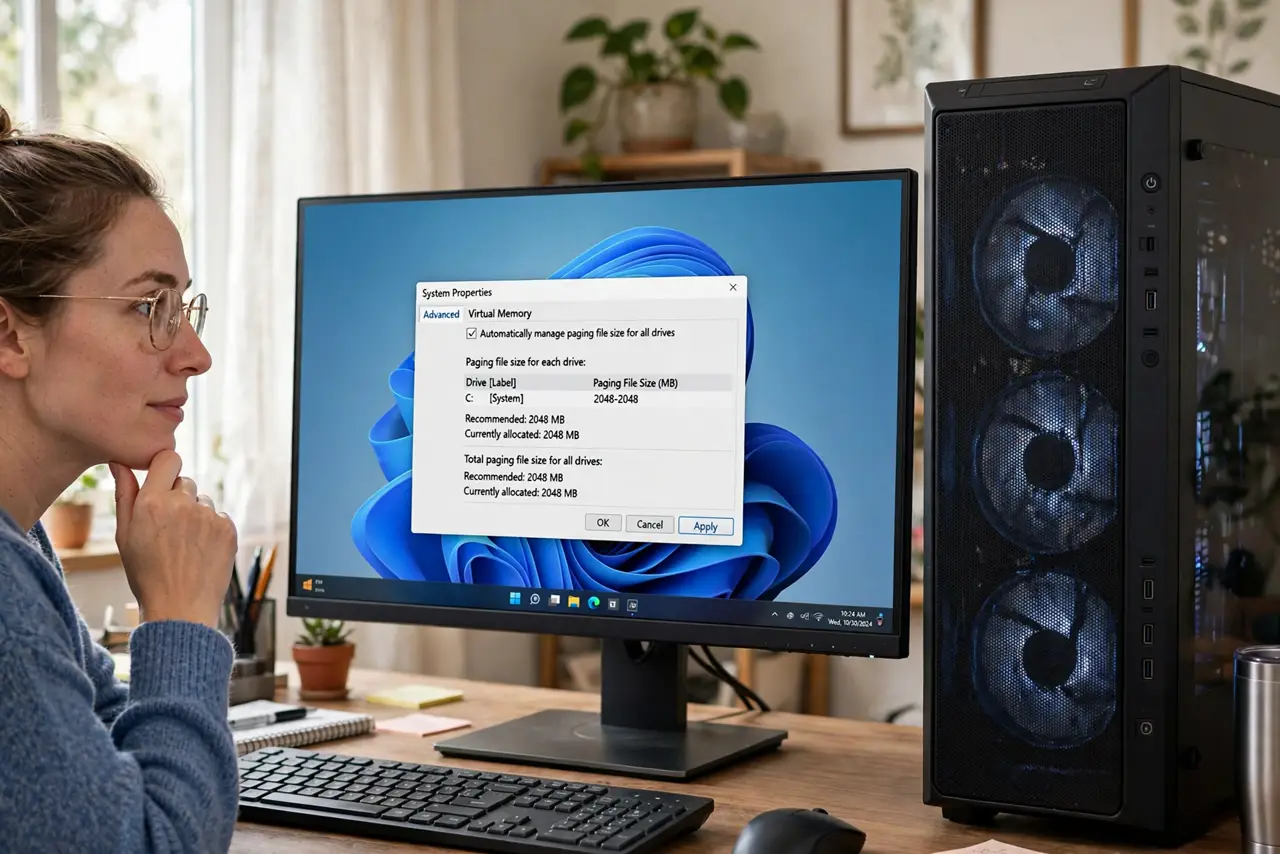
- Shrink it manually only with cause. If disk space is truly tight and you have 16GB+ of RAM, you can set a custom size in System Properties, Advanced, Performance Settings, Advanced, Virtual memory. Keep at least a few gigabytes.
- Never disable it completely. Some applications and even Windows itself expect a pagefile to exist. Disabling it entirely can cause strange crashes — shrinking is fine, deleting is not.
- Do not confuse it with the hibernation file. pagefile.sys and hiberfil.sys are separate giants with separate fixes. If you already shrank the hibernation file, the pagefile is the remaining suspect.
What to avoid
- Do not delete pagefile.sys by hand. Windows recreates it at boot — use the Virtual memory settings dialog instead.
- Do not disable the pagefile to 'speed up' Windows. It does not speed anything up and risks crashes in memory-hungry apps.
- Do not set it to zero on a RAM-light PC. With 8GB or less, the pagefile is actively saving you from out-of-memory crashes.
- Do not move it to a slow external drive. If you relocate it, use a fast internal SSD — a USB stick as virtual memory is a performance disaster.
Frequently asked questions
Why is my pagefile so big?
Windows scales it with installed RAM and workload history. Big RAM plus heavy multitasking equals a big pagefile — usually normal, not a malfunction.
Does a bigger pagefile make my PC faster?
No. It prevents out-of-memory crashes but disk is far slower than RAM — real speed comes from actual RAM, and the compressed memory system handles pressure first.
Can I put the pagefile on another drive?
Yes, through the same Virtual memory dialog — useful if your system drive is cramped but a second internal drive has room.