Set Up Passkey Sign-In on Windows
Websites keep offering 'sign in with a passkey' and you're not sure what that means on your Windows PC. A passkey replaces your password with your device's own unlock — face, fingerprint, or PIN — so there's nothing to phish or forget. Setting it up on Windows takes a few minutes.
TL;DR / Quick Fix
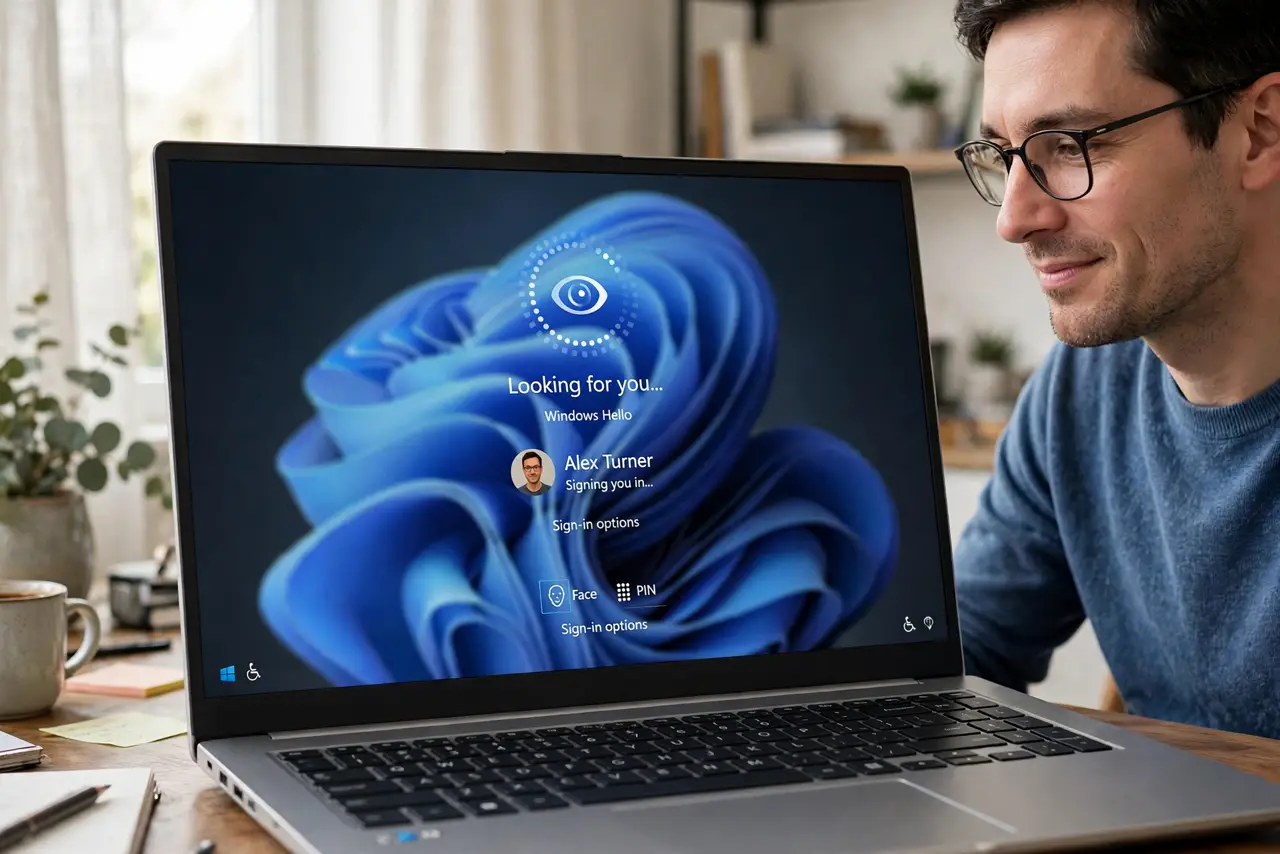
Quick fix: open Settings, go to Accounts, then Sign-in options, and set up Windows Hello — your face, fingerprint, or PIN becomes your passkey. Use it to sign in to supported sites without typing a password. Keep a recovery method on hand in case the device is lost or reset.
Follow these steps
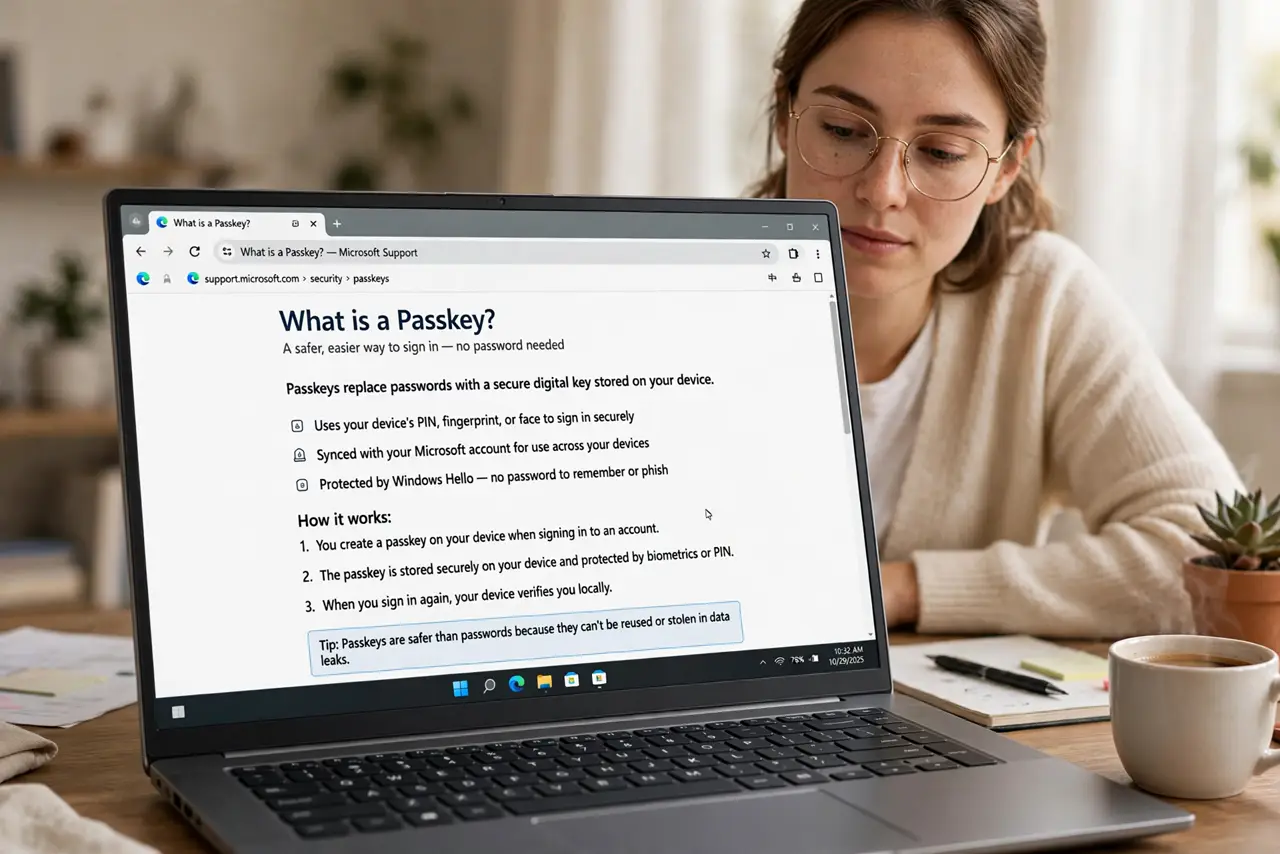
- Understand what a passkey is first. A passkey is a login stored on your device and unlocked with your face, fingerprint, or PIN — no password to remember or leak. Read the plain passkey explainer if the concept is new.
- Set up Windows Hello. In Settings, Accounts, Sign-in options, set up facial recognition, fingerprint, or PIN. Hello is the machinery passkeys use on Windows — without it, passkeys can't work.
- Create a passkey when a site offers it. On a supported site's security settings, choose the passkey or 'use device' option. Windows will prompt you to confirm with Hello — that's the whole ceremony.
- Choose where the passkey is stored. Windows can store it locally or sync it via your Microsoft account. Synced passkeys survive a lost device — understand the sync tradeoffs before choosing.
- Test signing in with it. Sign out and sign back in using the passkey option. Confirming it works now beats discovering a problem when you're in a hurry.
- Set up a recovery method. Keep the site's backup codes or a second passkey somewhere safe. A passkey with no recovery is a lockout waiting for a dead hard drive.
What NOT to do
- Do not skip setting up recovery. A device-bound passkey with no backup codes becomes a very secure way to lock yourself out.
- Do not confuse your Windows Hello PIN with a passkey. The PIN unlocks the device; the passkey is the per-site credential the PIN protects.
- Do not assume every site supports passkeys. Adoption is growing but uneven — keep your password manager for the rest.
- Do not delete Windows Hello thinking it's just a convenience. Passkeys depend on it — removing Hello orphans every passkey on the device.
Frequently asked questions
What happens if I lose my Windows PC?
Synced passkeys come back when you sign into your Microsoft account on a new device. Device-bound ones need their recovery codes — which is why you saved them.
Are passkeys really safer than passwords?
Yes — there's nothing to phish, nothing to reuse, and nothing that leaks in a breach. The site never holds a secret worth stealing.
Which sites support passkeys?
Most major platforms now do, with more monthly. Check a site's security settings for the passkey option rather than guessing.