See and Manage Saved Passkeys
Passkeys promised the end of passwords, but now yours are scattered: some in Windows, some in Chrome, some on your phone — and you cannot remember which site uses which. On Windows, passkeys live in a few specific places, and each one has its own manager. This guide maps where they hide so you can see them all, clean up duplicates, and stop getting locked out of your own accounts. If you are still on passwords, passkeys on Android work the same idea.
TL;DR / Quick Fix
Quick fix: on Windows, passkeys live in Windows Settings under Accounts, in your browser's password manager, and on your phone — check all three. Delete stale or duplicate passkeys, keep one current passkey per site, and make sure you have a backup sign-in method before removing anything.
Follow these steps
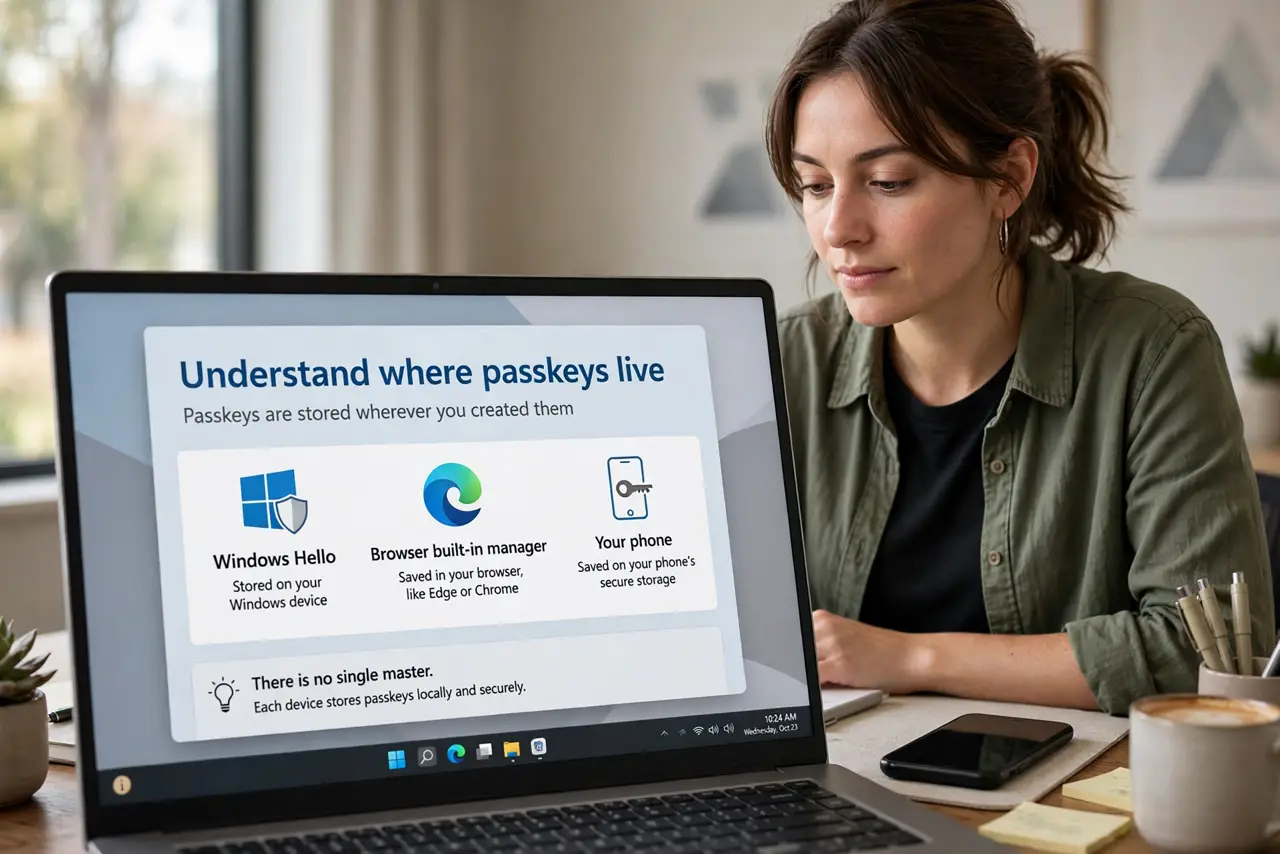
- Understand where passkeys live. A passkey is stored wherever you created it: Windows Hello, your browser's built-in manager, or your phone. There is no single master list — you check each vault separately.
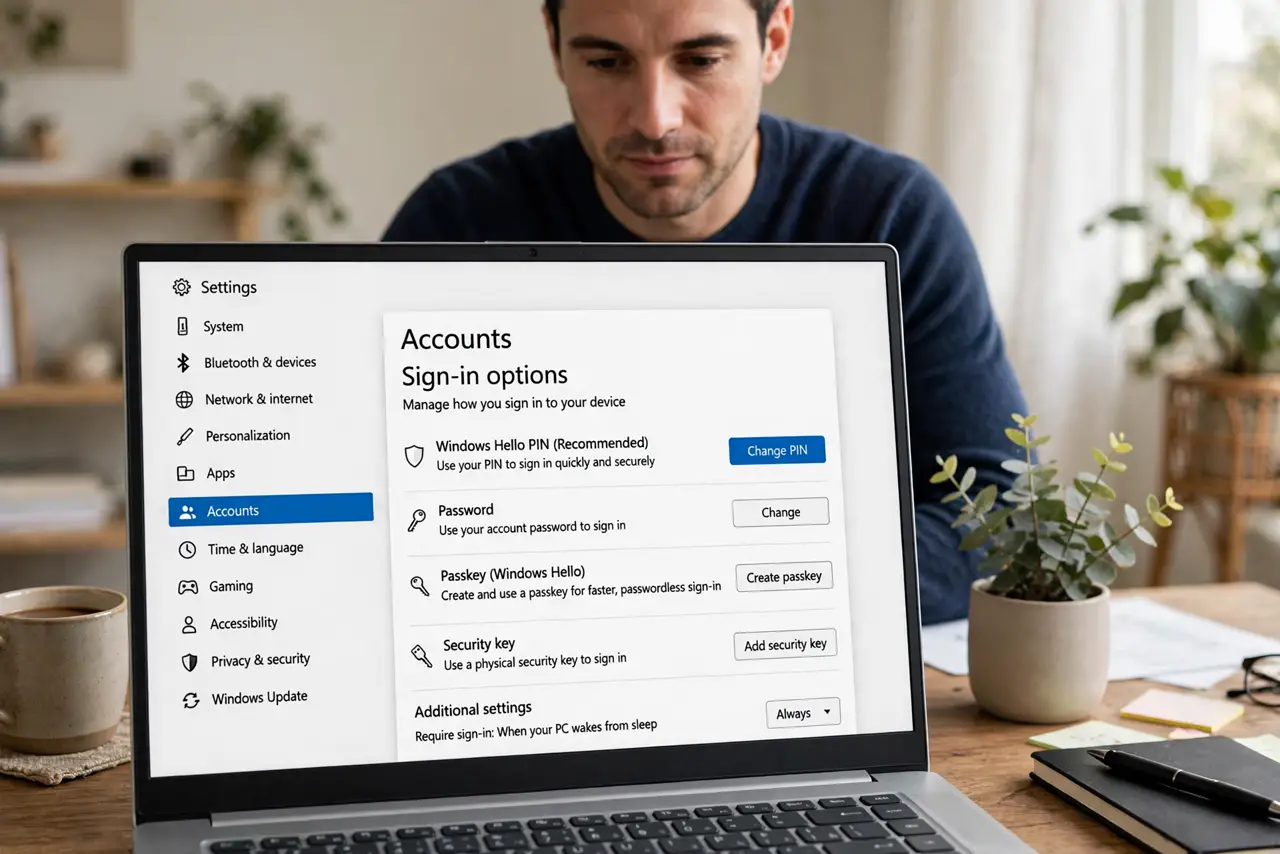
- Check Windows first. Open Settings, then Accounts, then Sign-in options. Passkeys saved to Windows Hello appear here, tied to this device's PIN, fingerprint, or face sign-in.
- Check your browser's manager. Chrome, Edge, and Firefox each keep their own passkey list in their password settings. A passkey created in Chrome lives in Chrome — even on the same PC as your Windows ones.
- Check your phone. Many sites save the passkey to your phone instead, especially when you scanned a QR code to sign in. Open the phone's password manager and look for the site there.
- Delete stale and duplicate passkeys. When you find two passkeys for one site, test which one works, then delete the dead one. Keep exactly one current passkey per site to avoid sign-in roulette.
- Keep a backup way in. Before deleting anything, confirm you have another sign-in method — a backup code, email recovery, or a second device. A deleted last-resort passkey can mean a painful account recovery.
What NOT to do
- Do not delete a passkey before testing the replacement. Confirm the new one signs you in first — then remove the old.
- Do not assume all your passkeys are in Windows. Browser and phone vaults are separate; check every place you have ever signed in.
- Do not screenshot recovery codes and leave them in your photos. Store backup codes somewhere deliberate, not the camera roll.
- Do not ignore the site's own security page. Some sites list your active passkeys there — the most reliable inventory of all.
Frequently asked questions
Can I move a passkey from my phone to Windows?
Not directly — passkeys do not export like passwords. Create a fresh passkey on Windows through the site's security settings, verify it works, then delete the phone one.
What happens to my passkeys if I reinstall Windows?
Windows Hello passkeys on that device are lost. This is why a second passkey or backup sign-in method matters before any reinstall.
Are passkeys really safer than passwords?
Yes — they cannot be phished or guessed, and there is nothing to leak in a breach. The tradeoff is exactly this management overhead.