PIN vs Password on Windows?
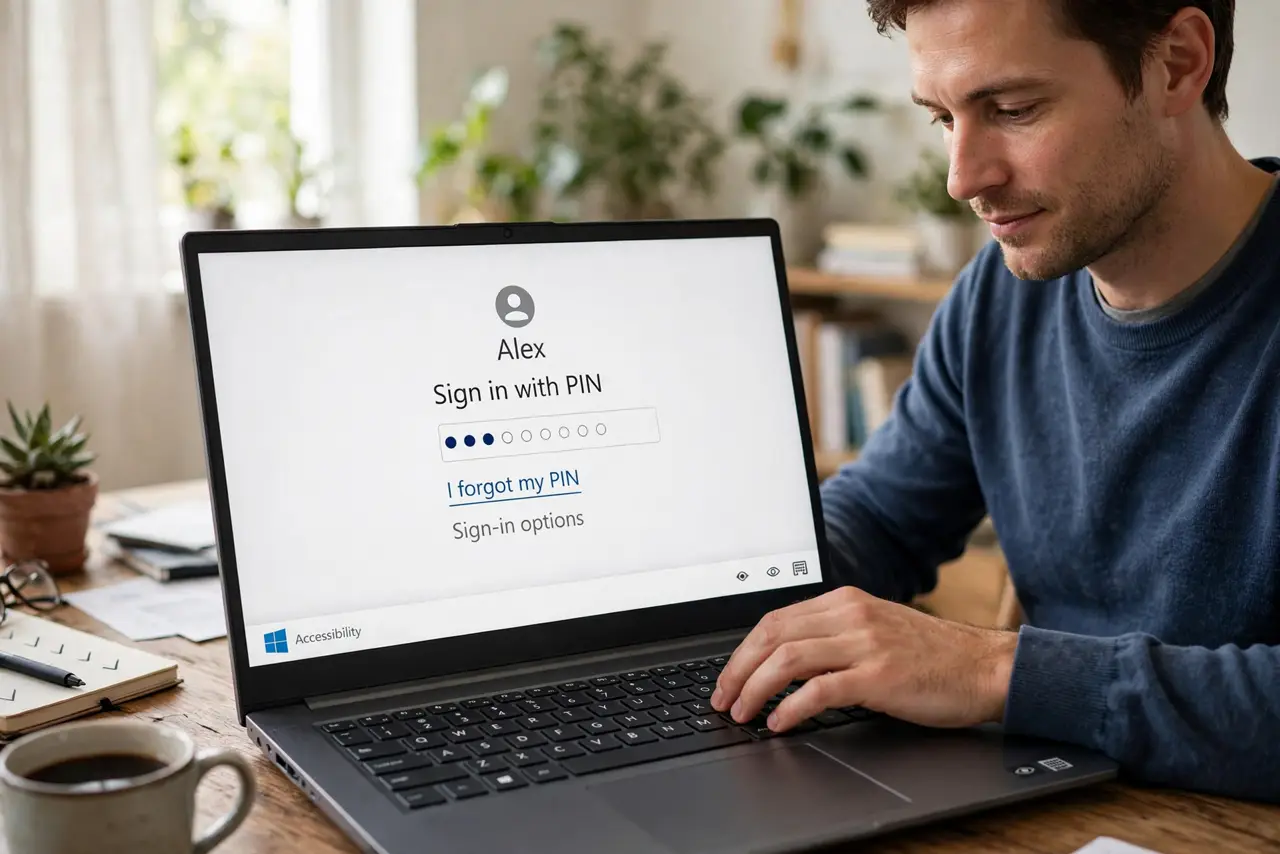
A PIN feels less secure than a password — it is shorter, often just numbers, and looks like the thing protecting your phone. But on Windows, the PIN is actually the stronger option for day-to-day sign-in, and Microsoft designed it that way on purpose. The difference is not length; it is where the secret lives. If you ever forget the PIN, the password is still your backup.
TL;DR / Quick Fix
Quick fix: on Windows, a PIN is safer than a password for daily sign-in because it is tied to the device and never travels the network. Use a PIN for convenience, keep the password strong as the backup, and enable Hello biometrics if available.
Follow these steps
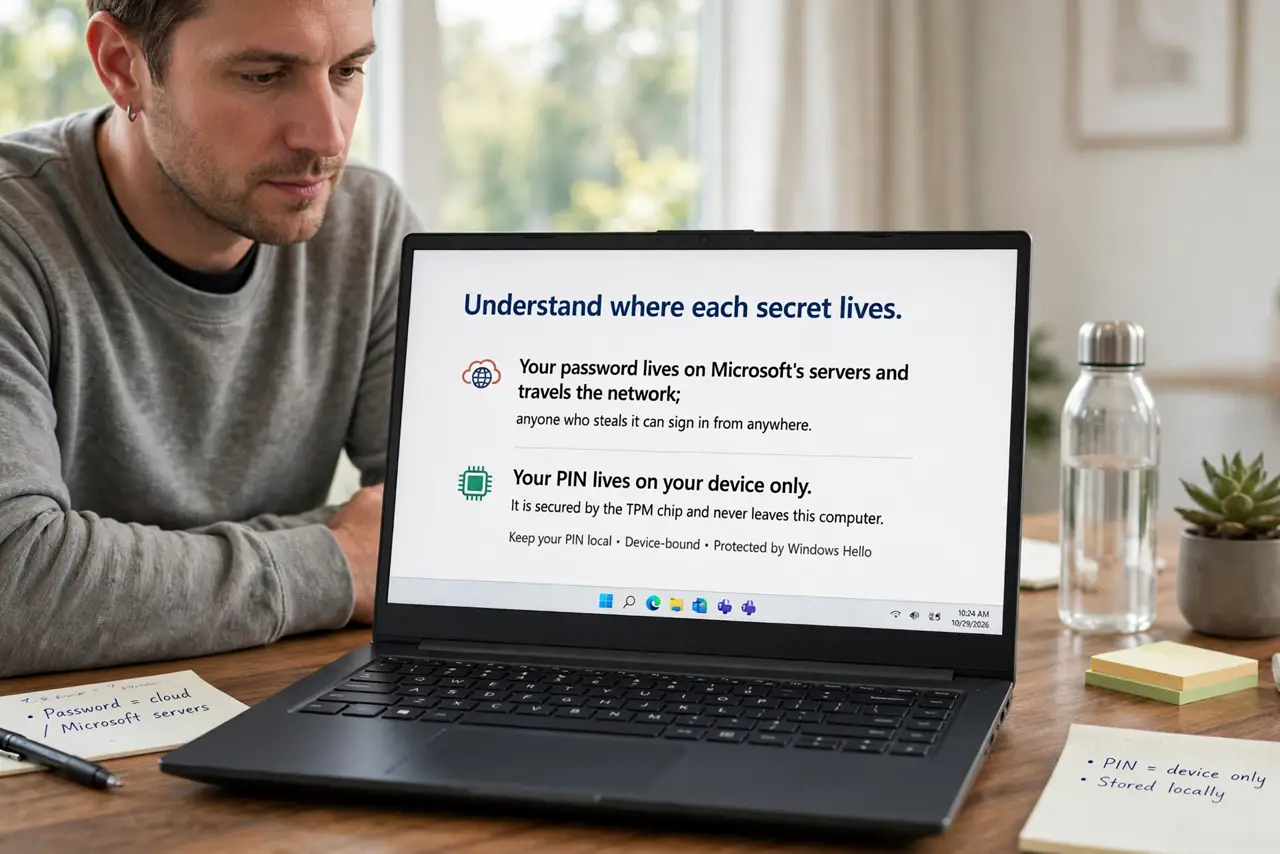
- Understand where each secret lives. Your password lives on Microsoft's servers and travels the network; anyone who steals it can sign in from anywhere. Your PIN lives only on your device and never leaves it — stealing the PIN alone gets an attacker nothing.
- Learn why shorter can be stronger. A PIN is useless without physical possession of your PC, while a password works from any computer on earth. The PIN's power comes from being device-bound, not from its length.
- Use a PIN for daily sign-in. Set a PIN under Settings, Accounts, Sign-in options. Daily unlocks get faster and phishing gets harder — a fake login page cannot steal a PIN that never travels.
- Keep the password strong anyway. The password remains the master key for new devices and account recovery. Long, unique, and stored in a password manager — it guards the account, the PIN guards the device.
- Add biometrics on top. Windows Hello face or fingerprint replaces PIN typing entirely and is even more phishing-resistant. The PIN stays as the fallback underneath.
- Know when the password is required. First sign-in on a new device, Safe Mode, and some recovery scenarios demand the password. That is why the strong backup password still matters.
What NOT to do
- Do not reuse a trivial PIN like 1234. Device-bound does not mean guess-proof against someone holding your laptop — pick something non-obvious.
- Do not treat the PIN as a second password. It does not work on other devices or websites; it is a device key, not an account key.
- Do not disable the password thinking the PIN replaces it. Recovery and new devices need the password — both have jobs.
- Do not share your PIN casually. Anyone with your PIN and your laptop owns the machine — treat it like a house key.
Frequently asked questions
Can someone guess my short PIN?
Windows locks out after repeated wrong tries, and the PIN never leaves the device. A non-obvious PIN plus lockout protection is solid for a device key.
Is a PIN safer than a long password for daily use?
For daily sign-in on that PC, yes — it cannot be phished or reused elsewhere. The password stays important as the account-level backup.
Should I use letters in my PIN?
You can — Windows allows complex PINs with letters and symbols. Longer and complex is fine, but even a numeric PIN beats password reuse.