PC Won't Stay Asleep?
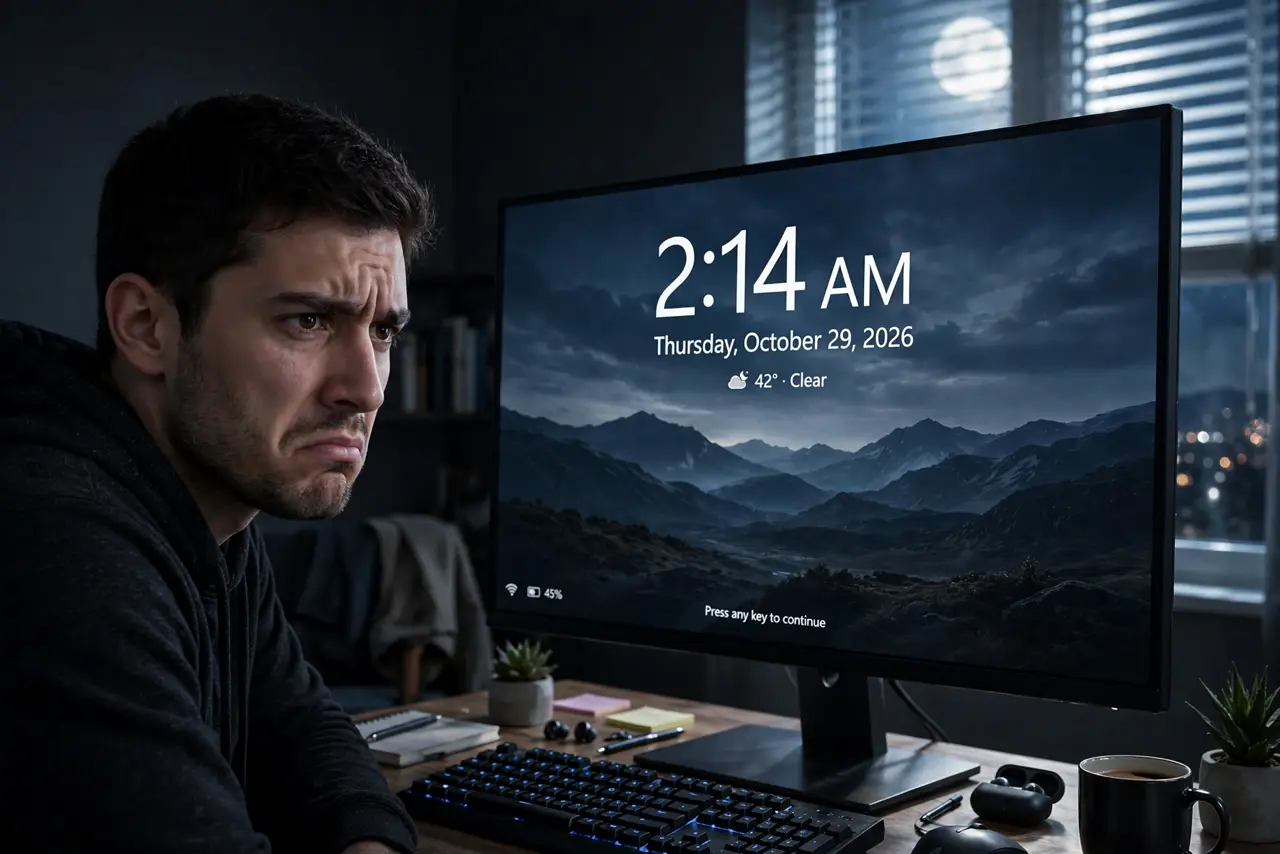
You put the PC to sleep and an hour later it's awake — fans humming, screen glowing, in an empty room. Something is waking it: a scheduled task, a wake timer, a twitchy mouse, or the network card. It's annoying, wastes power, and interrupts the night. Here is how to find the culprit and make sleep stick.
TL;DR / Quick Fix
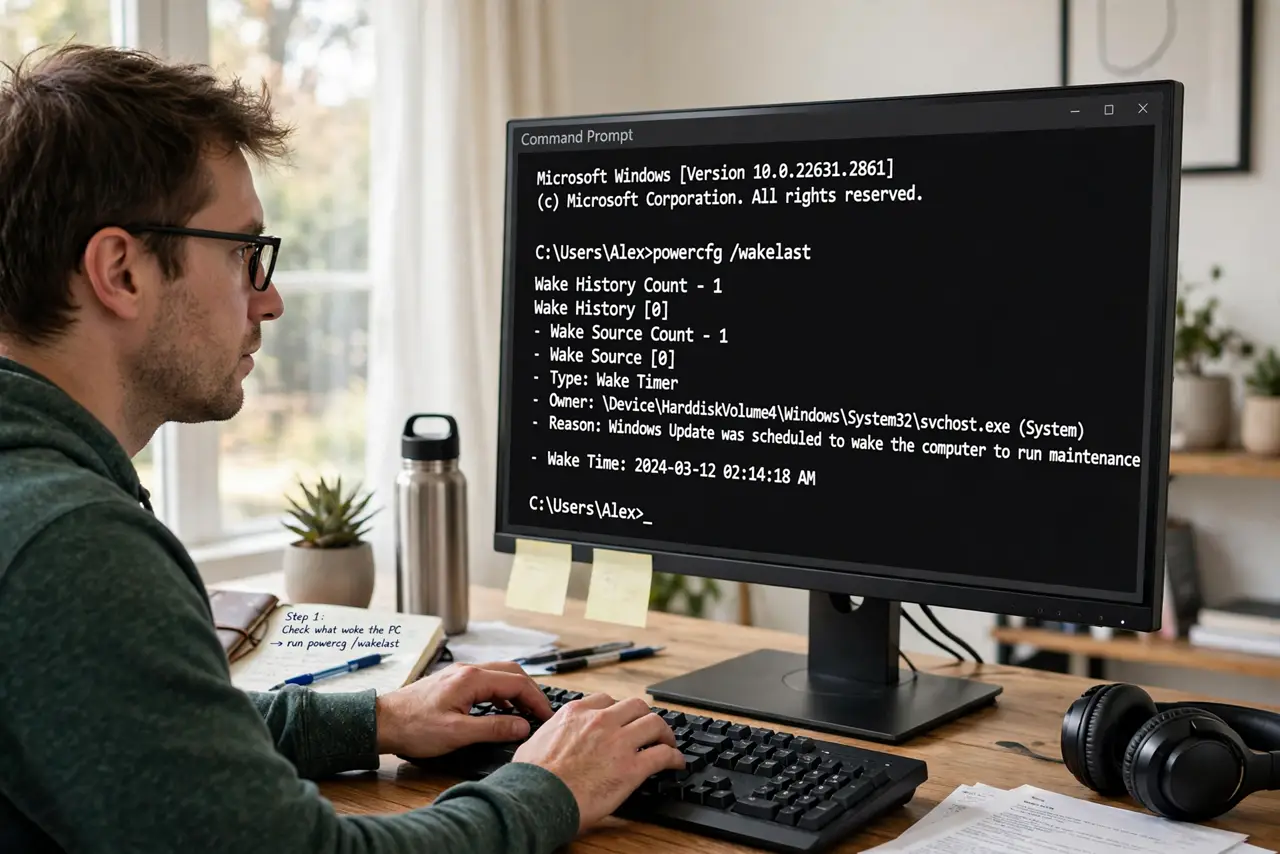
Quick fix: run 'powercfg /lastwake' in an admin Command Prompt to name what woke the PC. Common culprits: wake timers, scheduled updates, a twitchy mouse, network wake. Disable wake timers in Power Options → Sleep, and stop the mouse from waking the PC in Device Manager. Then sleep stays asleep.
Follow these steps
- Interrogate the PC: what woke it? Open an admin Command Prompt and run powercfg /lastwake — it reports the exact device or timer responsible. Run powercfg /waketimers to see scheduled wakeups. This turns guessing into knowing; see the wake-timers guide for the full readout.
- Disable wake timers. Power Options → Change plan settings → Change advanced power settings → Sleep → Allow wake timers → Disable. This stops scheduled tasks from rousing the PC. Windows Update has its own wake habits — this setting tames most of them.
- Calm the mouse and keyboard. Device Manager → Mice → your mouse → Power Management → uncheck 'Allow this device to wake the computer.' A vibrating desk or sensitive mouse wakes PCs constantly. Keep the keyboard's wake permission — you'll want a key to wake it deliberately.
- Check the network adapter. In Device Manager, find your network adapter → Power Management → uncheck 'Allow this device to wake the computer' (unless you use Wake-on-LAN deliberately). The mystery midnight wakeups are often network chatter.
- Look at scheduled tasks. Task Scheduler → check tasks with 'Wake the computer to run this task' enabled — updaters and media apps love this. Disable the wake condition on tasks you don't need overnight. If the PC won't wake when you want, that's the inverse problem with its own fixes.
- Verify with an overnight test. Put the PC to sleep and check in the morning — still asleep means fixed. If it woke, run powercfg /lastwake again; culprits sometimes queue up. One fix per night is a fine pace.
What NOT to do
- Do not disable sleep entirely to dodge the issue. A PC idling all night wastes power and misses the benefits of proper sleep.
- Do not uncheck wake on the power button. You need some way to wake the machine — keep keyboard or button wake working.
- Do not blame the monitor. 'Won't stay asleep' is the PC waking; a monitor that won't sleep is a display-timeout issue — different fix.
- Do not edit the registry before trying the UI settings. Power Options and Device Manager solve the vast majority of cases.
Frequently asked questions
Why does it wake at the same time nightly?
A scheduled task with a wake timer — often Windows Update or a media app. powercfg /waketimers names it; disable its wake condition in Task Scheduler.
Can I see a history of wakeups?
Event Viewer → Windows Logs → System, filter for Power-Troubleshooter events — each wake is logged with the source. Useful when /lastwake only catches the most recent.
Is it bad for the PC to keep waking?
Not harmful, just wasteful — power draw, fan noise, and interrupted quiet. Fix it for your electricity bill and your sanity, not the hardware's sake.