Pin Clipboard Items? Basics
You copy an address, then a tracking number, and the address is gone — the clipboard only holds one thing at a time. Windows clipboard history fixes this, and pinning keeps your most-used items (address, email, phone) permanently at the top. It is a small feature with an outsized daily payoff. Here is how to use it.
TL;DR / Quick Fix
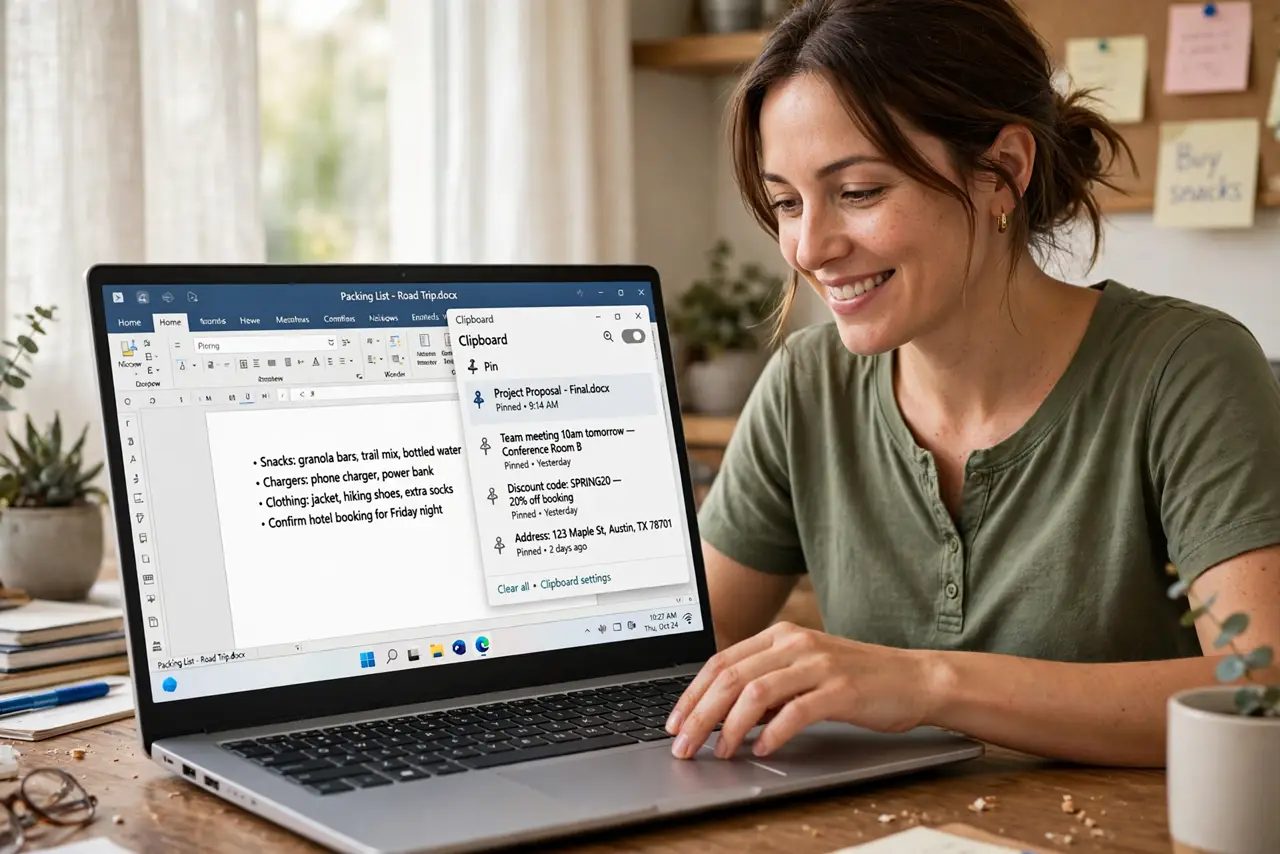
Quick fix: press Windows+V to open clipboard history, then pin the items you reuse daily — address, email, phone number — so they never scroll away. Clipboard history must be enabled first in Settings. Pinned items survive reboots; unpinned ones do not.
Follow these steps
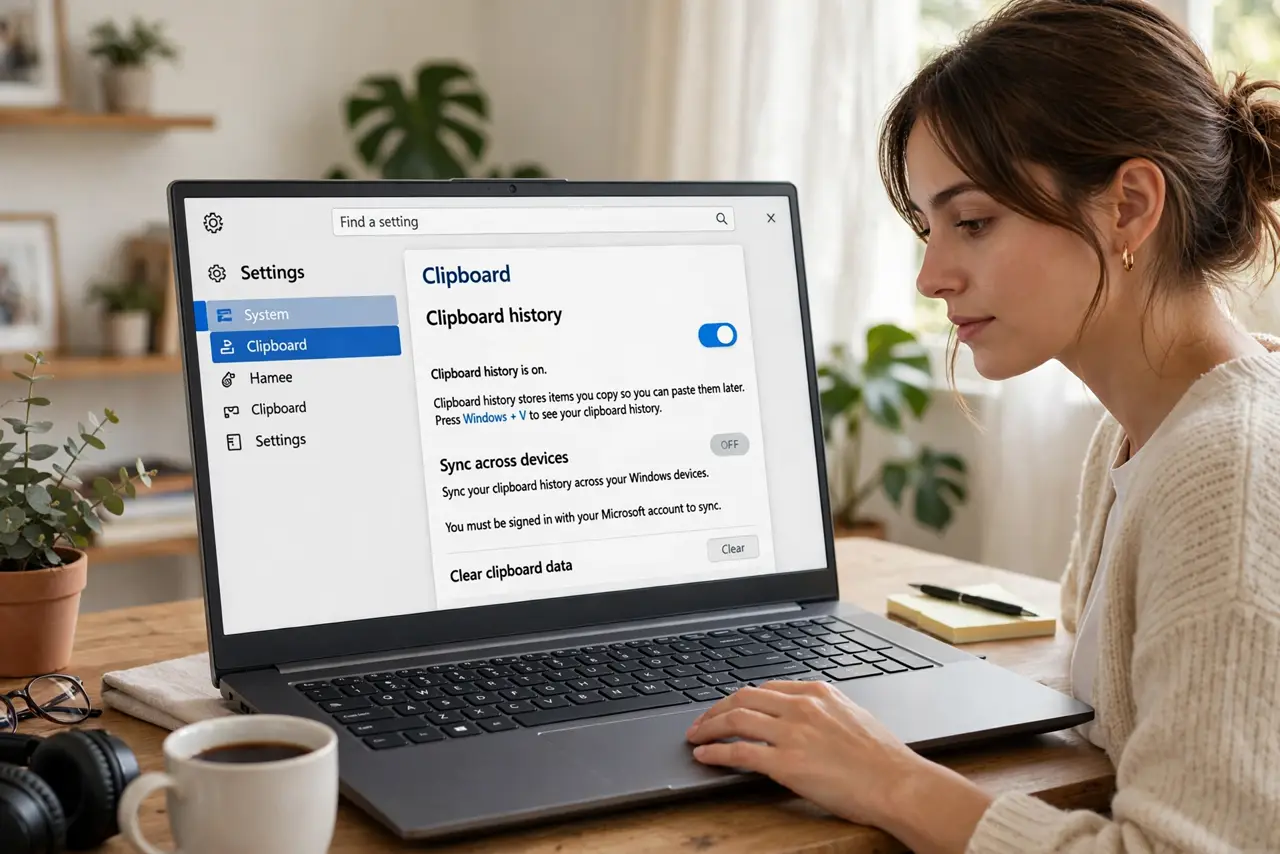
- Enable clipboard history. Press Windows+V — if history is off, Windows offers to turn it on. Or go to Settings > System > Clipboard and enable it. Without this, every copy overwrites the last and pinning is impossible.
- Open history with Windows+V. This shortcut opens the floating clipboard panel anywhere you can paste. It shows recent copies — text and images — newest first. Make this shortcut muscle memory; it pays off dozens of times a day.
- Pin your frequent items. Hover any item in the panel and click the pin icon. Pinned items jump to the top and stay there permanently — your address, email signature, and phone number belong here. See clipboard managers if you want more power than the built-in tool.
- Paste from history. With the panel open, click any item to paste it — no need to go back and re-copy. This ends the copy-switch-paste-copy dance that eats minutes across a workday.
- Clear sensitive copies. The history keeps everything you copy, including passwords. Clear individual items or the whole history (except pinned) from the panel's menu. For the security angle, see sensitive clipboard data.
- Sync across devices optionally. Clipboard sync shares copies across your Windows devices signed into the same account. Convenient — but it also syncs passwords you copy, so weigh that before enabling.
What NOT to do
- Do not copy passwords with history on and forget them. Clear sensitive items — the clipboard remembers what you do not.
- Do not enable cross-device sync blindly. Synced clipboards spread copied passwords to every signed-in device.
- Do not pin everything. Pinning twenty items recreates the clutter pinning was meant to fix — pin the five you truly reuse.
- Do not expect images to pin forever usefully. Pinned images eat memory — pin text snippets, not screenshots.
Frequently asked questions
My clipboard history is empty. Why?
The feature is off — press Windows+V and enable it, or toggle it in Settings > System > Clipboard. See the empty-history fix for details.
Do pinned items survive a reboot?
Yes — pinned items persist across restarts. Unpinned history clears on reboot by default.
Can I pin more than text?
Images can be pinned too, but they consume more memory. For daily use, text snippets are the sweet spot.