Zone Windows with FancyZones
On an ultrawide monitor, Windows' half-screen snapping wastes glorious space — two giant windows where four tidy ones should be. FancyZones, part of Microsoft's free PowerToys, lets you define custom layouts and drop windows into them with a key held down. Halves, thirds, grids: your screen, your rules. Pair with PowerToys Run and the launcher details.
TL;DR / Quick Fix
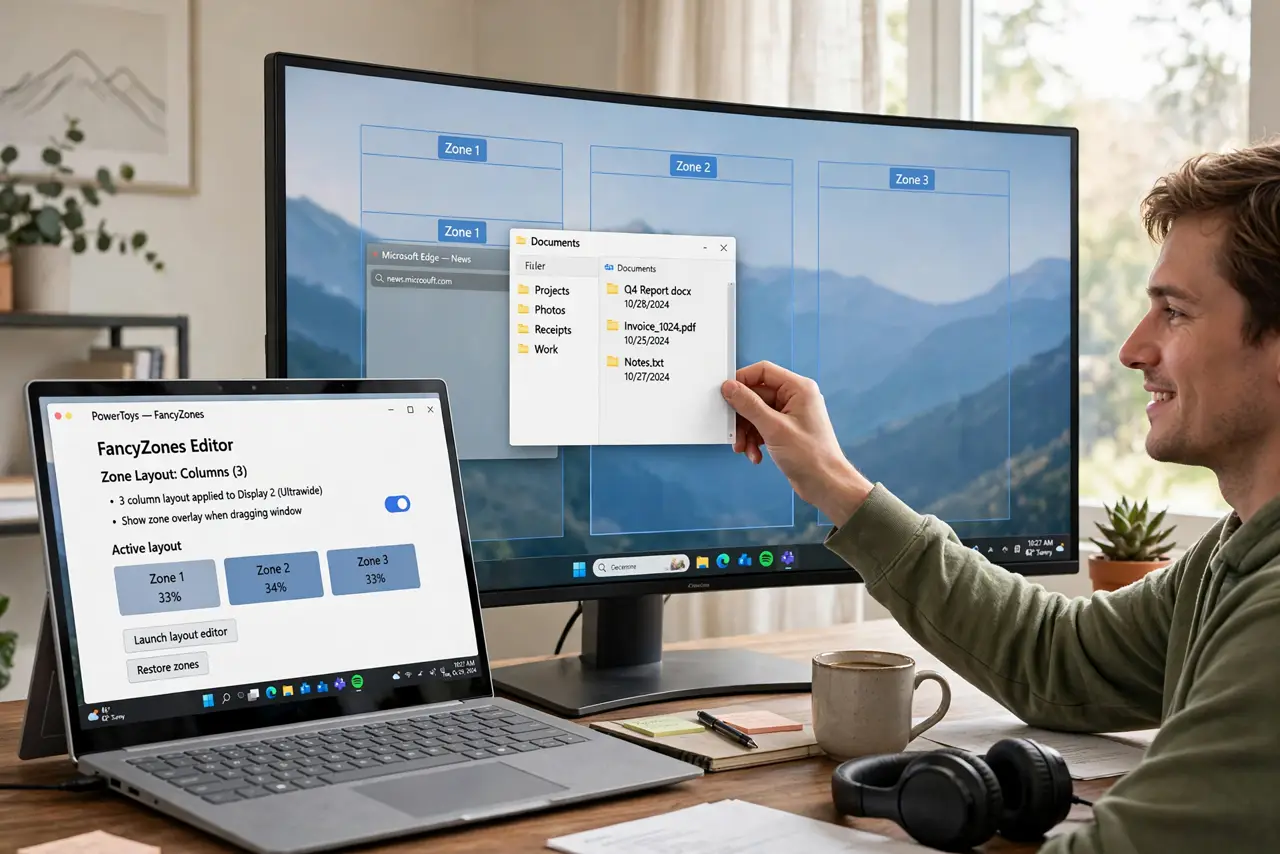
Quick fix: FancyZones lets you snap windows into custom layouts — halves, thirds, grids — perfect for ultrawide monitors where Windows' built-in snapping feels cramped. Hold Shift while dragging a window to drop it into a zone. Once your layout clicks, window chaos ends.
Follow these steps
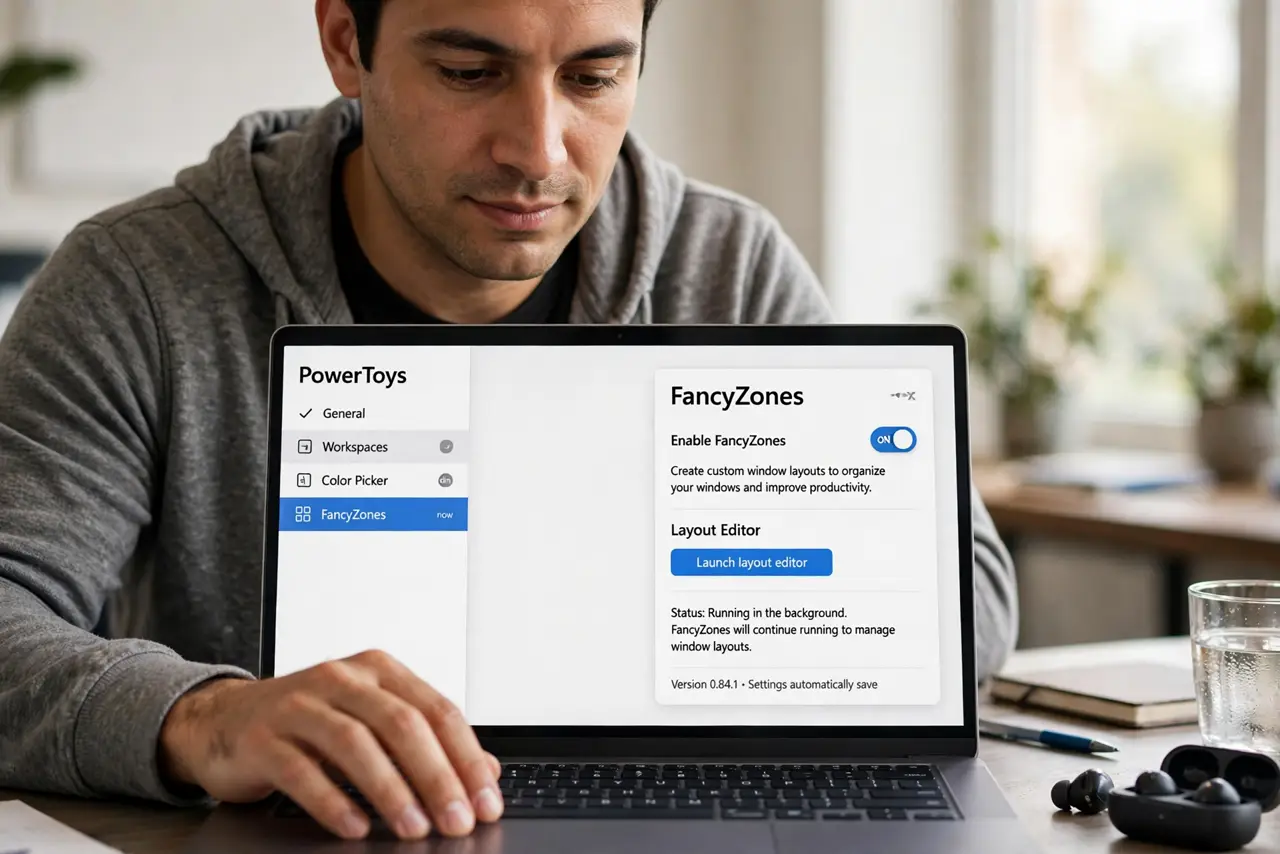
- Enable FancyZones. In PowerToys settings, turn on the FancyZones module. It runs quietly in the background from then on.
- Pick a layout. Open the layout editor and choose a preset — columns, rows, grids — or draw your own. Ultrawides love three columns; big 4K screens love grids.
- Hold Shift and drag. Hold Shift while dragging any window: the zones appear as overlays. Drop the window into a zone and it snaps to fit.
- Learn the zone switching. Windows key plus arrow keys can also fling windows between zones. Keyboard people never touch the mouse for layout.
- Set app-specific rules. Tell FancyZones to always open your editor in the left zone and chat on the right. Your workspace assembles itself.
- Tweak until it clicks. Adjust zone sizes over a few days of real use. The right layout reveals itself through work, not theory.
What NOT to do
- Do not enable it and never open the editor. The default layout may not suit you — the editor is the product.
- Do not fight it on small screens. FancyZones shines on large and ultrawide monitors; on a 13-inch laptop it is overkill.
- Do not forget Shift is the trigger. Dragging without Shift uses normal Windows snapping — the key makes the magic.
- Do not over-zone. Twelve tiny zones sound clever until every window needs resizing — start with three or four.
Frequently asked questions
Is FancyZones free?
Yes — it is part of PowerToys, Microsoft's free open-source utilities pack.
Does it work on multiple monitors?
Yes, with per-monitor layouts. Each screen gets its own zones, which is the dream setup.
Can I use it without PowerToys?
No — FancyZones is a PowerToys module. But PowerToys is free, so there is no reason not to.