Copy Text from Images
An error message in a screenshot, a phone number in a photo, a paragraph in a scanned PDF — text trapped in images that you need as text. PowerToys Text Extractor lifts it out: drag over the text, paste it anywhere. No retyping, no squinting. Part of Microsoft's free PowerToys — pair with PowerToys Run and FancyZones.
TL;DR / Quick Fix
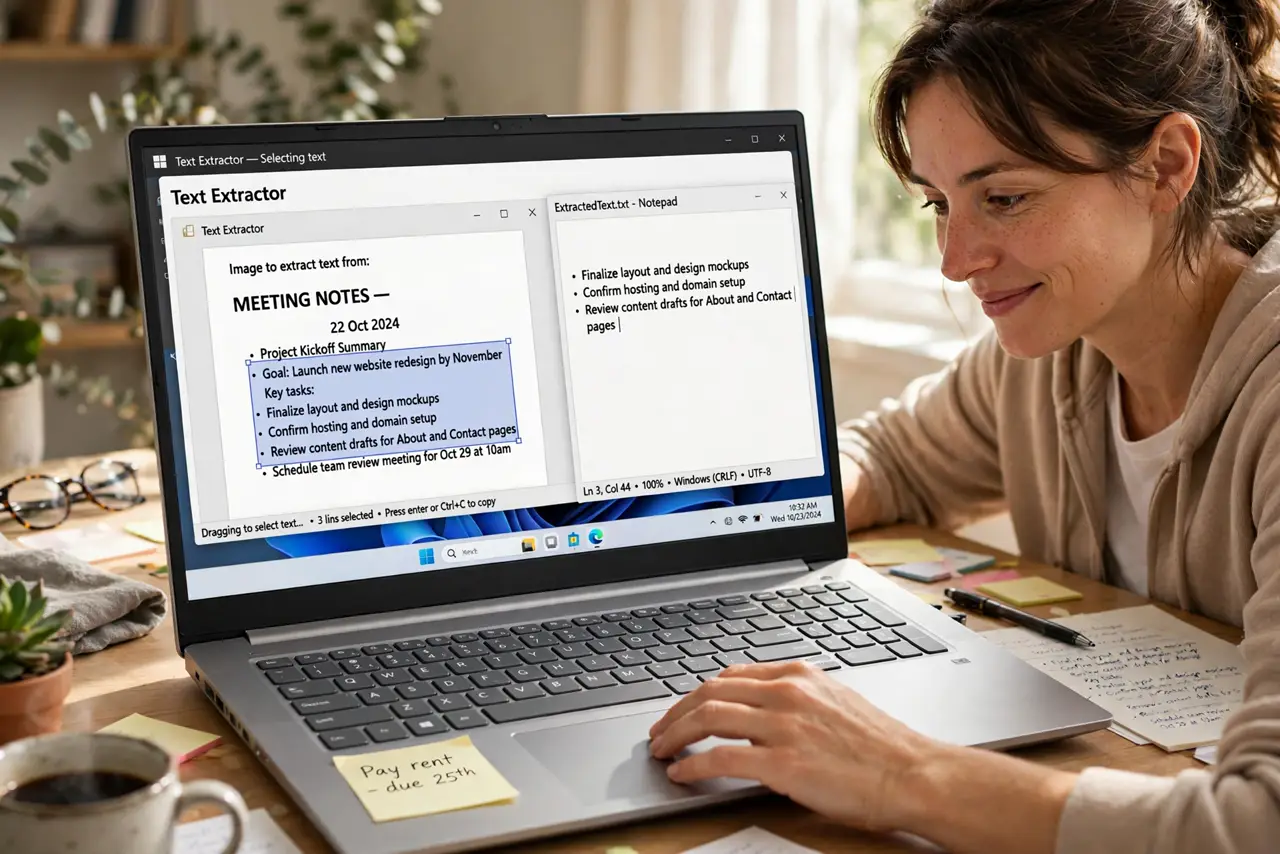
Quick fix: PowerToys Text Extractor copies text from any image on screen — press Win+Shift+T, drag over the text, and paste it anywhere. It beats retyping error messages and screenshots. The recognition is fast and surprisingly accurate for such a tiny tool.
Follow these steps
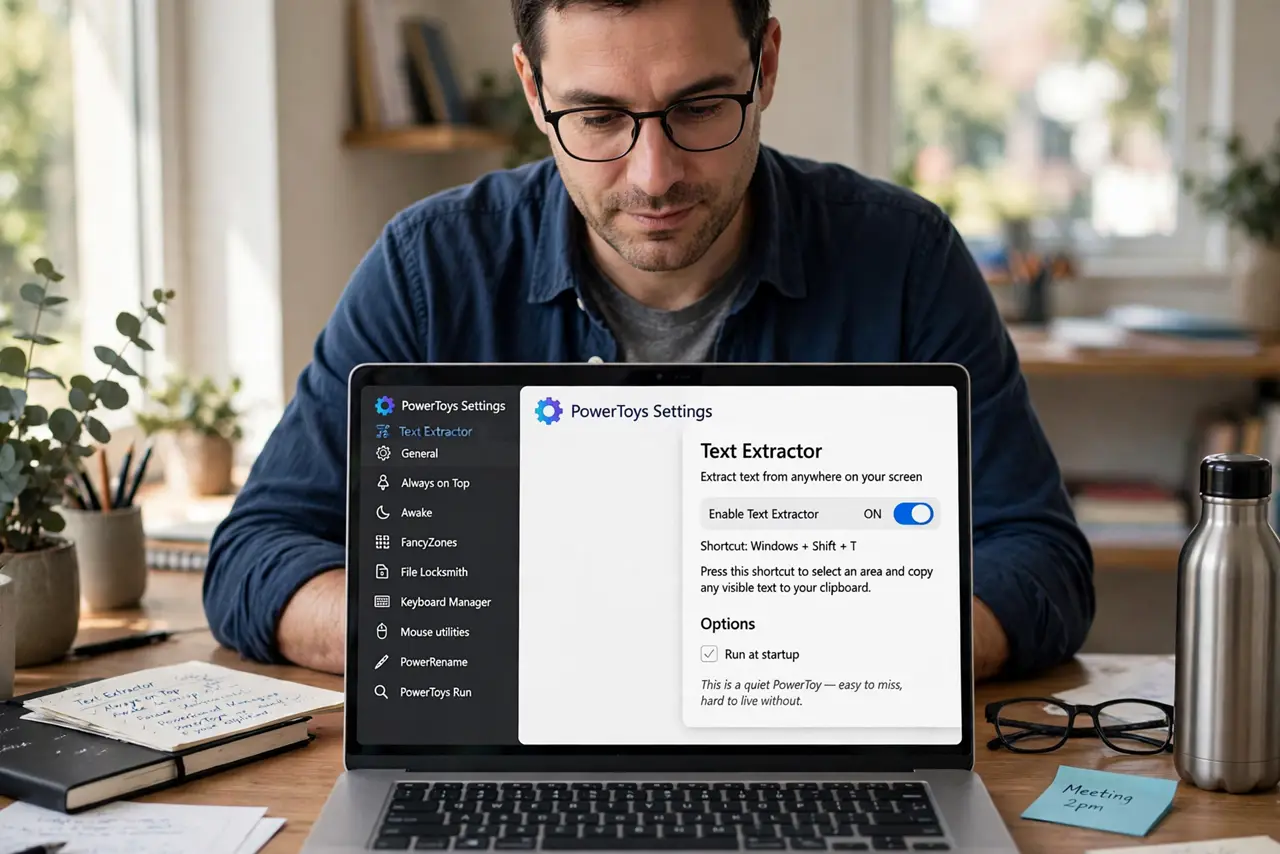
- Enable Text Extractor. In PowerToys settings, turn on the Text Extractor module. It is one of the quieter PowerToys — easy to miss, hard to live without.
- Learn the shortcut. Win+Shift+T activates it anywhere. The screen dims slightly, inviting you to drag a selection box.
- Drag over the text. Draw a box around the words you want — an error message, a caption, a sign in a photo. Release and the text lands on your clipboard.
- Paste it anywhere. Drop the extracted text into a document, search box, or message. Edit the inevitable misread characters as you go.
- Use it on error messages. The killer use: extract cryptic error text and paste it into a search engine. Troubleshooting gets dramatically faster.
- Try other languages. Text Extractor handles many languages. Switch the recognition language in settings when working with non-English text.
What NOT to do
- Do not expect perfect recognition. Fancy fonts and tiny text produce errors — always proofread the extraction.
- Do not extract private text carelessly. Screenshots with personal data extract just as easily — mind what you paste where.
- Do not retype what you can extract. If it is on screen as text-shaped pixels, extracting beats typing every time.
- Do not forget it needs PowerToys running. No PowerToys in the tray, no extraction — check it autostarts.
Frequently asked questions
Is Text Extractor free?
Yes — part of PowerToys, Microsoft's free open-source utilities. No cost, no limits.
How accurate is it?
Very good on clear text, shaky on stylized fonts and low resolution. Proofread everything important.
Can it read handwriting?
Sometimes, if the handwriting is neat. Printed text is its home turf; handwriting is a gamble.