Print Screen Now Opens Snipping Tool
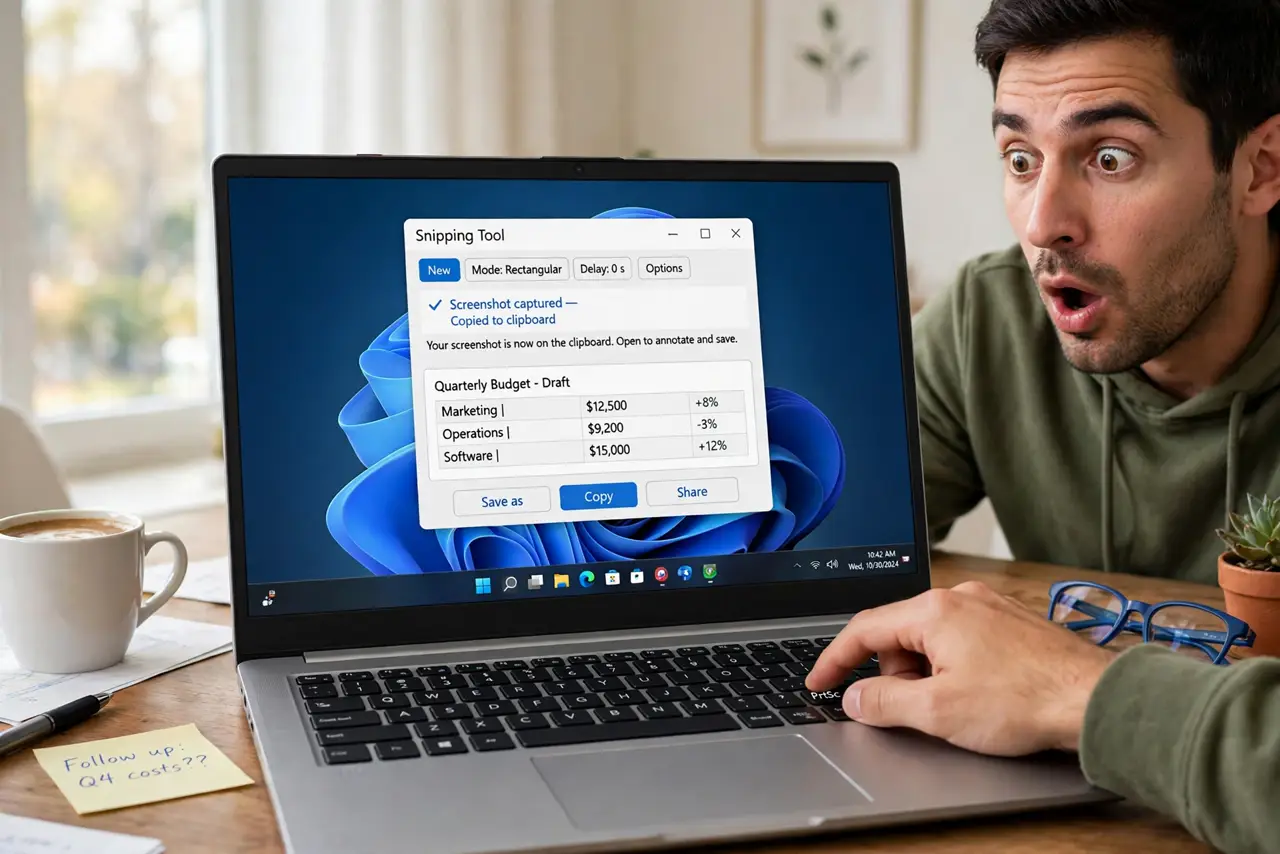
You pressed Print Screen expecting a full screenshot to the clipboard, and the Snipping Tool opened instead. Windows 11 changed the key's default behavior, and the setting that controls it moved. It is a one-toggle fix in Accessibility settings — and if your captures also land in the wrong place, the wrong Snipping Tool folder guide is the companion fix.
TL;DR / Quick Fix
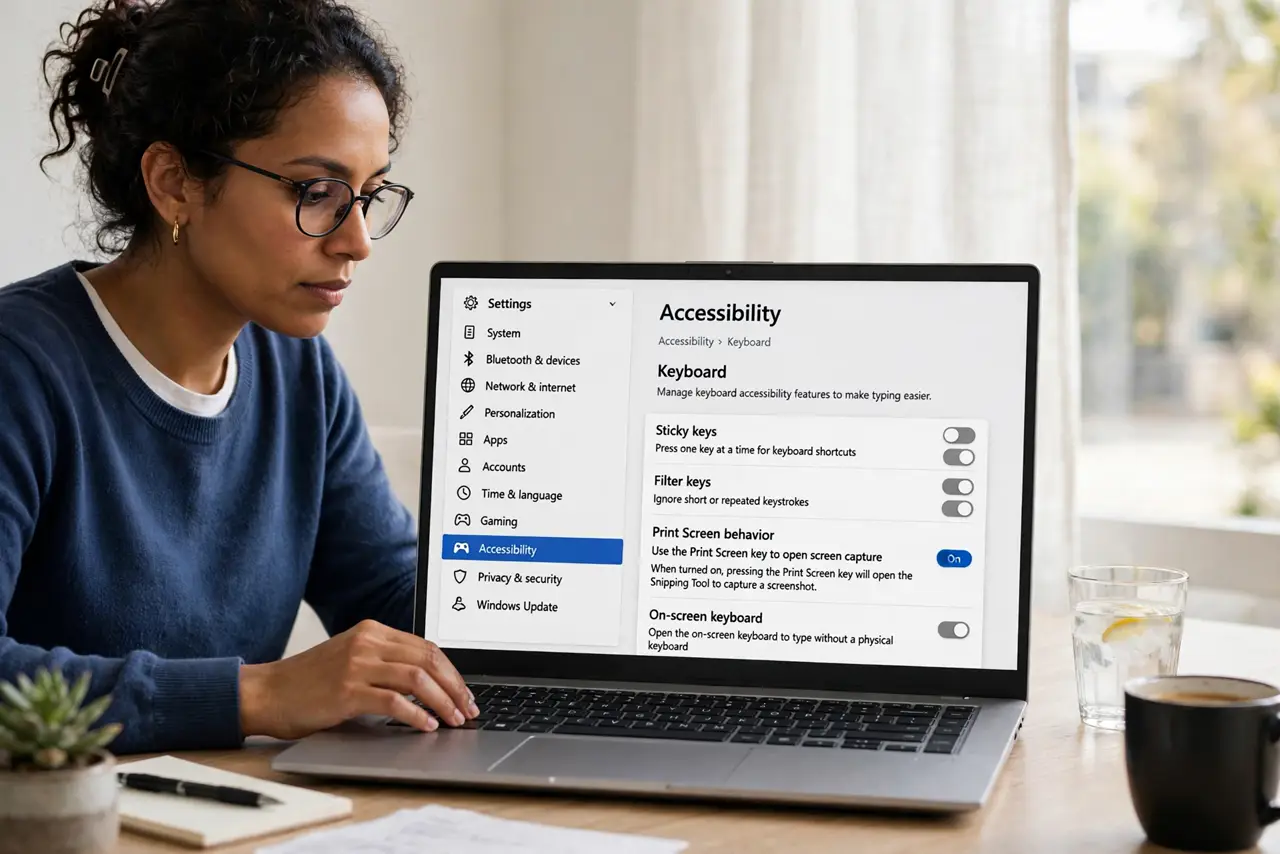
Quick fix: open Settings, go to Accessibility, then Keyboard, and find the toggle for using Print Screen to open screen snipping. Turn it off to restore the classic clipboard behavior, or leave it on if you prefer the Snipping Tool. The change takes effect immediately with no reboot.
Follow these steps
- Open the keyboard accessibility settings. Go to Settings, then Accessibility, then Keyboard. The Print Screen behavior toggle lives here, not in the Snipping Tool's own settings.
- Find the Print Screen toggle. Look for the option labeled around using the Print Screen key to open screen snipping. This single toggle is the entire behavior switch.
- Turn it off for classic behavior. Switch the toggle off. Print Screen now copies the full screen to the clipboard again, exactly like older Windows versions.
- Or leave it on deliberately. If you actually like the Snipping Tool opening, keep the toggle on. The point is choosing on purpose instead of being surprised.
- Test the key once. Press Print Screen and paste into Paint or a document. The result confirms which behavior is active beyond any doubt.
- Check for keyboard software overrides. If the toggle does nothing, check your keyboard's own software or a remapping tool. Third-party key remappers can override the Windows setting.
What NOT to do
- Do not reinstall the Snipping Tool for this. The app is fine; only the key assignment changed, and the app has no say in it.
- Do not assume the key is broken. A key that opens the wrong tool is a settings issue, not a hardware failure.
- Do not edit the registry for this toggle. The Settings page is the supported control, and it works immediately.
- Do not forget Alt plus Print Screen. That combination still captures just the active window to the clipboard regardless of the toggle.
Frequently asked questions
Why did Print Screen change?
Because Windows 11 made screen snipping the default for the key. Microsoft moved the classic behavior behind this toggle.
Can I still take a fullscreen screenshot?
Yes. With the toggle off, Print Screen copies the full screen to the clipboard as before.
Does this affect the Snipping Tool app itself?
No. The app works the same; only what the physical key triggers changes.