Proxy Settings Change by Themselves? Fix It
When proxy settings change by themselves, web pages may stop loading, or traffic may route through a server you did not choose. The cause is often a work or school setup, a VPN tool, or unwanted software. Finding which one changes the setting matters more than changing it back repeatedly.
TL;DR / Quick Fix
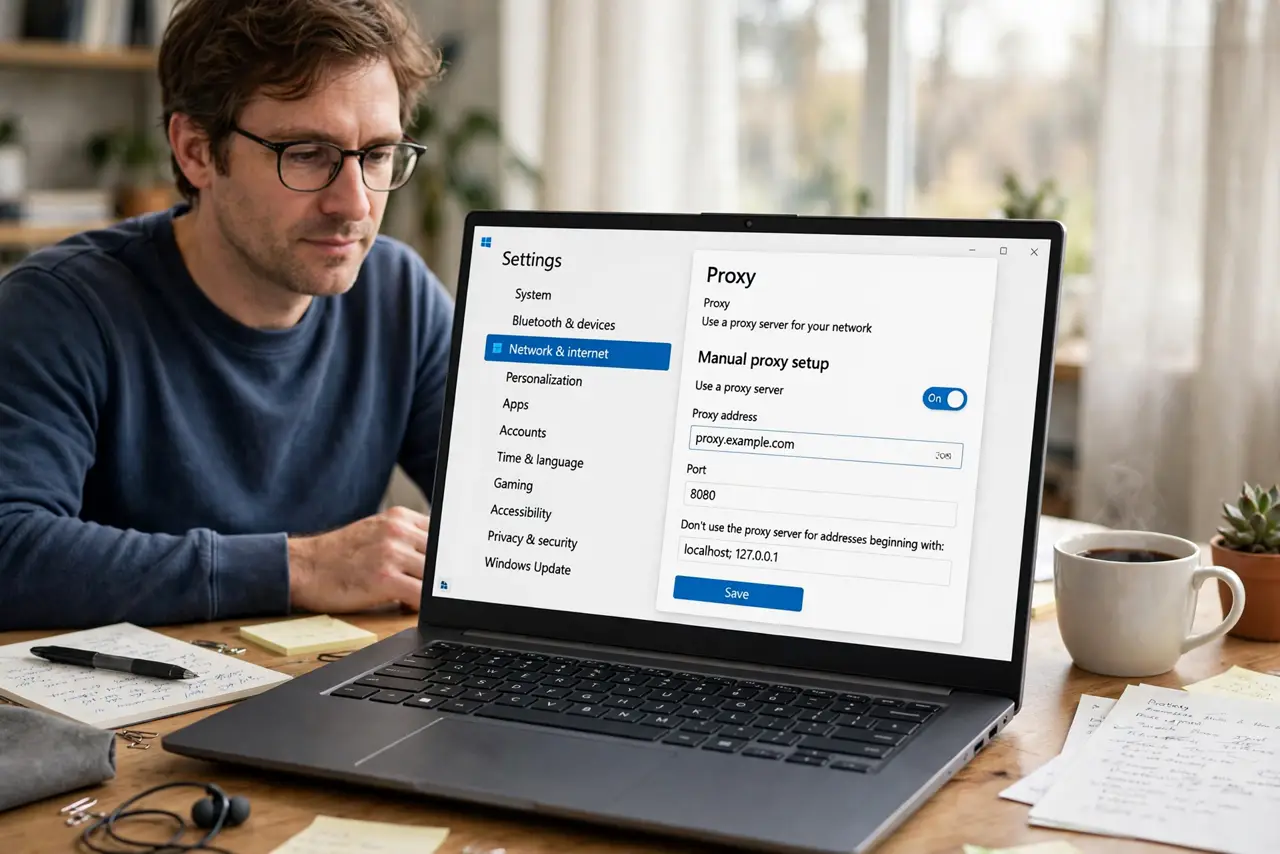
Quick fix: open Settings, then Network and internet, then Proxy, and turn off any proxy you did not set yourself. Restart, then check again. If the setting returns on its own, look for a VPN tool, a work profile, or unwanted software that restores it.
Follow these steps
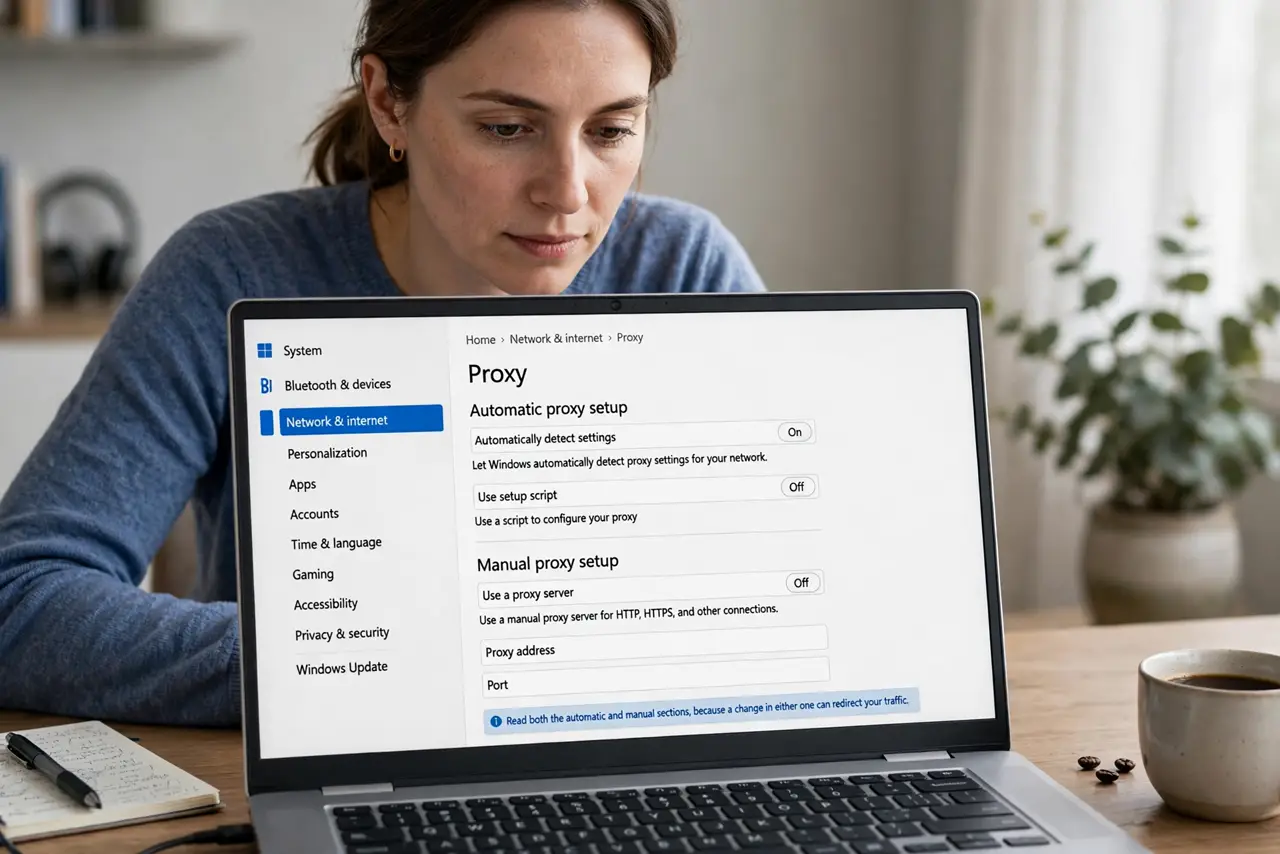
- Open Proxy settings. Open Settings, then Network and internet, then Proxy. Read both the automatic and manual sections, because a change in either one can redirect your traffic.
- Turn off a proxy you did not set. If a manual proxy is on and you did not set it, turn it off. If automatic setup is on and you do not use a work setup, turn that off too, then test a web page.
- Restart and check again. Restart the computer, then reopen Proxy settings before you open a browser. If the proxy returned, something on the computer restores it at startup.
- Check VPN and work tools. Open your installed apps and look for a VPN tool, a work management app, or a school profile. Those tools can set a proxy on purpose, so check their settings before you remove anything.
- Run a malware scan. Open Windows Security, run a full scan, and follow what it reports. Unwanted software is a known cause of proxy changes, and a scan is the safe way to check.
- Ask your work or school IT if it is a managed computer. If the computer is managed by work or school, their setup may restore the proxy by policy. Ask IT before you fight the setting, because a policy will keep winning.
What NOT to do
- Do not keep turning the proxy off every day without finding the cause. The setting will keep returning until the tool or policy behind it is addressed.
- Do not use a proxy server address from a random website. Unknown proxies can see your traffic, and a free proxy list is not a safe shortcut.
- Do not download a proxy fixer tool from a pop-up. Such tools often install the very software that changes your settings in the first place.
- Do not ignore proxy changes that appear with strange browser behavior. A proxy change plus new home pages or pop-ups deserves a full malware scan, not just a settings tweak.
Frequently asked questions
What is a proxy, in plain terms?
A proxy is a middle server your traffic passes through. Workplaces use one for control, but a proxy you did not choose can redirect or watch your traffic.
Why would a VPN change my proxy?
Some VPN tools route traffic through their own servers and set a proxy to do it. Closing the VPN, or changing its settings, often restores normal proxy settings.
Is a changed proxy always malicious?
No. Work, school, and VPN tools change proxies legitimately. The warning sign is a proxy you cannot explain, especially with other strange behavior.