Give Remote Help with Quick Assist
A relative calls: something is wrong with their PC and they cannot describe it. Windows includes Quick Assist — a free, built-in remote help tool where you see their screen and guide them, no sketchy third-party download needed. Both sides need Windows 10 or 11 and a Microsoft account on the helper's side.
TL;DR / Quick Fix
Quick Assist lets you help with someone's Windows screen remotely — built into Windows 10 and 11. The helper signs in and shares a timed code; the other person enters it and grants permission. Never share codes with strangers — real support never cold-calls, as the support scam guide warns.
Follow these steps
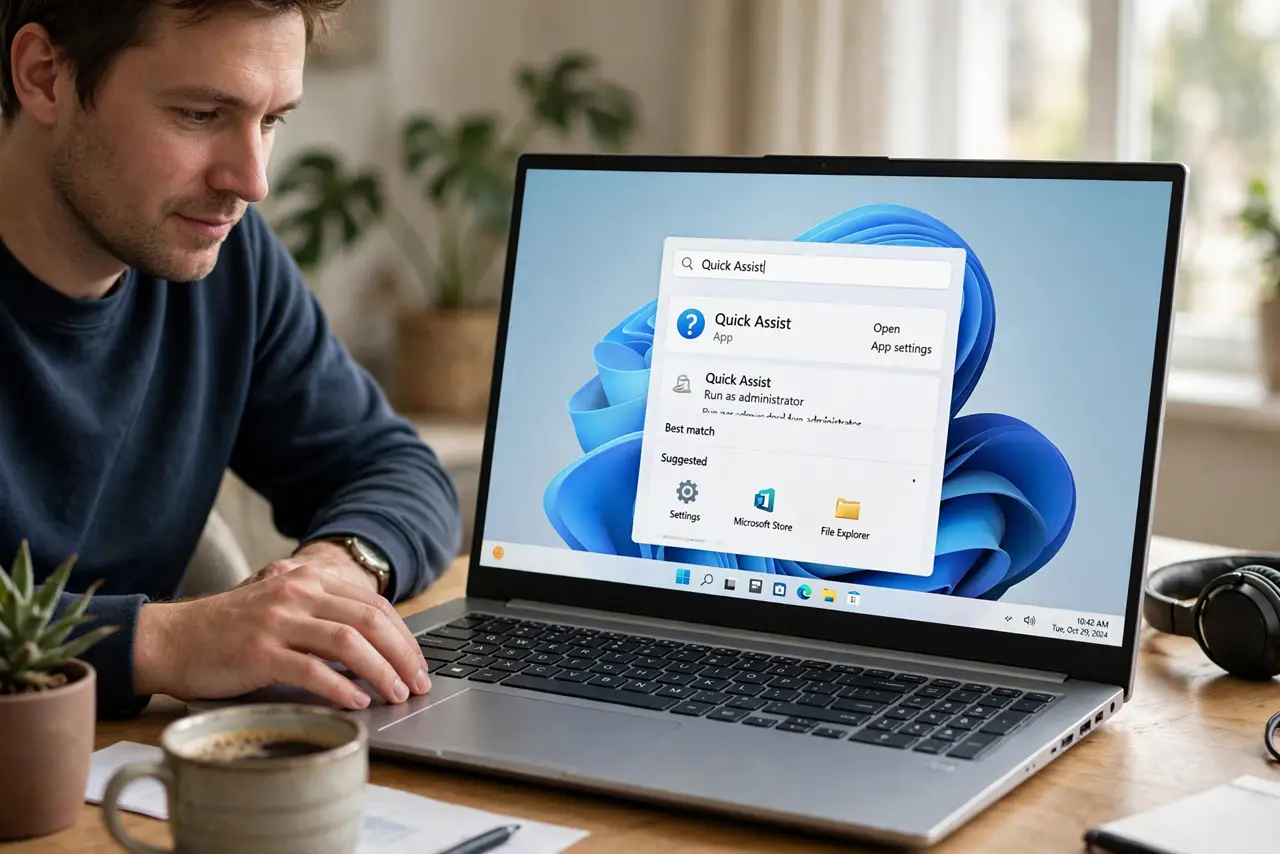
- Open Quick Assist on your PC. Search for Quick Assist in the Start menu — it is built into Windows 10 and 11. If it is missing, install it free from the Microsoft Store.
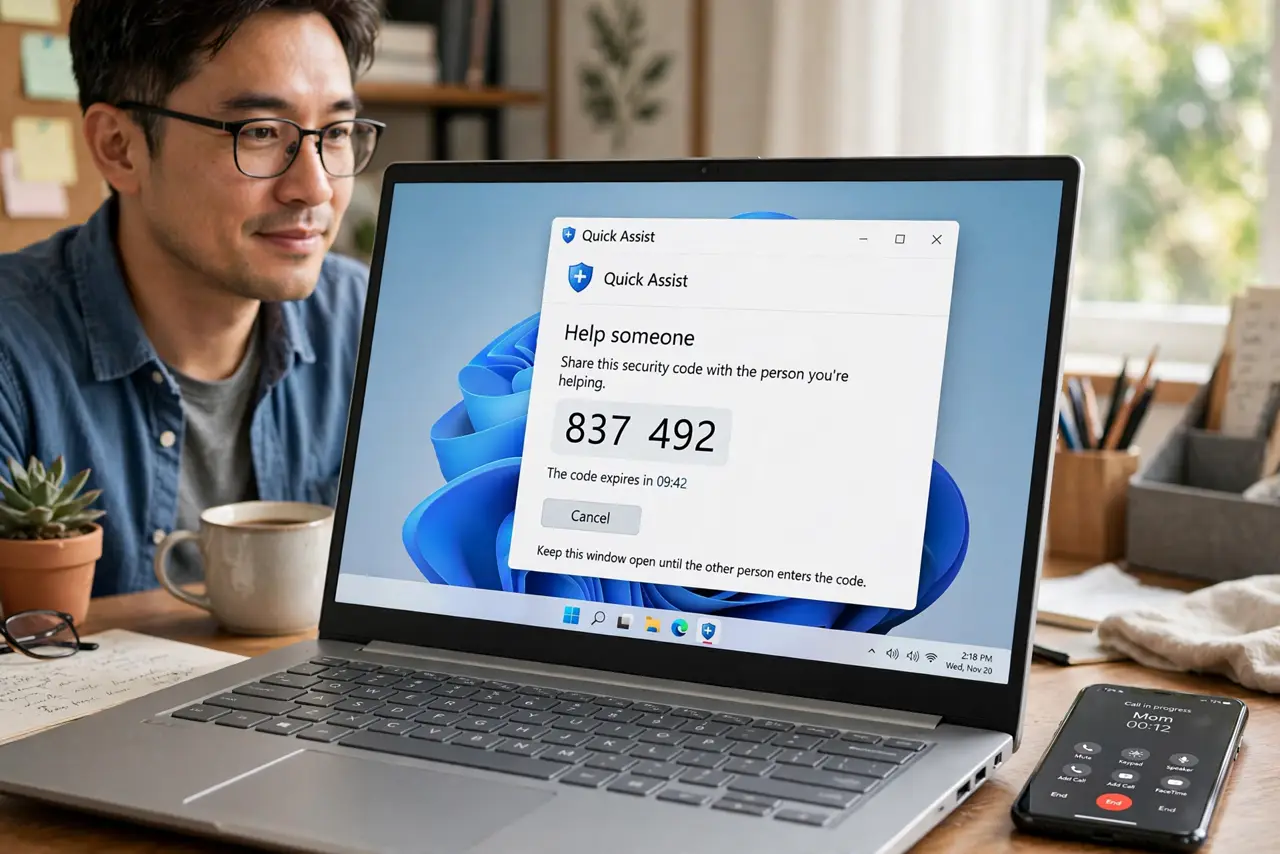
- Sign in and choose Help someone. The helper (you) signs in with a Microsoft account and clicks Help someone. This generates a six-digit security code valid for ten minutes.
- Share the code securely. Read the code over the phone or send it through a trusted channel to the person you are helping. Codes expire quickly by design — generate a fresh one if it lapses.
- Have them enter the code and allow access. On their PC they open Quick Assist, choose Get help, enter the code, and click Allow. They stay in control and can end the session any time.
- Guide or take control as needed. You can annotate their screen, or with their permission take control to fix things directly. Talk them through what you are doing — it teaches as well as fixes.
- End the session and confirm. Close Quick Assist on both ends when done. Ask them to restart if you changed system settings, and confirm the original problem is actually fixed.
What NOT to do
- Do not share a Quick Assist code with anyone who called you unexpectedly. Legitimate companies never cold-call offering remote help — that is the classic support scam.
- Do not leave the session open after finishing. Close it on both ends; an idle remote session is an unnecessary open door.
- Do not log into your own sensitive accounts on their PC during the session. Passwords typed remotely can linger in their browser or history.
- Do not use Quick Assist for unattended access. It is designed for live, consented help — for always-on access, proper remote desktop tools with strong authentication fit better.
Frequently asked questions
Does the other person need a Microsoft account?
No — only the helper signs in. The person receiving help just enters the code, which keeps it simple for less technical relatives.
Is Quick Assist safe?
Yes when you initiated the contact with someone you trust. The danger is reversed: scammers asking YOU to give them access — never do that.
What if the code expires?
Generate a new one — codes last ten minutes by design. If codes keep expiring, the other person may be too slow finding the app; walk them to it first.