Recall Privacy Controls
Recall takes screenshots of everything you do on a Copilot+ PC so you can search your past like a memory — which is either the future of computing or a privacy nightmare, depending on your comfort level. The good news: Microsoft built real controls for it, and they are worth configuring before you just leave the defaults. This guide walks the three settings that matter most. The Copilot+ explainer covers the hardware behind it.
TL;DR / Quick Fix
Quick fix: open Recall settings and turn off snapshot saving for sensitive apps and websites, set a shorter retention period, and require Windows Hello to open the timeline. Recall is powerful but records everything — these three controls keep it on your terms.
Follow these steps
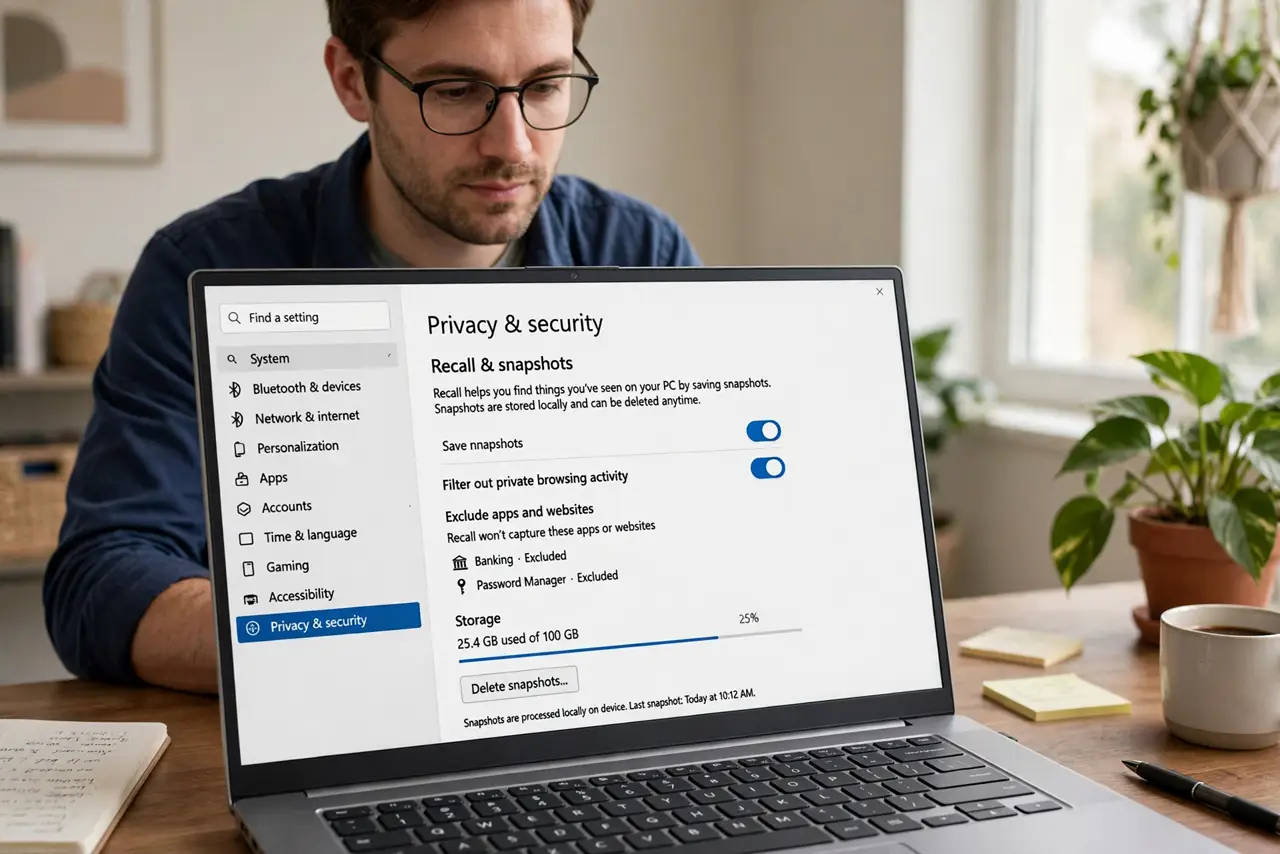
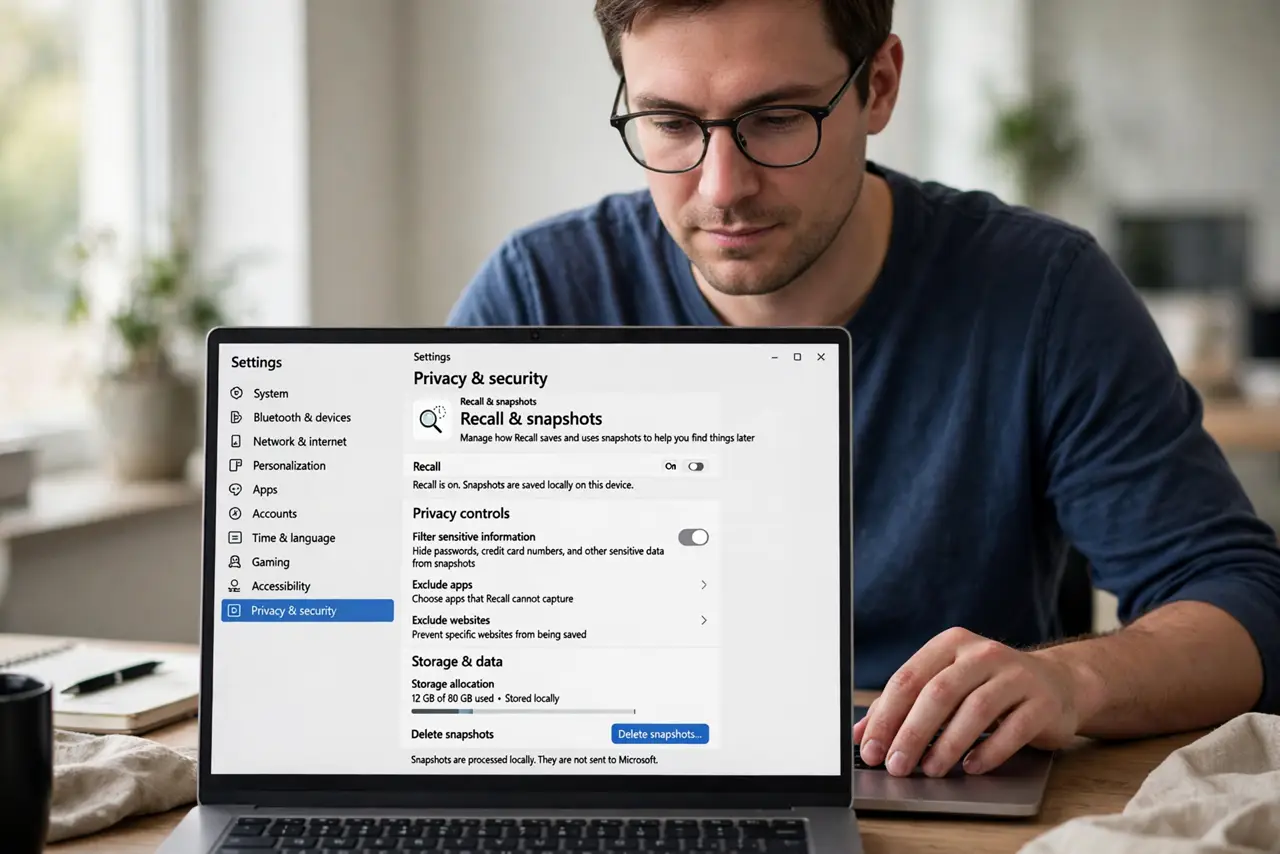
- Open Recall settings. In Settings, find the Recall or AI experiences section. All the privacy controls live here — Microsoft put them in one place, thankfully.
- Exclude sensitive apps and websites. Banking apps, password managers, private browsing — add them to the exclusion list so Recall never snapshots them. Do this first, before anything else.
- Shorten the retention period. Recall keeps months of snapshots by default. Reduce it to weeks — you keep the useful recent memory while limiting the archive of your life.
- Require Windows Hello for the timeline. Lock the Recall timeline behind facial recognition or fingerprint. Without this, anyone with your unlocked PC can browse your recorded past.
- Review what it captured. Periodically open the timeline and delete snapshots you do not want kept. The search makes auditing easy — which is both the feature and the warning.
- Decide if you want it on at all. Recall can be disabled entirely. If the controls do not satisfy you, turning it off is a valid, supported choice — see the snapshots off guide.
What NOT to do
- Do not leave the defaults untouched. Default retention is long and exclusions are empty — the defaults serve Microsoft's demo, not your privacy.
- Do not assume private browsing is excluded automatically. Add sensitive sites and apps to the exclusion list yourself.
- Do not share a Recall-enabled PC casually. The timeline is a window into everything the user did — lock it or disable it on shared machines.
- Do not forget Recall exists when screen-sharing. Snapshots are local, but the timeline is one curious click away during a shared session.
Frequently asked questions
Does Recall send my screenshots to Microsoft?
Snapshots are stored and processed locally on the device. The concern is local access — anyone with the unlocked PC — not cloud upload.
Can I delete everything Recall saved?
Yes — the settings include a clear-all option that wipes the snapshot store. Exclusions prevent future captures.
Is Recall on by default?
It is opt-in during setup on Copilot+ PCs. If you skipped the choice, check the settings to see its current state.