Turn Off Recall Snapshots
Windows Recall takes regular snapshots of your screen so you can search your past activity — and you'd rather it didn't. Turning it off is a Settings toggle, but you should also delete the snapshots already stored. Note: Recall only exists on Copilot+ PCs, so no toggle means no feature.
TL;DR / Quick Fix
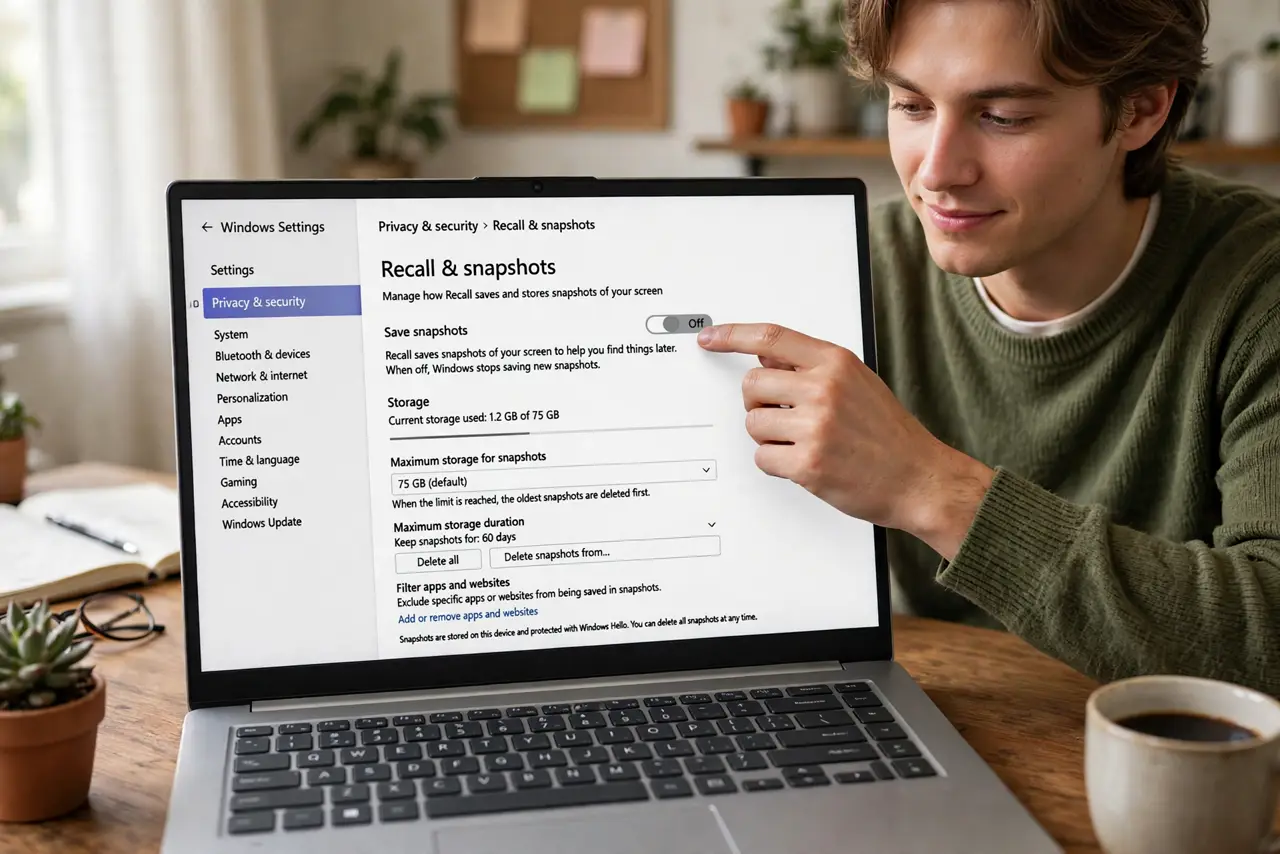
Quick fix: open Settings, go to Privacy & security, then Recall & snapshots, and turn snapshots off. Delete the snapshots already stored while you're there. Note that Recall only exists on Copilot+ PCs — if you don't see the setting, your computer simply doesn't have the feature.
Follow these steps
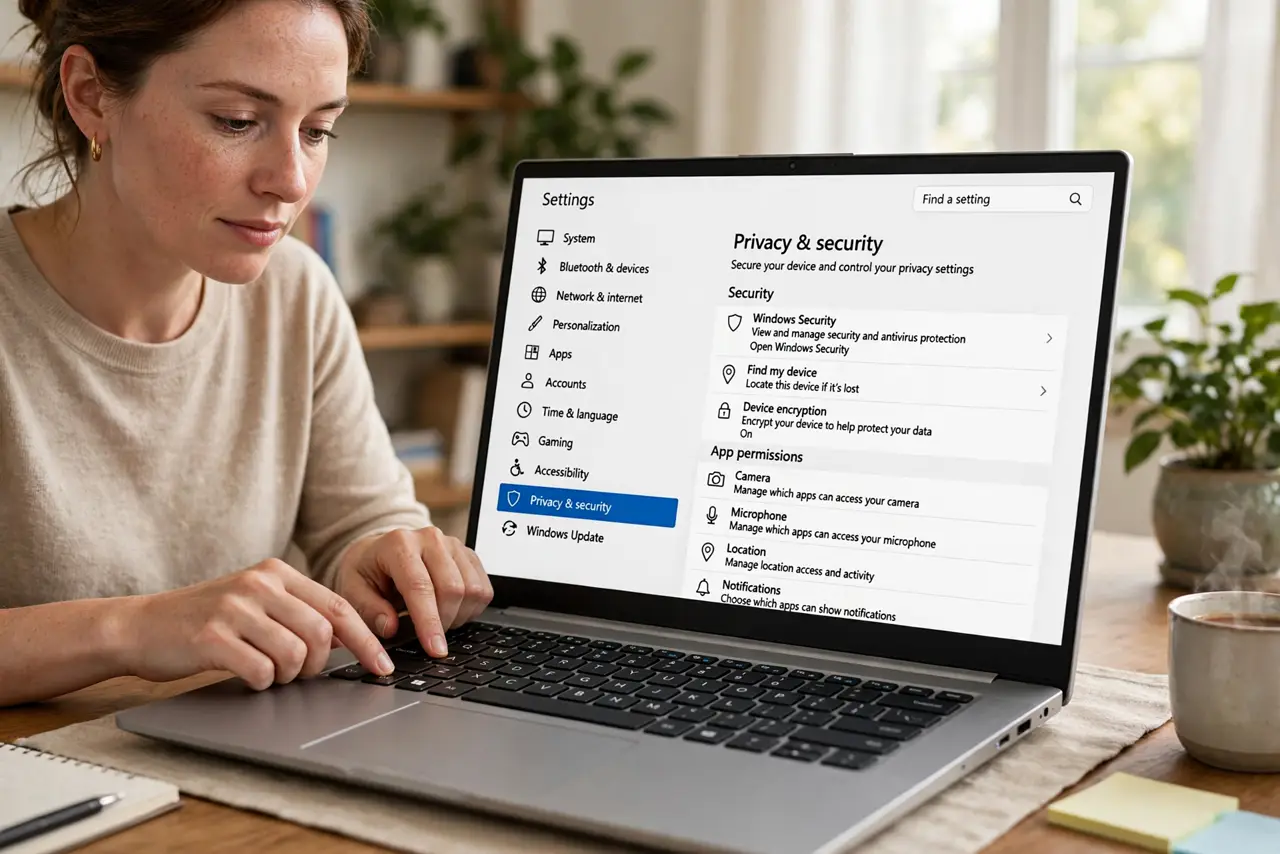
- Open Settings to Privacy and security. Press Windows+I, then choose Privacy & security in the sidebar. This is where Windows keeps its activity-recording controls.
- Open Recall and snapshots. Find the Recall & snapshots entry. If it's missing entirely, your PC isn't a Copilot+ PC and Recall was never recording — you're already done.
- Turn snapshots off. Switch the snapshot toggle off. Windows stops capturing new snapshots immediately — no restart needed.
- Delete the snapshots already stored. Use the delete option on the same page to remove existing snapshots. Turning off capture doesn't erase what's already saved — this step does.
- Confirm it's actually off. Revisit the page after a reboot and verify the toggle is still off. Major updates can occasionally reset privacy toggles.
- Decide about the feature, not just the toggle. Read what Recall actually does so your choice is informed. Some people re-enable it later for the searchable timeline — that's fine, as long as it's your call.
What NOT to do
- Do not confuse Recall with Timeline or other history features. They're different systems with different toggles — turn off the one you mean.
- Do not assume every Windows PC has Recall. It's exclusive to Copilot+ PCs; hunting for the toggle on other machines wastes time.
- Do not forget to delete stored snapshots after disabling. The off switch stops new captures — old ones stay until you delete them.
- Do not use registry hacks from forums to kill Recall. The Settings toggle is the supported path; hacks break updates and are hard to undo.
Frequently asked questions
What is Windows Recall, exactly?
An AI-powered timeline that snapshots your screen so you can search past activity. It's local to Copilot+ PCs and off unless you enable it — see the feature overview.
Does Microsoft see my Recall snapshots?
They're stored and processed locally on the device, not uploaded. Deleting them removes them from the PC.
Can I turn it back on later?
Yes — the same toggle re-enables it. Nothing is permanent here.