Access Your PC Remotely
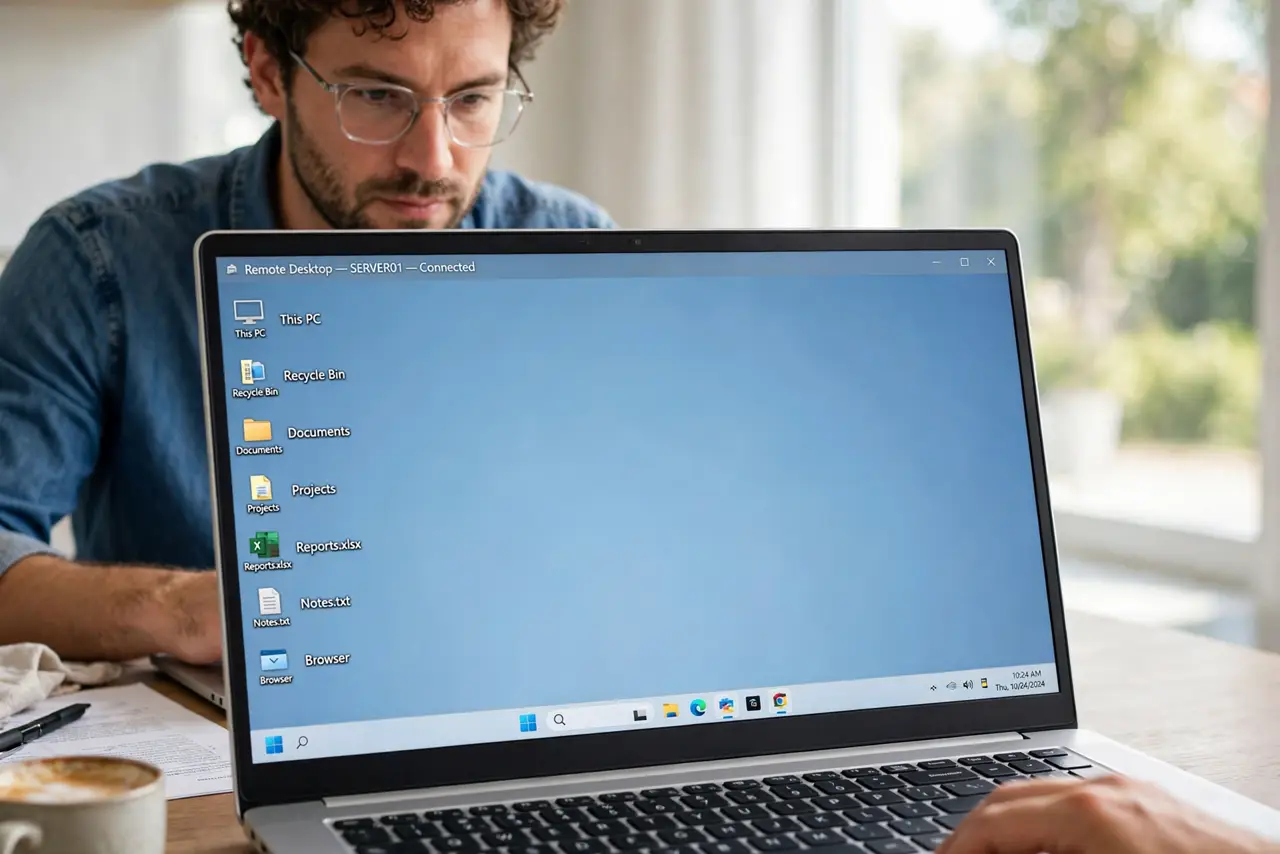
You are away from home and the file you need is on your home PC — or a relative needs help and you could fix it in two minutes if you could just see their screen. Windows Remote Desktop lets you take over a PC from anywhere as if you were sitting in front of it. Setup takes a few minutes; the gotchas are editions, networks, and security.
TL;DR / Quick Fix
Quick fix: on the home PC open Settings, go to System, then Remote Desktop, and turn it on — note the PC name. You need Windows Pro or higher; Home edition cannot host. Connect from anywhere with the Remote Desktop app, and use a strong password.
Follow these steps
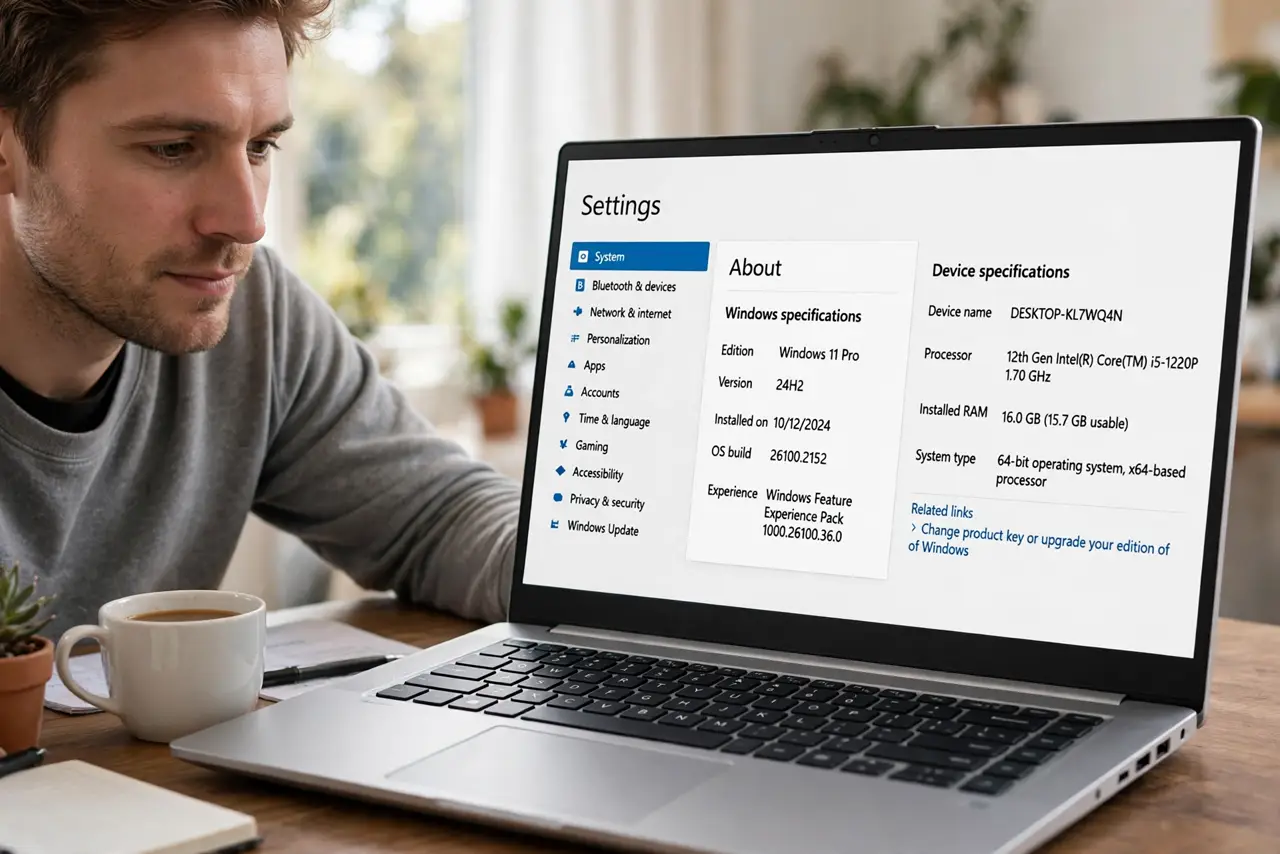
- Check your Windows edition. Remote Desktop hosting needs Windows Pro, Enterprise, or Education — Home edition can only connect out, not receive. Check in Settings, System, About.
- Enable Remote Desktop. On the host PC: Settings, System, Remote Desktop, toggle on. Note the PC name shown — you will connect to that.
- Set a strong password. The user account needs a password, and it should be a good one — this PC will accept logins from the network. No password, no remote access, by design.
- Connect from the same network first. Test with the Remote Desktop app from another device at home, using the PC name. Local success first proves the setup works before you add internet complexity.
- Reach it from outside carefully. Over the internet you need either a VPN into your home network or careful router configuration. Exposing Remote Desktop directly to the internet invites brute-force attacks — see the basics and risks before opening ports.
- Consider Quick Assist for helping people. If the goal is helping a relative once, Quick Assist is simpler and safer than full Remote Desktop — no network configuration at all.
What NOT to do
- Do not expose Remote Desktop directly to the internet. Port-forwarded RDP is one of the most attacked services on earth — use a VPN.
- Do not use a weak account password. Remote access multiplies the value of your password — make it long and unique.
- Do not leave the host PC unlocked. Lock it when you disconnect — a remote session left open is an open door.
- Do not assume Home edition can host. It cannot — no setting enables it. Upgrade or use Quick Assist instead.
Frequently asked questions
Is Remote Desktop free?
Yes — it is built into Windows Pro and higher, and the client apps are free. No subscription, no extra software.
Can I connect from a Mac or phone?
Yes — Microsoft's Remote Desktop app runs on Mac, iOS, and Android. The host must still be Windows Pro or better.
Why is it slow over the internet?
Upload speed at the host end is usually the limit — home connections upload far slower than they download. Lower the display quality for smoother control.