Try Windows Sandbox
You downloaded a file you do not quite trust — a free utility from a forum, an attachment from a stranger. Opening it on your real Windows install is a gamble. Windows Sandbox is a built-in feature that spins up a clean, throwaway copy of Windows in seconds: open the file there, and whatever happens stays inside. Close the window and everything is discarded — your real system never touched it.
TL;DR / Quick Fix
Quick fix: Windows Sandbox is a throwaway Windows desktop for testing sketchy files — everything inside is discarded when you close it. Enable it in Windows Features, restart, launch it from Start, and copy the file in. Test freely, then close the window; your real system stays untouched.
Follow these steps
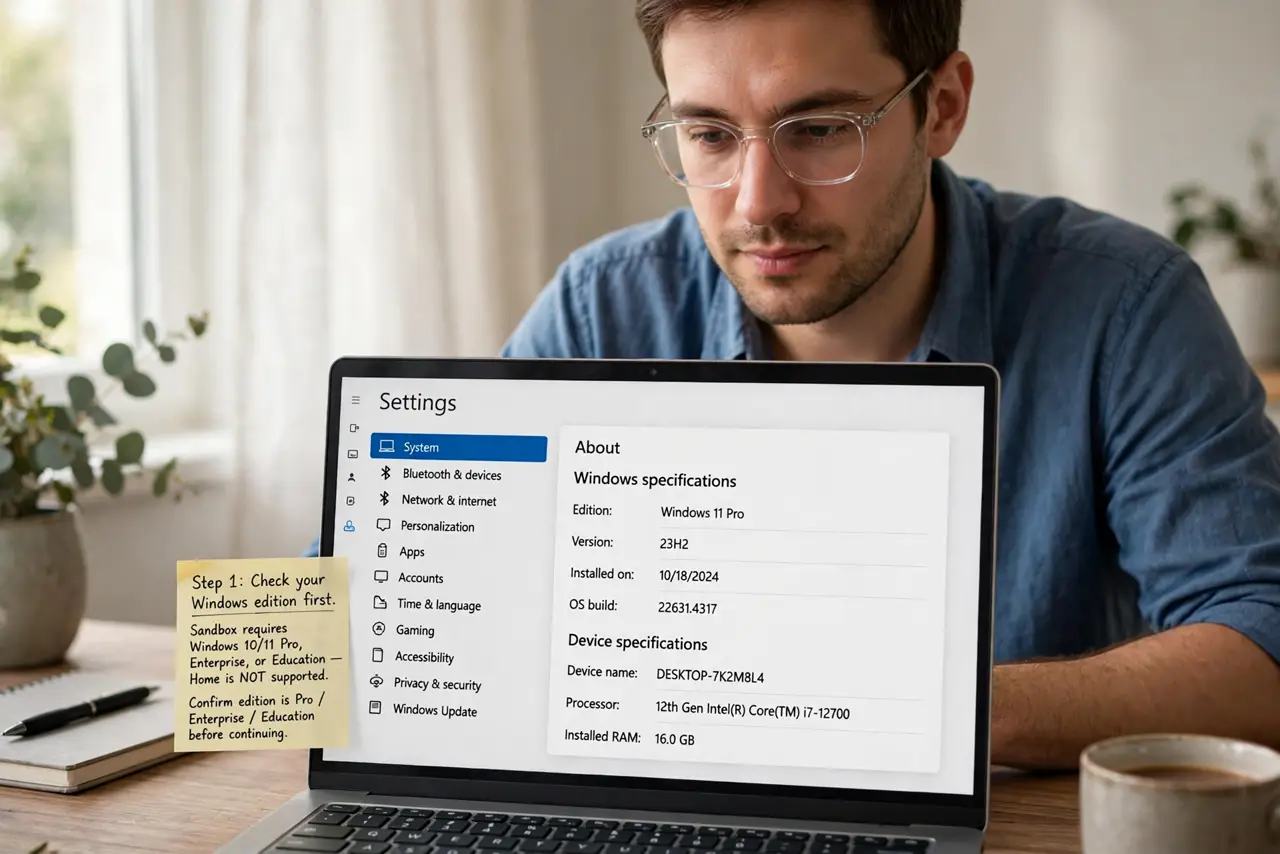
- Check your Windows edition first. Sandbox needs Windows 10 or 11 Pro, Enterprise, or Education — the Home edition does not include it. Open Settings, go to System, then About, and confirm the edition before going further.
- Turn the feature on. Open the Start menu, search for Turn Windows features on or off, and check the box for Windows Sandbox. See the feature enable walkthrough if the checkbox is missing — virtualization must be enabled in your BIOS first.
- Restart your PC. Windows applies the feature during a restart. Save your work first; the restart takes a few minutes while the Sandbox components install.
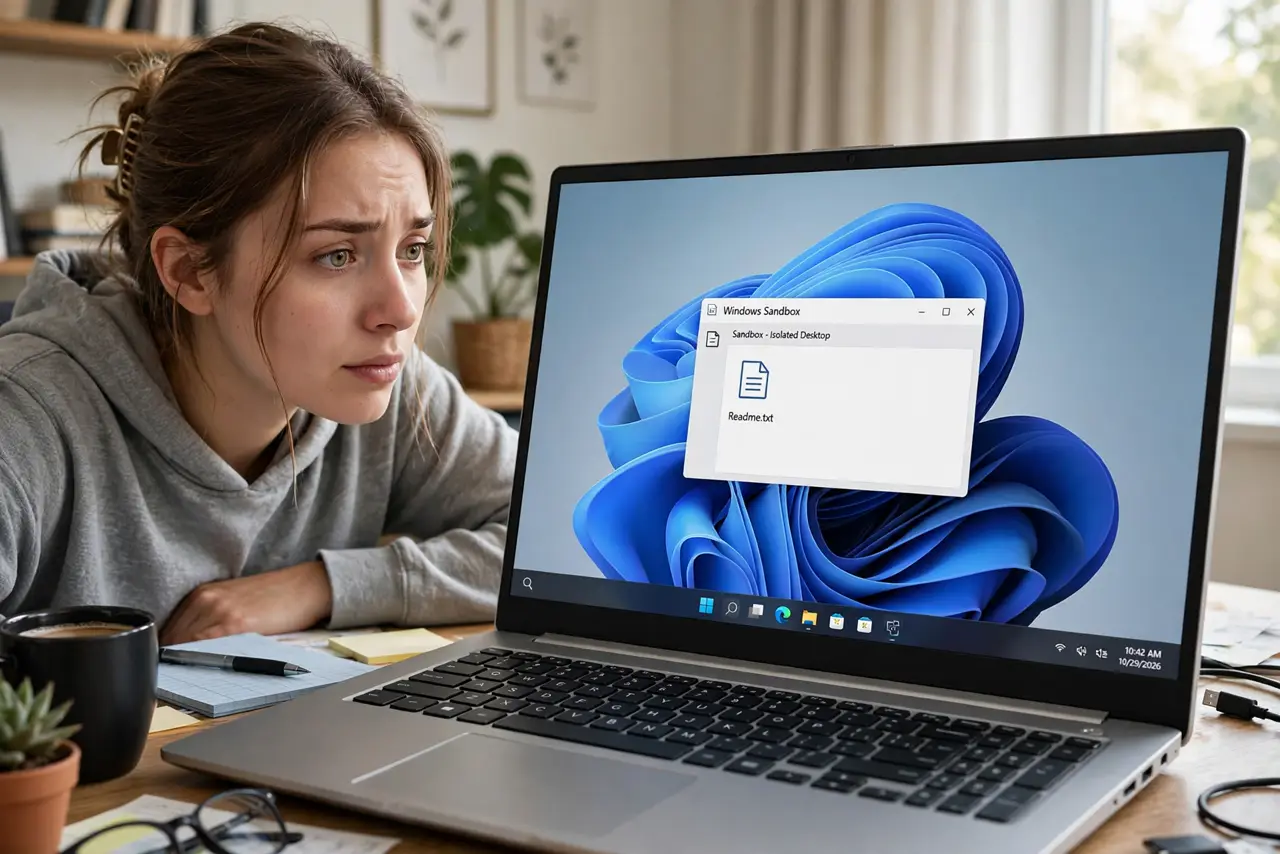
- Launch Sandbox from the Start menu. Search for Windows Sandbox and open it. A clean Windows desktop appears in a window — it looks like a fresh install because it is one, rebuilt from your system files each launch.
- Copy the suspicious file inside. Drag the file from your real desktop into the Sandbox window, or copy and paste. Open it, install it, poke at it — malware or misbehaving installers can only touch the Sandbox.
- Close the window when done. Everything inside — files, installs, changes — is wiped the moment you close Sandbox. That is the whole point of the design: nothing you tested can linger or infect your real PC.
What NOT to do
- Do not treat Sandbox as a vault for important work. Files inside are deleted on close — save anything you want to keep back to your real PC first.
- Do not disable your antivirus because you have Sandbox. It protects test sessions, not your everyday browsing and email.
- Do not open the same sketchy file on your real PC just to compare. The Sandbox exists so you never have to.
- Do not expect Sandbox to save a slow or infected PC. It isolates new tests; it does not clean an already compromised system.
Frequently asked questions
Does Windows Sandbox work on Windows Home?
No — it requires Pro, Enterprise, or Education. Home users can get similar isolation with a free virtual machine, which takes more setup but works the same way.
Can malware escape the Sandbox?
In practice, no for ordinary threats — the Sandbox is a tightly isolated container rebuilt fresh each launch. For sketchy downloads it is solid protection.
Why is the Sandbox option missing from Windows Features?
Usually because virtualization is disabled in the BIOS or UEFI, or you are on Windows Home. Enable virtualization in firmware settings first — see the custom configuration notes for advanced tweaks once it runs.