Enable Windows Sandbox
Windows Sandbox is a throwaway Windows desktop that resets itself every time you close it — perfect for opening a suspicious file without risking your real system. But the feature is missing on many PCs: it only ships with Pro and Enterprise, it needs virtualization enabled, and the checkbox hides in Windows Features. Here is how to turn it on, safely.
TL;DR / Quick Fix
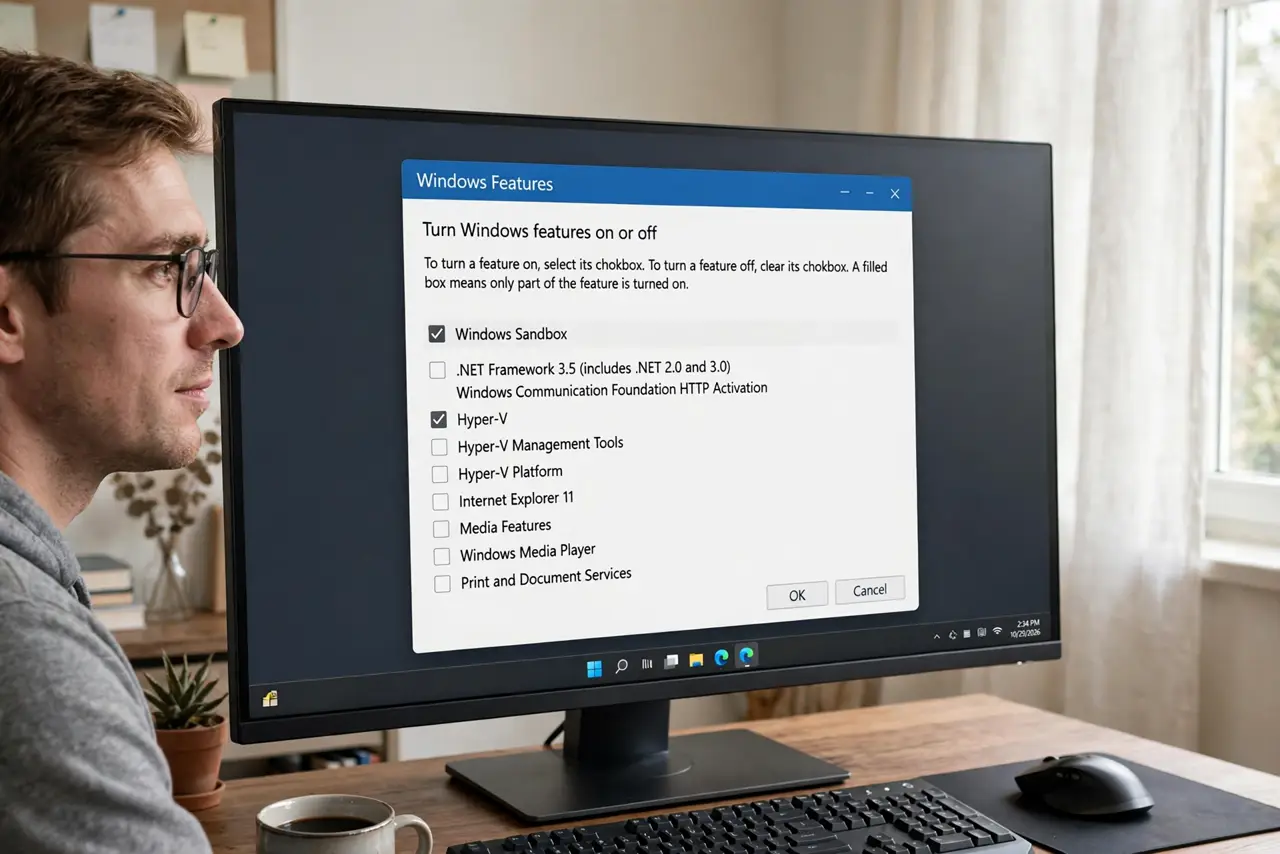
Quick fix: Windows Sandbox needs Windows 11 Pro or Enterprise — it is not in Home. Turn on virtualization in the BIOS, then open Turn Windows features on or off and tick Windows Sandbox. Restart, then launch it from the Start menu. Close it and everything inside is wiped clean.
Follow these steps
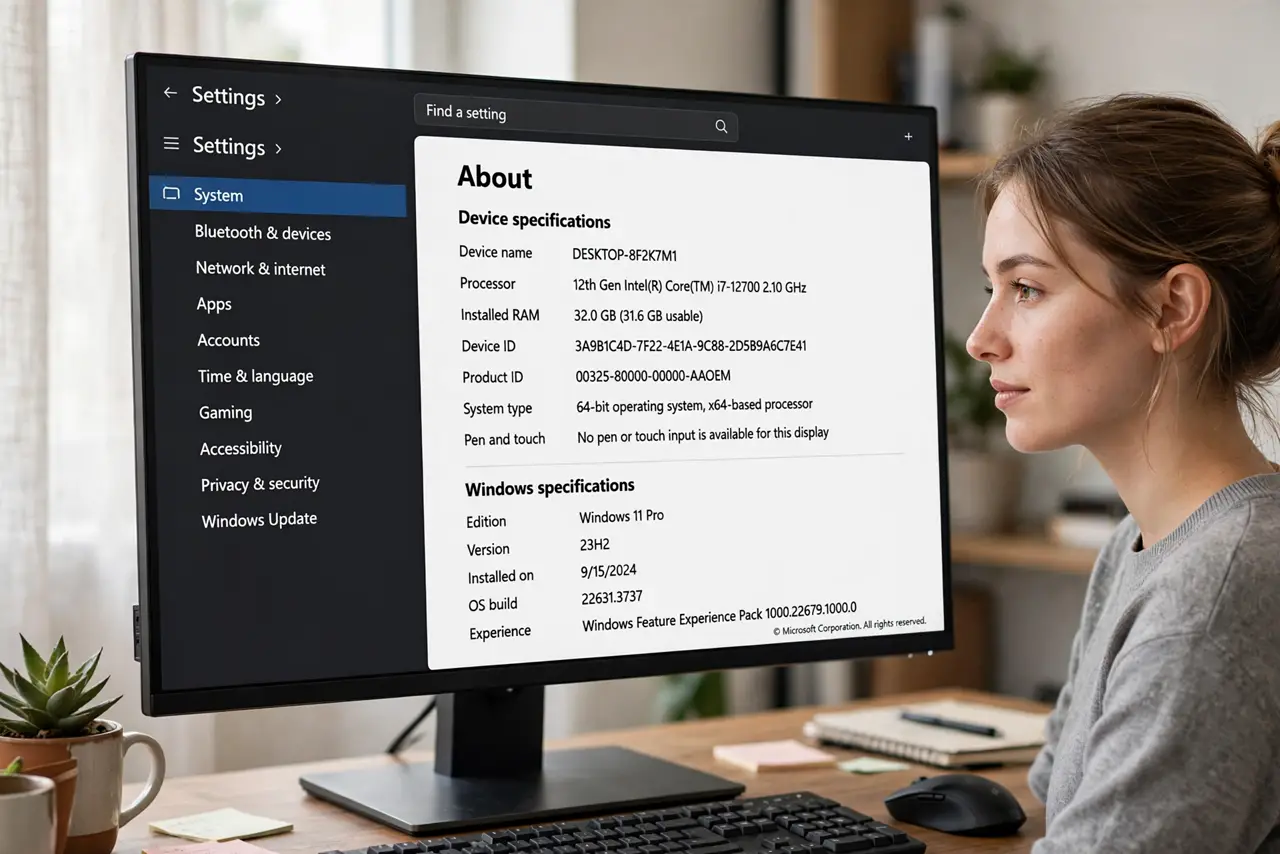
- Confirm you have Pro or Enterprise. Open Settings > System > About and check the Edition line. Windows Sandbox does not exist on Home — the Home situation is explained separately, so an upgrade or a different tool is the honest path.
- Enable virtualization in the BIOS. Restart, enter the BIOS or UEFI (usually Del or F2), and turn on Intel VT-x or AMD-V. The sandbox refuses to start without it, and the error message rarely says so.
- Tick Windows Sandbox in Windows Features. Search for Turn Windows features on or off, check the Windows Sandbox box, and click OK. Windows installs the feature and asks for a restart.
- Restart and launch it. After the restart, search Sandbox in the Start menu and open Windows Sandbox. The first launch takes a little while as it builds the clean desktop.
- Test with a harmless file. Copy an ordinary document into the sandbox window and open it. When you close the sandbox, the copy and anything it did are gone — that is the protection working.
- Know its limits. The sandbox has no persistent storage and no save button. For a Linux environment that keeps your files, WSL is the better tool.
What NOT to do
- Do not try to force the Sandbox onto Windows Home with registry tricks. Unsupported installs break on updates and can destabilize the system.
- Do not disable your antivirus because the sandbox exists. It protects one disposable session, not your files, email, or browser.
- Do not store important work inside the sandbox. Closing the window deletes everything — there is no undo and no recycle bin.
- Do not skip the BIOS virtualization step. Without VT-x or AMD-V, the feature installs but throws a cryptic error at launch.
Frequently asked questions
Is Windows Sandbox free?
Yes, on Pro and Enterprise it is included with Windows — no download, no license key, no subscription. You only need to enable it.
Does the sandbox protect me from ransomware?
Inside the session, yes — malware that runs there dies with the window. But anything you download to your real desktop and open normally is unprotected.
The Sandbox is enabled but will not start — what now?
The top cause is virtualization disabled in the BIOS. The second is another virtualization tool holding the hardware — close other virtual-machine software before launching.