Scroll Windows You're Not Using
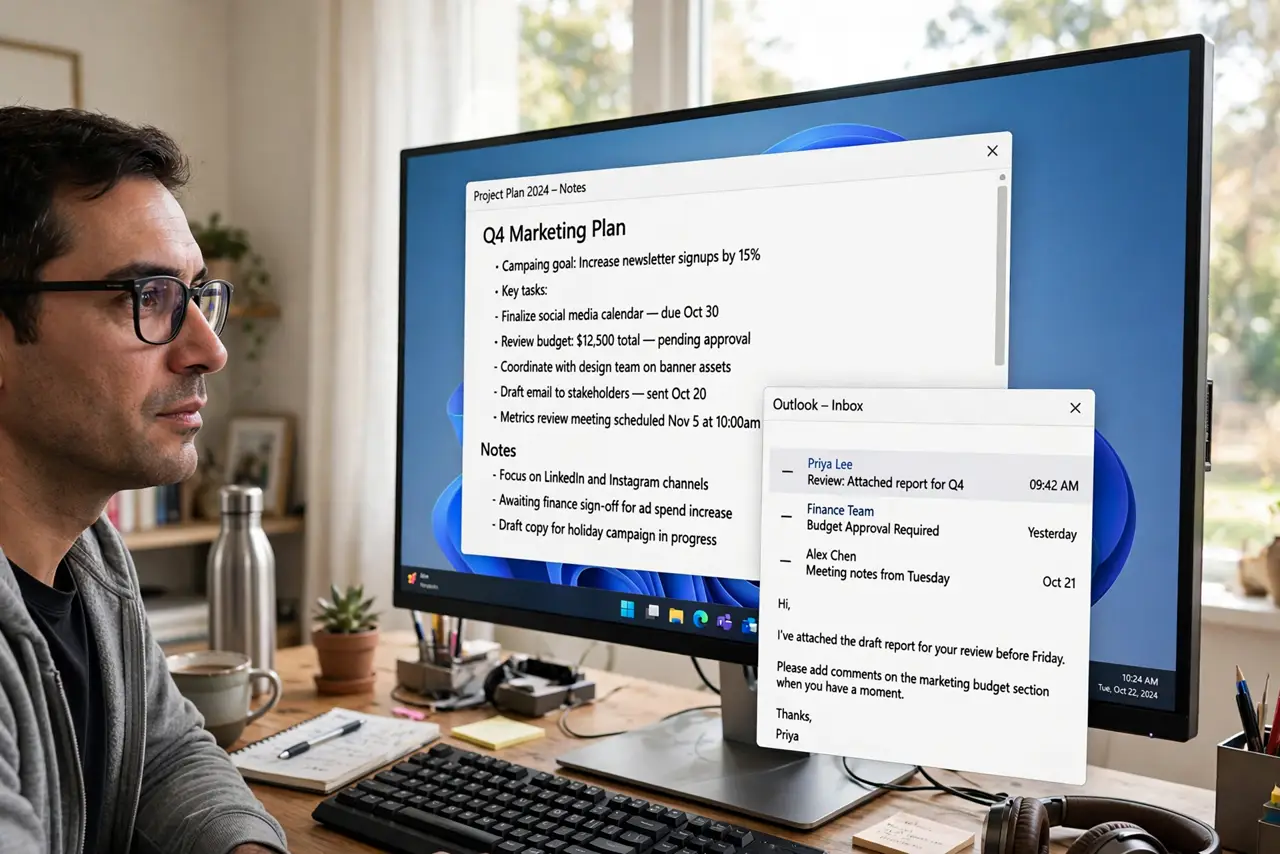
You are typing in one window while a long document sits behind it, and you want to scroll that document without clicking it first. Windows can scroll whatever window sits under your cursor — no focus change, no accidental clicks. It is one toggle most people never meet.
TL;DR / Quick Fix
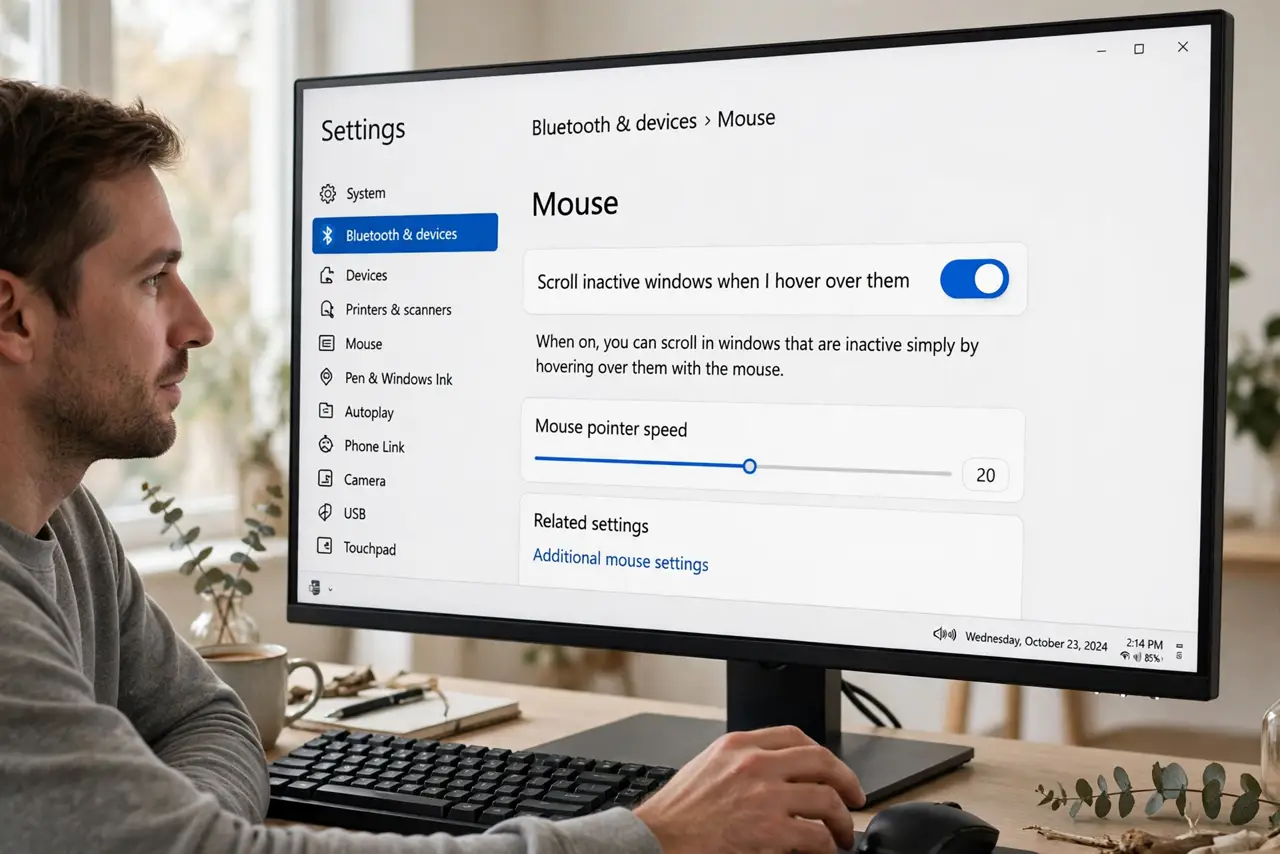
Quick fix: open Settings > Bluetooth & devices > Mouse and turn on Scroll inactive windows when I hover over them. Then hover any background window and scroll — no click needed. It works per window, so hovering the wrong one scrolls the wrong one. Some old apps ignore it.
Follow these steps
- Flip the toggle. Open Settings > Bluetooth & devices > Mouse and enable Scroll inactive windows when I hover over them. It takes effect immediately.
- Hover, then scroll. Park the cursor over the background window and use the wheel or two-finger scroll. The foreground window keeps keyboard focus the whole time.
- Mind which window is under the cursor. The scroll goes to whatever is directly beneath the pointer — hover carefully when windows overlap tightly.
- Tune lines per scroll. The same Mouse page sets how many lines each wheel notch scrolls. Inactive windows obey the same setting as the active one.
- Expect exceptions. Some older desktop apps and games capture the wheel regardless. If one app refuses, that app — not Windows — is the holdout.
- Turn it off if it annoys you. Accidental scrolls while reaching across the screen bother some people. The toggle is right there; preference beats dogma.
What NOT to do
- Do not click the background window first out of habit. The whole point is scrolling without stealing focus.
- Do not expect it in full-screen games. Games grab input exclusively; background scrolling does not apply there.
- Do not blame the mouse when one app ignores it. Per-app wheel handling overrides the Windows setting.
- Do not confuse this with smooth scrolling. That is a browser rendering option — unrelated to which window scrolls.
Frequently asked questions
Why does my background window not scroll?
The toggle is off, the cursor is not quite over the window, or the app handles the wheel itself. Check in that order.
Does this work with a touchpad?
Yes — two-finger scroll over a background window works exactly like the wheel.
Can I scroll a window that is completely covered?
No. The window must be at least partly visible under the cursor; fully hidden windows cannot receive the scroll.