Secure Boot? What It Does
Secure Boot is the bouncer at your PC's front door — it checks that only trusted software loads when the computer starts, blocking rootkits and boot malware before Windows even wakes up. Windows 11 requires it, and most PCs have it. Here is what it does, how to check it, and when you would ever turn it off.
TL;DR / Quick Fix
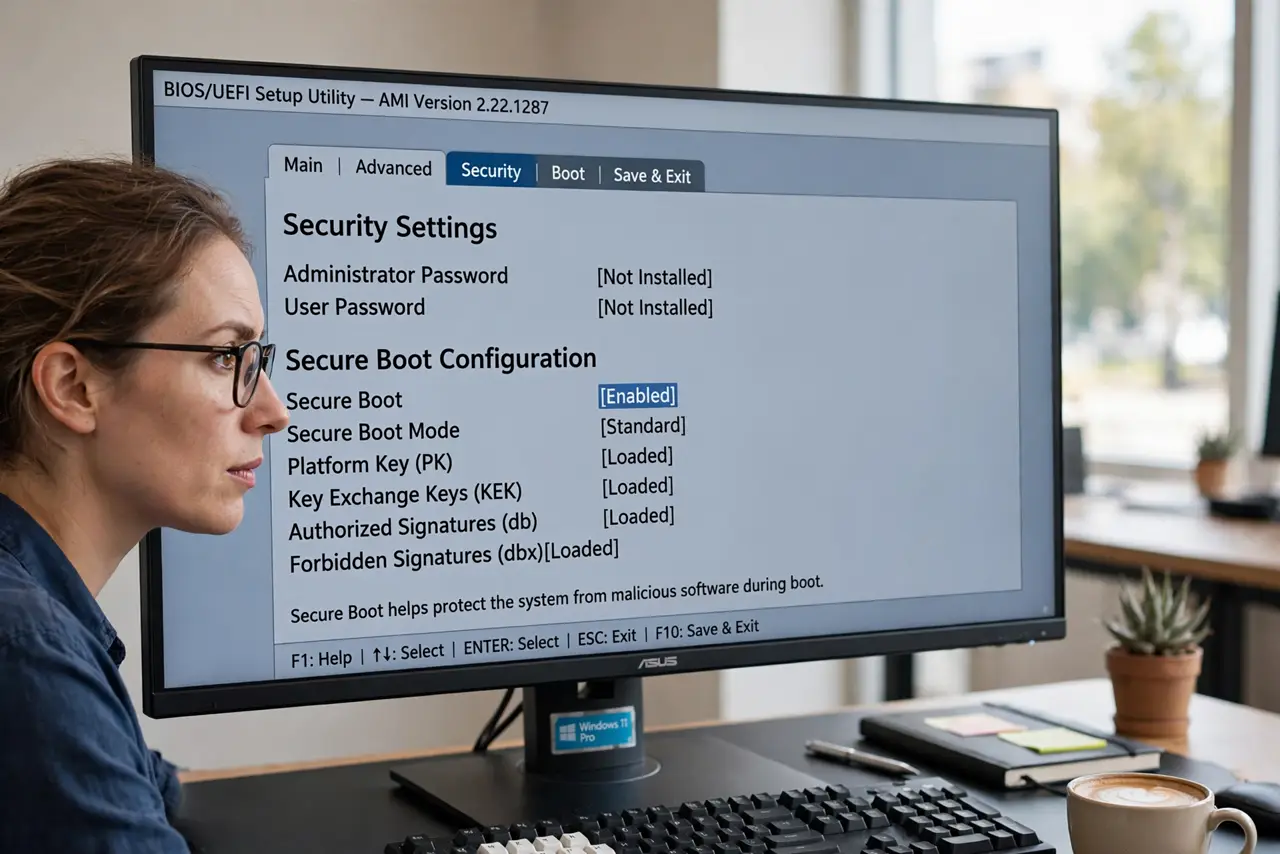
Quick fix: Secure Boot blocks untrusted software from loading at startup, stopping boot-level malware before Windows starts. It is required for Windows 11 and enabled by default on most modern PCs. Check its status with msinfo32; leave it on unless you are installing an alternative operating system.
Follow these steps
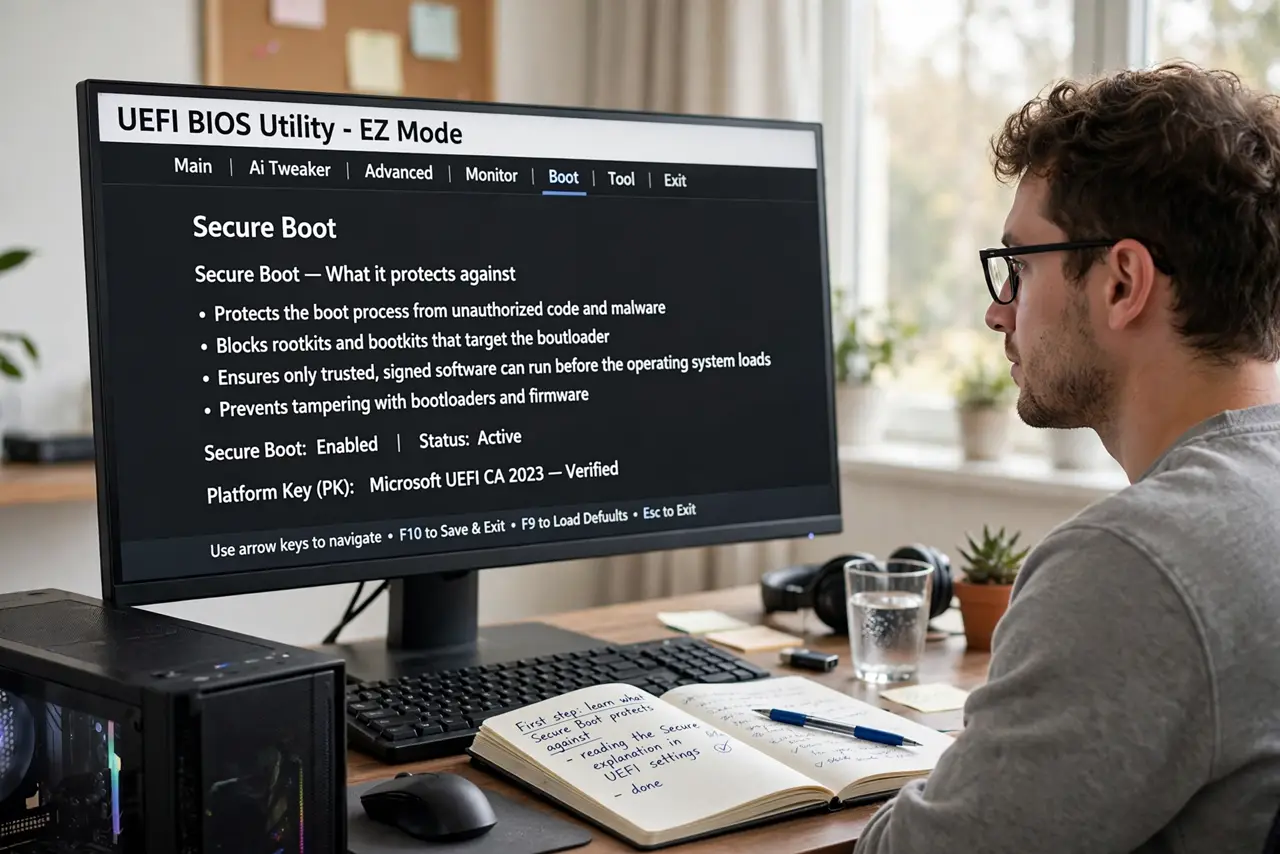
- Learn what it protects against. Bootkits infect the startup process before antivirus loads — invisible to everything above them. Secure Boot verifies each piece of startup software against trusted signatures, stopping that whole attack class cold.
- Check whether it is on. Press Windows+R, type msinfo32, and look for 'Secure Boot State'. 'On' means protected; 'Off' or 'Unsupported' deserves a look — see the Windows 11 requirements for the full picture.
- Enable it in the BIOS if needed. Restart into UEFI/BIOS settings (usually Del or F2), find the Secure Boot option under the Boot or Security tab, and enable it. Save and exit — Windows boots normally afterward.
- Know when to turn it off. Installing Linux, running old hardware diagnostics, or booting unsigned tools sometimes requires disabling it temporarily. Turn it back on when done — do not leave the door open.
- Understand the Windows 11 link. Windows 11 requires Secure Boot capability as part of its security baseline. A PC without it cannot officially upgrade, which is why the check matters.
- Pair it with its partner features. Secure Boot works with TPM 2.0 and features like Memory Integrity as a layered defense. One layer is good; all of them together is the point.
What NOT to do
- Do not disable Secure Boot permanently 'for performance'. It costs nothing in speed and removes real protection.
- Do not toggle BIOS settings blindly. Note original values before changing anything, in case you need to revert.
- Do not assume 'Unsupported' means broken. Very old PCs predate the feature — it is a hardware age thing, not a fault.
- Do not ignore a Secure Boot failure warning. If the PC complains at startup, something changed the boot chain — investigate before bypassing.
Frequently asked questions
Does Secure Boot slow down my PC?
No — the checks happen in a fraction of a second during startup. There is no measurable performance cost in daily use.
Can I install Linux with Secure Boot on?
Many modern Linux distributions support Secure Boot with signed bootloaders. Some niche distros still need it off — check your distro's docs.
Why is Secure Boot off after a BIOS update?
Some updates reset BIOS settings to defaults. Re-enable it and re-check msinfo32 — a two-minute fix.