Sleep Settings? Basics
Your Windows laptop sleeps after five minutes of idleness -- or never sleeps and cooks itself in a bag. Sleep settings control when the screen turns off, when the machine sleeps, and what closing the lid does, separately for battery and plugged-in states. Ten minutes here ends both the too-eager naps and the backpack furnace problem.
TL;DR / Quick Fix
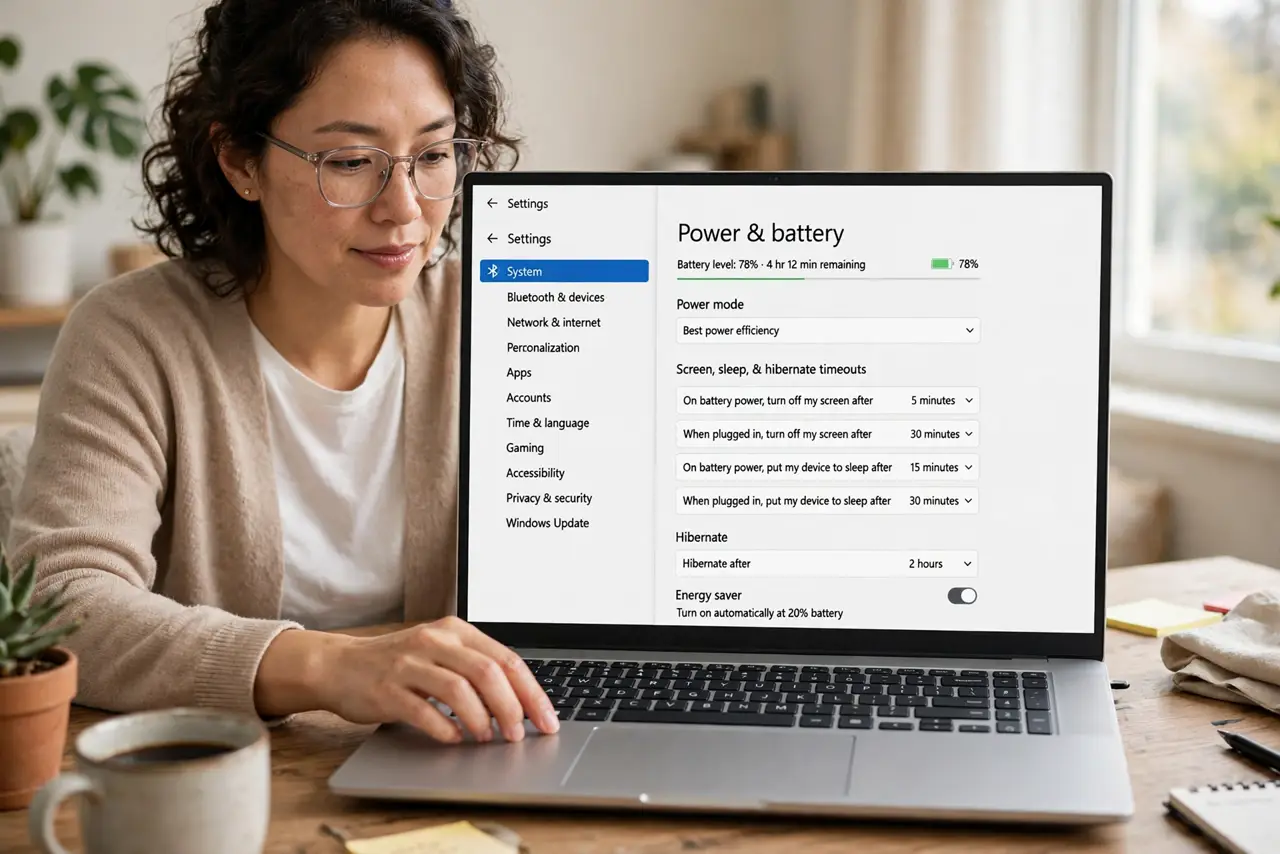
Quick fix: set sleep timeouts in Settings, then System, then Power and battery -- screen off and sleep timers, separately for battery and plugged in. Give the screen 5-10 minutes and sleep 15-30 on battery. Set closing the lid to Sleep for bag safety, never 'do nothing' on battery.
Follow these steps
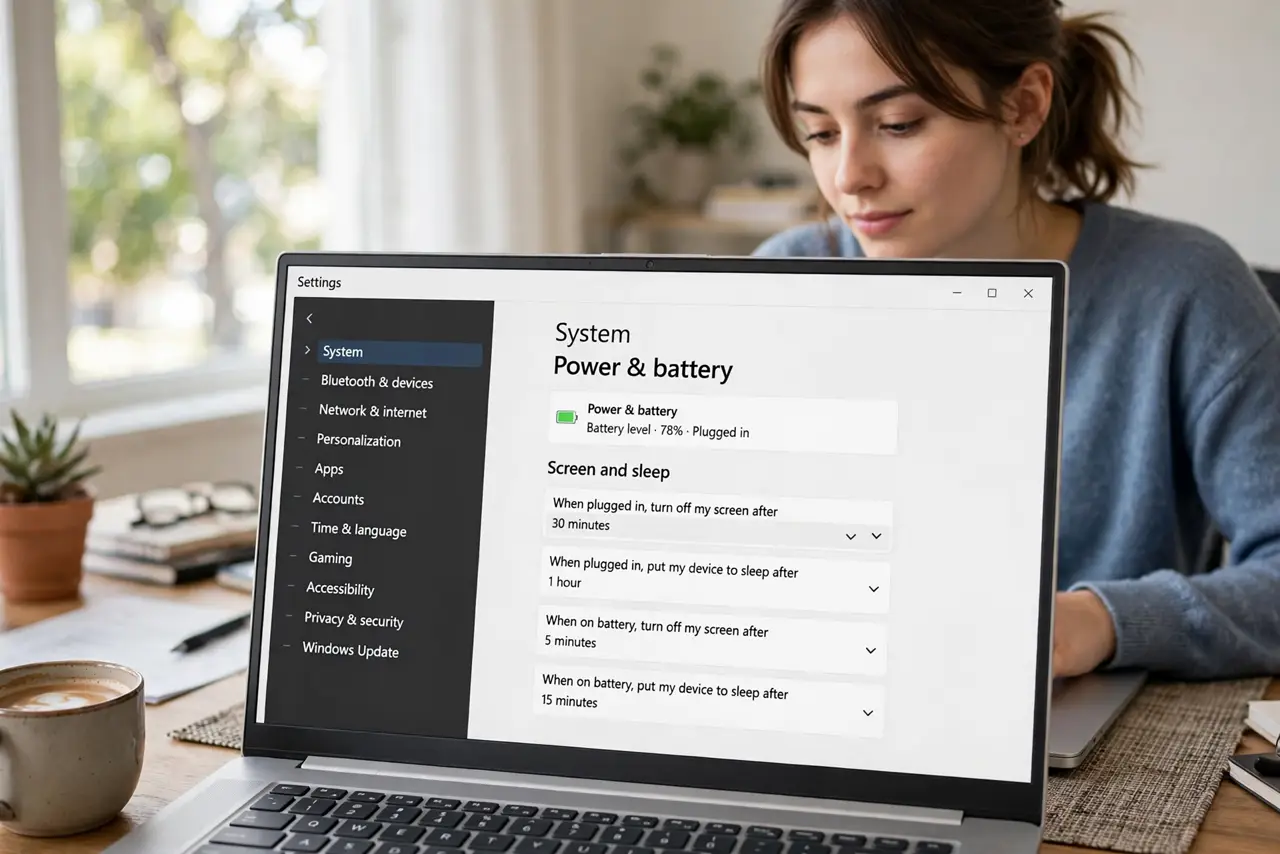
- Find the sleep controls. Settings, then System, then Power and battery -- the Screen and sleep section holds the four timers: screen off and sleep, each for battery and plugged-in.
- Set sensible screen timeouts. Screen off after 5-10 minutes on battery, 10-15 plugged in. The screen is the biggest battery draw -- this timer matters more than the sleep timer for daily battery life.
- Set sensible sleep timeouts. Sleep after 15-30 minutes on battery, 30-60 plugged in. Shorter saves battery; longer avoids the annoyance of constant wake-ups during thinking pauses.
- Choose the lid-close action. In Control Panel's power options, set closing the lid to Sleep -- on battery, always. 'Do nothing' on battery is how laptops roast in backpacks.
- Understand sleep vs hibernate. Sleep keeps RAM powered for instant wake; hibernate writes RAM to disk and powers off fully. Hibernate suits long storage; sleep suits daily use -- Windows can do both in sequence.
- Check what wakes the PC. If it wakes alone at night, something -- updates, a mouse, a wake timer -- is responsible. The wont-wake guide covers wake problems from the other direction.
What NOT to do
- Do not set the lid to 'do nothing' on battery. A running laptop in a closed bag overheats -- this setting has melted more than pride.
- Do not set one-minute timeouts to 'save battery.' Constant sleep-wake cycles annoy more than they save -- 15 minutes is the sane floor.
- Do not confuse screen-off with sleep. Screen-off saves the display's power; only sleep (or hibernate) saves the system's.
- Do not disable sleep to fix a wake problem. Find the waker -- mouse, timer, update -- instead of burning battery all night.
Frequently asked questions
Should I use sleep or hibernate?
Sleep for daily use -- instant wake. Hibernate for travel or days away -- zero drain. Windows' hybrid approach does both automatically on many laptops.
Why does my laptop die in my bag?
It never slept -- lid set to 'do nothing,' or something keeps waking it. Fix the lid action first.
Does sleep use battery?
A little -- RAM stays powered. Modern standby sips; older sleep sips slightly more. Hibernate uses none.