Open Network Shares (SMB)
Your files sit on another PC or a NAS box, and Windows refuses to see them — ‘network path not found’ with no useful explanation. Nine times out of ten this is a discovery or permission issue, not a broken network. Here is the order that actually finds the share.
TL;DR / Quick Fix
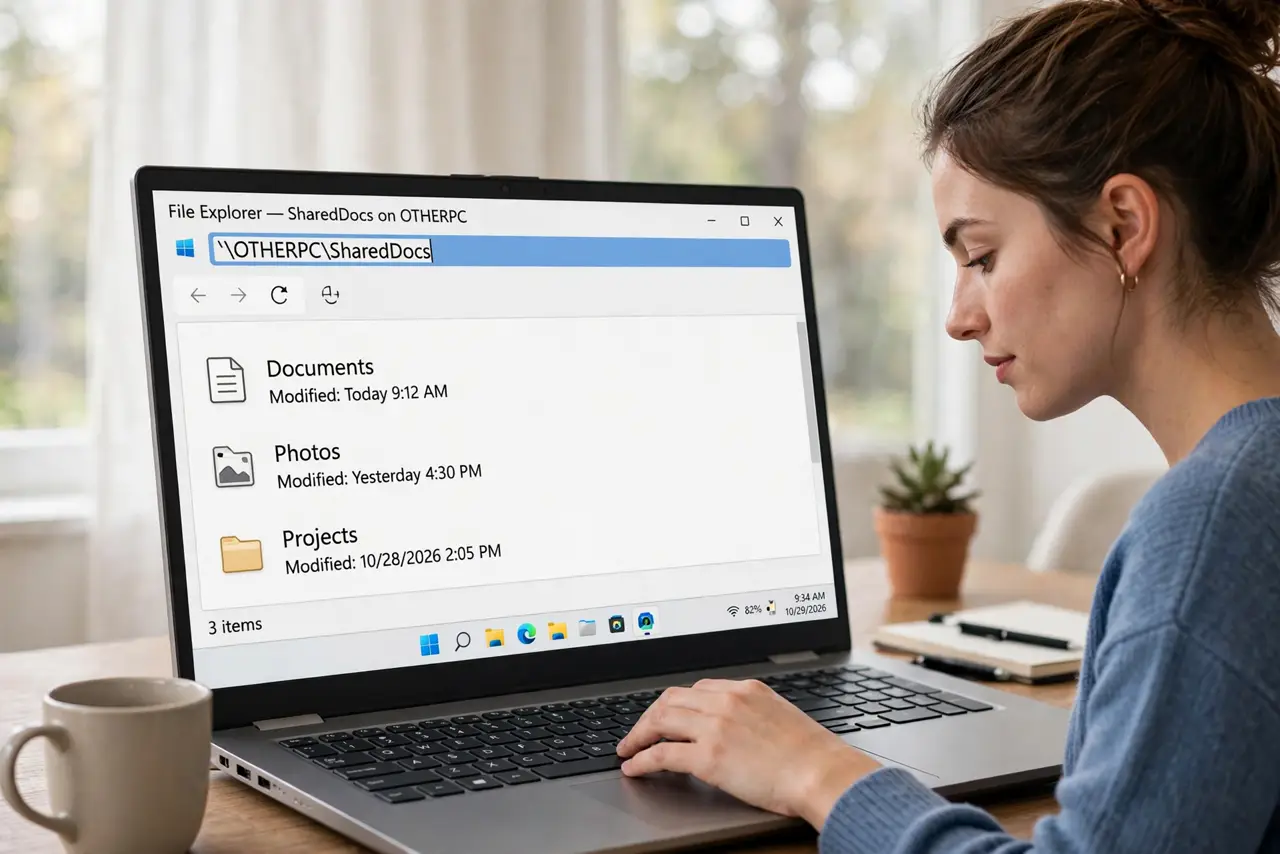
Quick fix: in File Explorer’s address bar type \\COMPUTERNAME\ShareName and press Enter — use the other PC’s name and the exact share name. Sign in with an account that has permission there. If it fails, check both PCs share the same private network with network discovery on.
Follow these steps
- Type the address directly. In File Explorer’s address bar, type \\ followed by the other computer’s name, another backslash, and the share name — e.g. \\DESKTOP-PC\Photos. Direct addressing bypasses all discovery flakiness.
- Sign in with the right account. Use a username and password that exists on the sharing PC and has permission on that folder. Your Microsoft account works if the sharing PC uses the same one; otherwise use its local account.
- Check both PCs are on a private network. Open Settings > Network and confirm the network profile says Private, not Public — Windows blocks sharing on Public networks. This one setting explains a huge share of ‘not found’ errors.
- Turn on network discovery. In advanced sharing settings, enable network discovery and file sharing on both machines. Discovery off means the PCs are invisible to each other even when everything else is right.
- Verify the folder is actually shared. On the sharing PC, right-click the folder > Properties > Sharing and confirm it lists as shared, with the right people allowed. An unshared folder is not a network problem — it is a sharing problem.
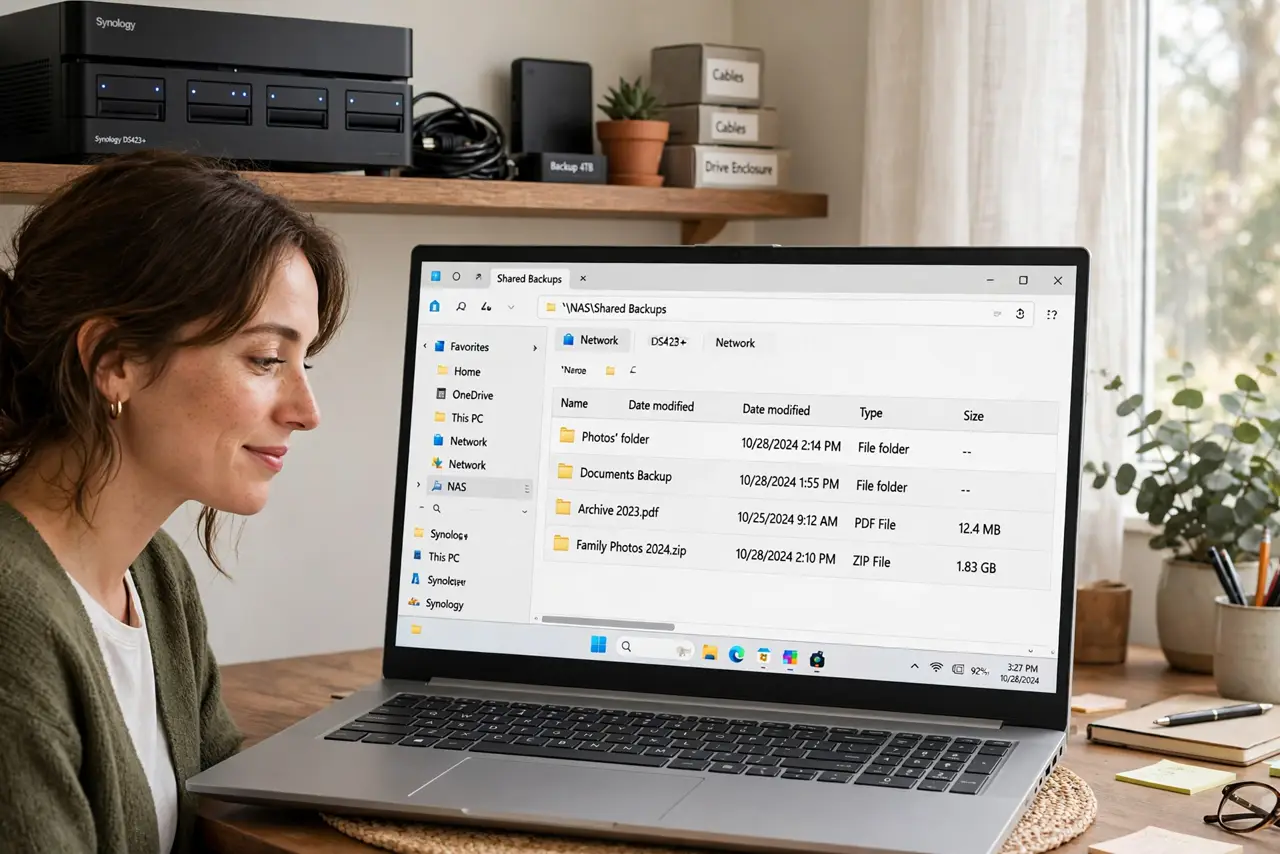
- Consider a NAS for always-on storage. If you share files constantly, a dedicated home NAS beats leaving a PC on — and read NAS security basics before exposing it anywhere.
What NOT to do
- Do not disable password-protected sharing casually. It is tempting for convenience and a real security hole — anyone on the network gets your files.
- Do not share your entire C: drive. Share the specific folder you need; broad shares are how ransomware spreads across a home network.
- Do not ignore the Public vs Private setting. Flipping to Private on a coffee-shop network exposes your shares to strangers — match the profile to the place.
- Do not use SMBv1. It is ancient and insecure; if an old device demands it, that device — not your settings — is the problem to fix.
Frequently asked questions
Why does the share vanish after a reboot?
Usually the sharing PC got a new IP address. Give it a static IP or use its computer name instead of the address — names survive reboots, numbers do not.
Can I access the share from my phone?
Yes — file-manager apps on iPhone and Android speak SMB. Enter the same address and credentials you use on the PC.
It asks for credentials I never set — what now?
Use any account from the sharing PC with access to the folder. If the sharing PC uses a Microsoft account, that email and password is the login.