Snap Layouts? A Plain Guide
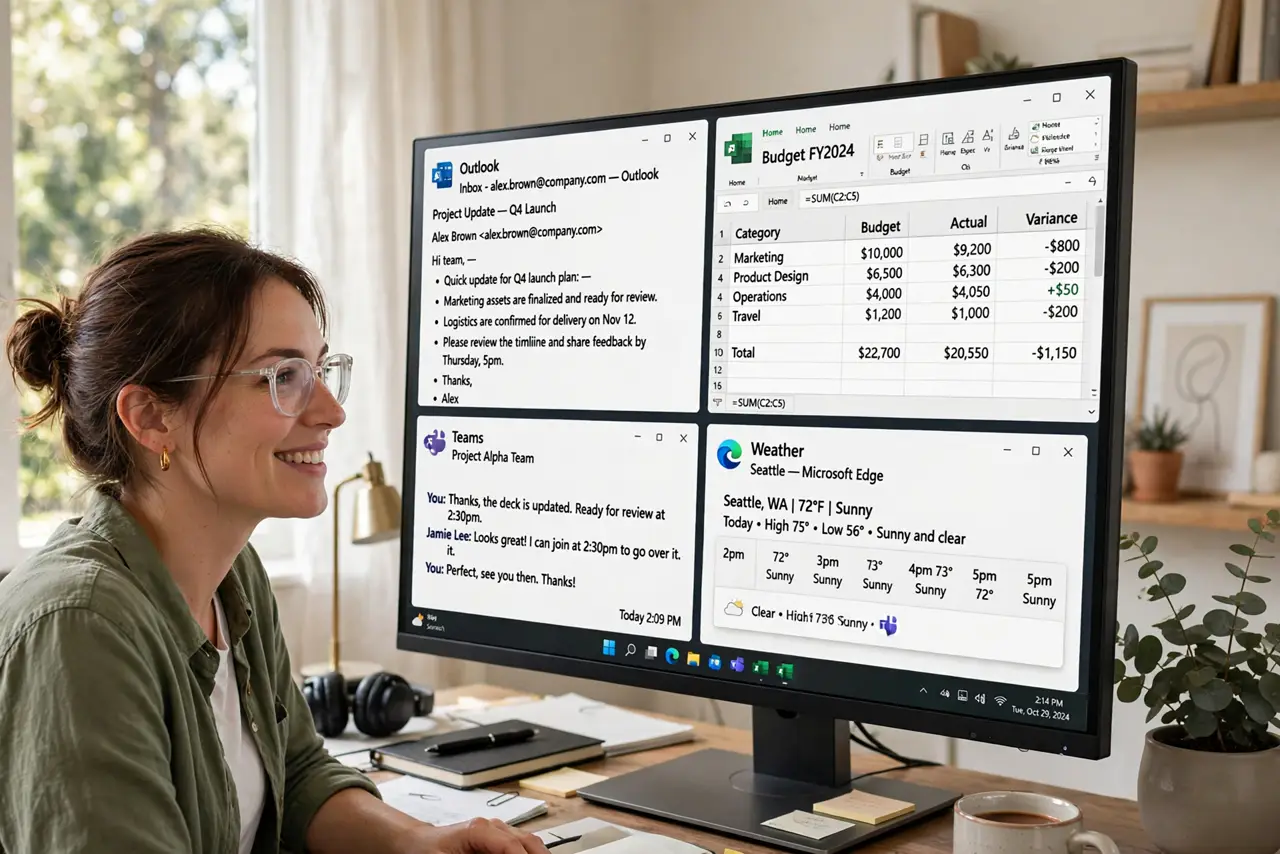
You drag a window to the screen edge and Windows offers to tile it neatly beside another — that is Snap, and Snap Layouts is the upgraded version that shows a grid of arrangements when you hover the maximize button. It turns chaotic overlapping windows into an organized workspace in two clicks. Most people discover it by accident; this guide shows how to use it on purpose.
TL;DR / Quick Fix
Quick fix: hover the maximize button on any window to see Snap Layouts — pick a grid arrangement and Windows tiles your open windows into it. Or drag windows to screen edges and corners. Use Win+Z for the keyboard shortcut. Two clicks turn window chaos into a tidy split-screen workspace.
Follow these steps
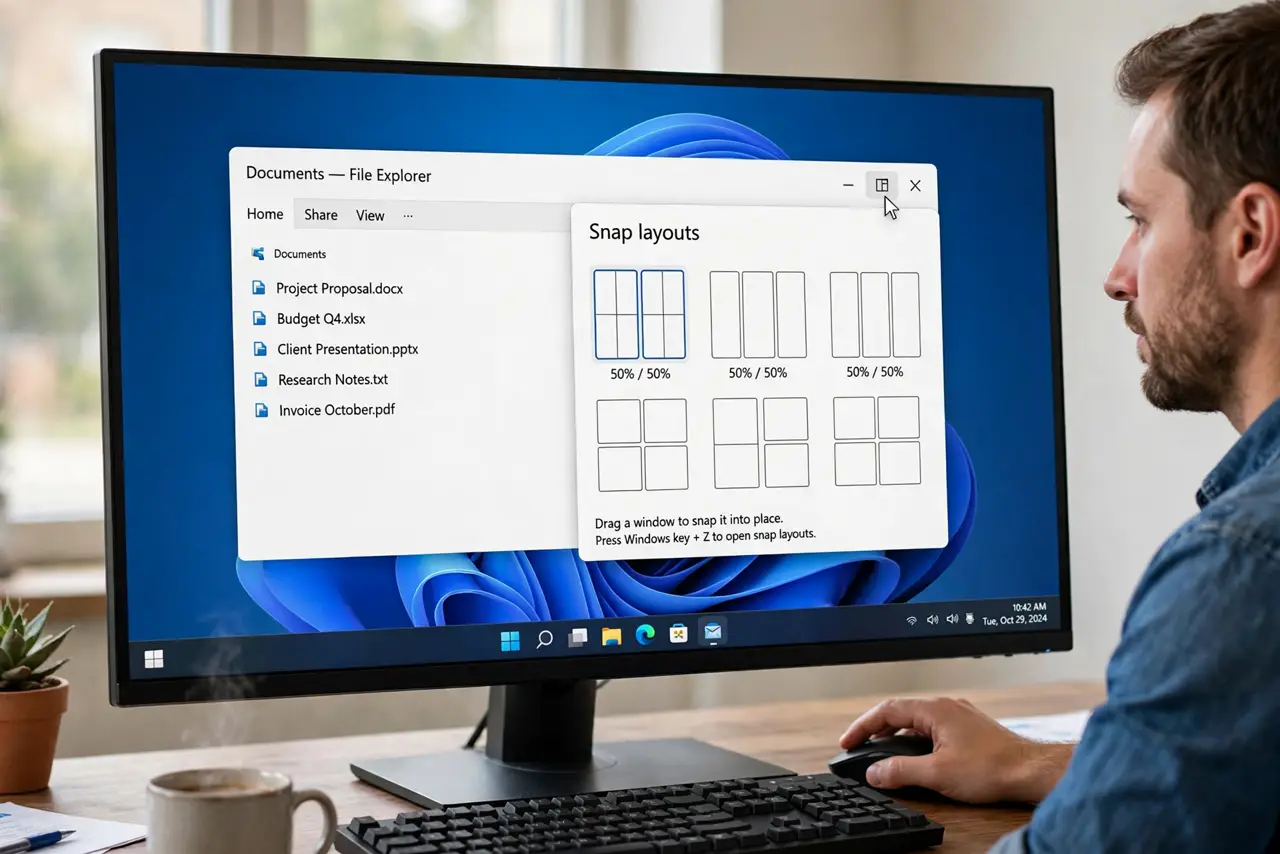
- Open the layout picker. Hover your mouse over the maximize button (the square) on any window — a grid of layout options pops up. Click the zone you want the current window to fill. This is the fastest entry to Snap Layouts.
- Fill the remaining zones. After snapping the first window, Windows shows thumbnails of your other open windows — click one to fill the next zone. Repeat until the grid is full. The whole arrangement takes seconds once you know the flow.
- Drag to snap the old way. Drag a window to the left or right edge for half-screen, or into a corner for quarters. Drag to the top for full screen. If the layout menu never appears, check that Snap is enabled in Settings → System → Multitasking.
- Use the keyboard shortcut. Press Win+Z to open the layout picker for the active window, then press a number key to choose. Win+Left/Right arrows snap without the picker. Keyboard snapping is the fastest once it becomes muscle memory.
- Snap groups remember themselves. Windows 11 keeps snapped window groups together — hover a grouped app's taskbar icon to restore the whole arrangement. This makes a research-plus-notes layout a one-click restore after a reboot.
- Pair with virtual desktops. Snap organizes one screen; virtual desktops organize many. Put communication apps snapped on one desktop and deep work snapped on another — the two features multiply each other.
What NOT to do
- Do not fight tiny laptop screens with 4-way splits. Two zones suit small displays; four belongs on big monitors.
- Do not disable Snap because the suggestions annoy you. Turn off just the suggestion popups in Multitasking settings and keep the layouts.
- Do not expect every app to snap perfectly. Some older or oddly-sized apps resist tiling — snap what cooperates and float the rest.
- Do not forget Win+Z exists. Many people only know dragging, which is the slowest way to snap.
Frequently asked questions
Why don't I see layout options on maximize hover?
Snap may be disabled, or you are on Windows 10 (which has basic snap but not the layout picker). Check Settings → System → Multitasking → Snap windows on Windows 11.
Can I create custom layouts?
Not built-in — Windows offers fixed grids. Third-party tools like FancyZones (in Microsoft PowerToys) add fully custom zones if the built-ins don't suit you.
Do snapped layouts survive a reboot?
Window positions generally restore if the apps reopen, and taskbar snap groups help. It is not perfect — treat snap as a fast daily setup, not permanent furniture.