Delay Your Screenshots
You need to screenshot a dropdown menu, but the moment you click the Snipping Tool, the menu vanishes. Or you need to capture a tooltip that disappears when you move the mouse. The Snipping Tool's delay timer solves both: set a few seconds, get your screen ready, and the capture fires after the countdown.
TL;DR / Quick Fix
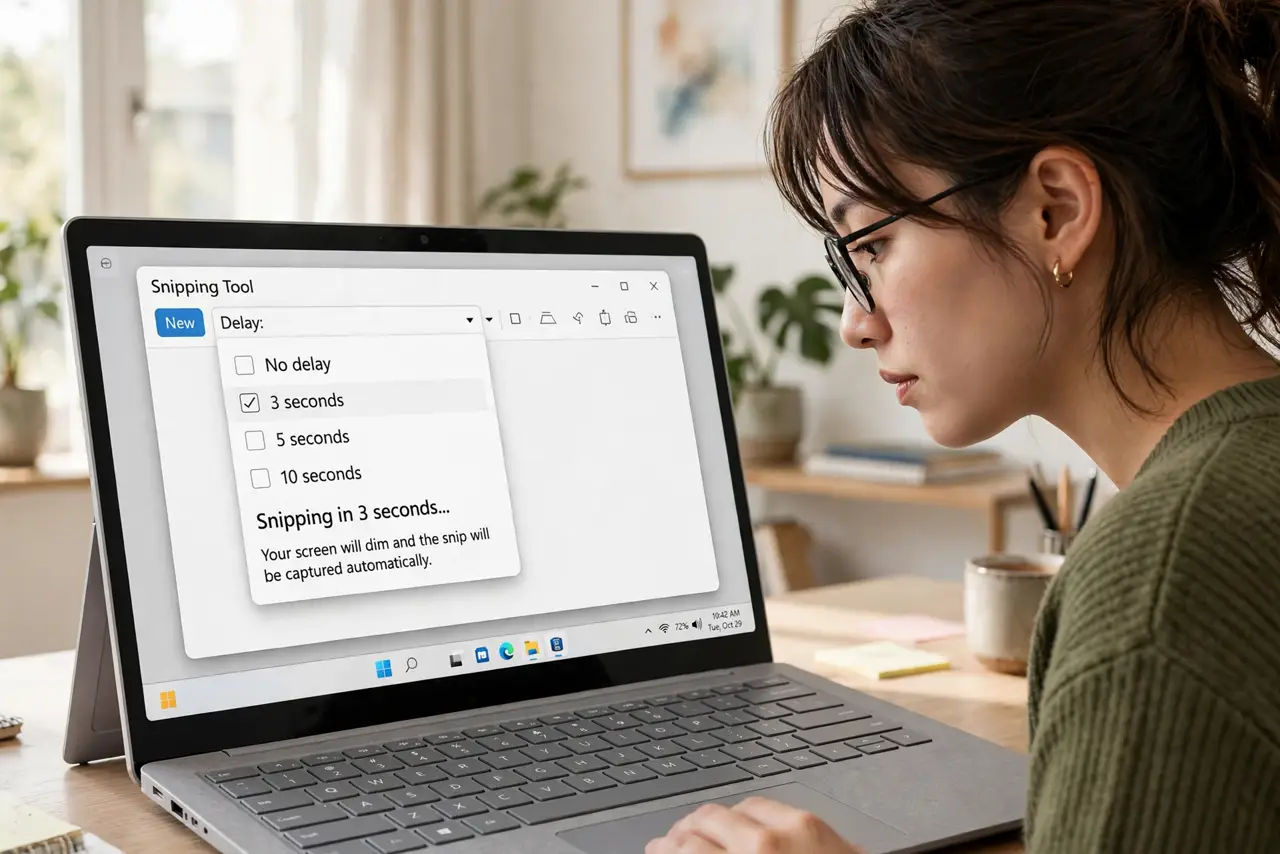
Quick fix: open Snipping Tool, set the delay to 3 or 5 seconds, and click New. Arrange your menu or tooltip during the countdown — the capture fires automatically when it hits zero. Five seconds is the sweet spot for most setups.
Follow these steps
- Open Snipping Tool. Press Windows+Shift+S for instant snips, or open the full Snipping Tool app from Start for the delay option. The delay lives in the app, not the quick overlay.
- Set the delay. In the app, find the delay or timer dropdown — usually 3, 5, or 10 seconds. Pick 5 for menus, 3 for tooltips; 10 is for elaborate multi-step setups.
- Click New and arrange. Click New to start the countdown, then quickly open the menu, hover the tooltip, or arrange the screen exactly as you want it captured. The timer is your stagehand.
- Let it fire. When the countdown hits zero, the screen freezes into snip mode. Drag your capture region as usual — the menu you staged stays put because the screen is frozen.
- Annotate if needed. The snip opens in the editor with pen and highlighter. Mark the menu item or setting you are pointing at, then copy or save.
- Save the habit. The delay setting sticks between uses. Leave it at 5 seconds permanently — instant snips still work with Windows+Shift+S whenever you do not need the delay.
What NOT to do
- Do not fight vanishing menus without the delay. Clicking around hoping the menu survives is the frustration the timer was built to end.
- Do not use 10 seconds for simple menus. Long countdowns invite fumbling — match the delay to the task, 3 to 5 for most.
- Do not forget the screen freezes. After the countdown you are in snip mode — the 'frozen' screen is normal, not a crash.
- Do not overlook the quick overlay. Windows+Shift+S is faster when no delay is needed — use the app only for timed captures.
Frequently asked questions
Can I delay with Windows+Shift+S?
No — the overlay has no timer. Open the full Snipping Tool app for delays; the overlay is for instant captures only.
The menu still vanished. Why?
You clicked somewhere during the countdown. Start the timer, then touch nothing except opening the menu — any click can dismiss it.
Does the delay work for video?
No — it captures a still at countdown end. For recording, use the Snipping Tool's video mode or the Xbox Game Bar.