Spatial Sound Makes Everything Sound Distant
Spatial sound is meant to make audio feel wider, but on ordinary speakers or headphones it can make voices sound distant, hollow, or echoey. If everything suddenly sounds far away, spatial sound is the first suspect. This guide turns it off and confirms stereo is back. If voices sound distorted rather than distant, see audio enhancements distorting voices.
TL;DR / Quick Fix
Quick fix: Open the output device properties. Set spatial sound to Off. Then work through the remaining steps in order, checking one change at a time, and stop for a technician if you see damage, swelling, or a burning smell.
Follow these steps
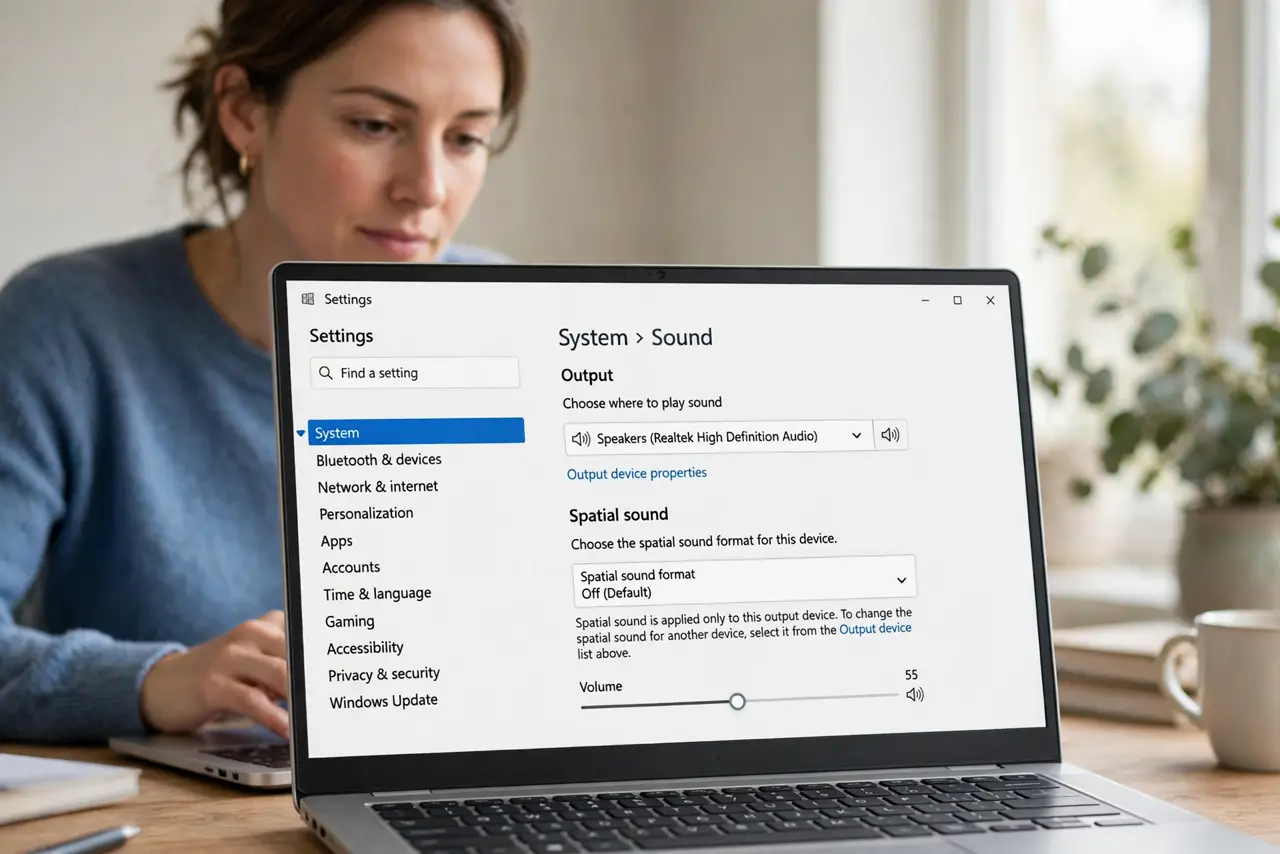
- Open the output device properties. Open Settings, then System, then Sound, select your output device, and look for the Spatial sound setting. It sits on the device, not in a general page, so check each device you use.
- Set spatial sound to Off. Change the Spatial sound option to Off. Voices should sound closer right away, with no restart needed, so test with a spoken video before changing anything else.
- Check the app own spatial setting. Some apps and games have their own spatial or 3D audio toggle. If sound stays distant in one app only, turn that app toggle off as well, since it overrides Windows.
- Test with stereo content. Play a normal spoken video or song and listen for centered voices. Centered, close voices confirm stereo is back, while a wide, hollow sound means spatial processing is still on somewhere.
- Check the headphone or speaker app. If your headphones or speakers have their own companion app, check it for a spatial or surround toggle. Hardware apps can apply spatial sound even when Windows shows Off.
- Restart the app after changing. Close the app you tested with and reopen it, then play the same content. Some apps read audio settings only at launch, so a change made mid-play can look like it failed.
What NOT to do
- Do not buy new headphones for distant sound. Spatial sound is a setting, and turning it off restores normal audio on the headphones you own.
- Do not turn on two spatial systems at once. Windows plus an app plus a hardware app can stack processing and sound worse than any one alone.
- Do not assume distant means broken speakers. If the change started after a setting or update, spatial sound is far more likely than hardware.
- Do not leave spatial sound on for calls. Calls need clear centered voices, and spatial widening only makes speech harder to follow.
Frequently asked questions
What is spatial sound for?
It simulates surround directions for movies and games, which can suit supported content but hurts plain speech and music.
Does spatial sound need special headphones?
It works on ordinary headphones, but the effect varies, and on many pairs it simply sounds distant.
Will turning it off affect games?
Only the sound processing. Games keep working, and their own audio settings still control their sound.