Start Menu Recommendations Won't Clear
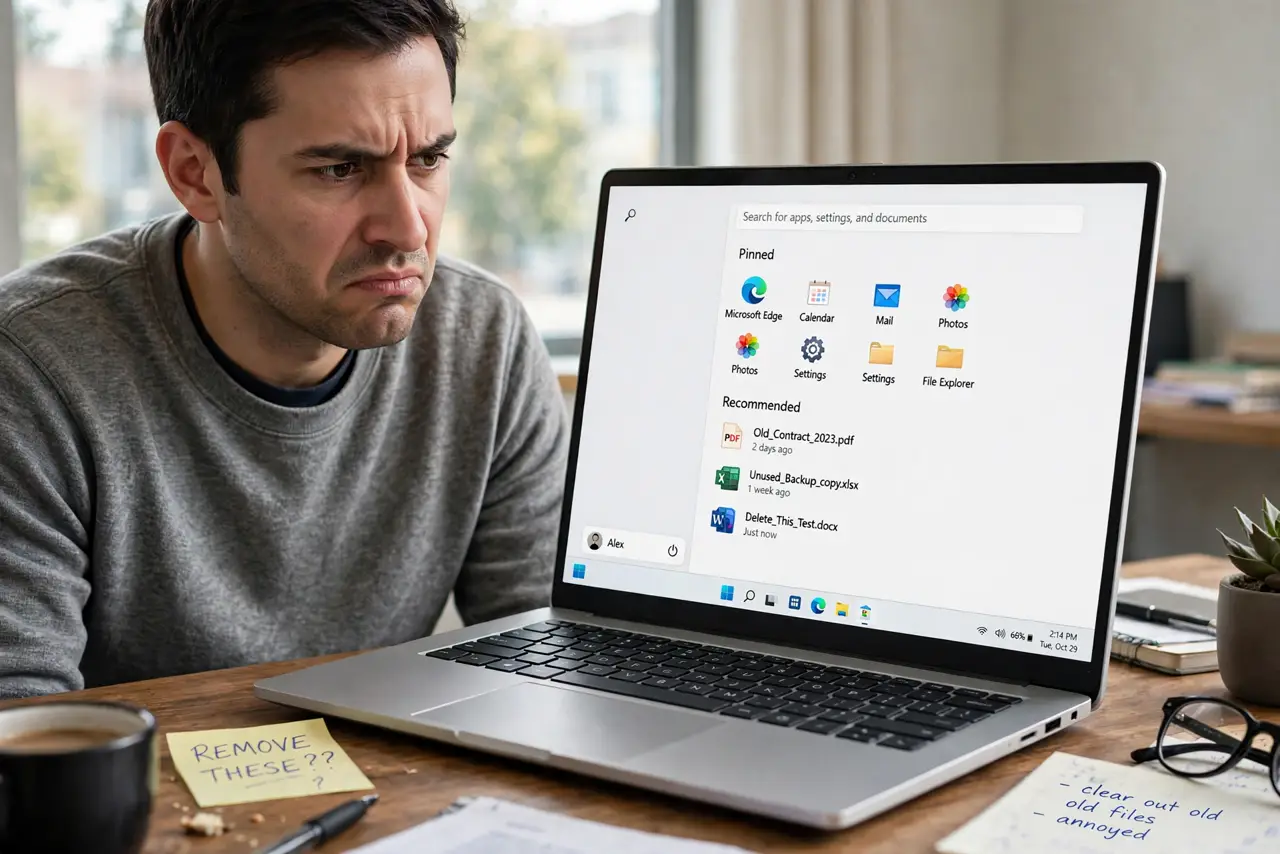
The Recommended section of the Start menu keeps showing files you already deleted or want gone, and clearing them seems to do nothing. Recommended is fed by the same recent-activity tracking that powers Recent files, so the real fix is in the settings that feed it, not in clicking each item away.
TL;DR / Quick Fix
Quick fix: open Settings, go to Personalization and then Start, and turn off showing recently added apps and recently opened items. That stops the feed at its source. Then clear File Explorer history once to flush what is already there, and the Recommended section goes quiet.
Follow these steps
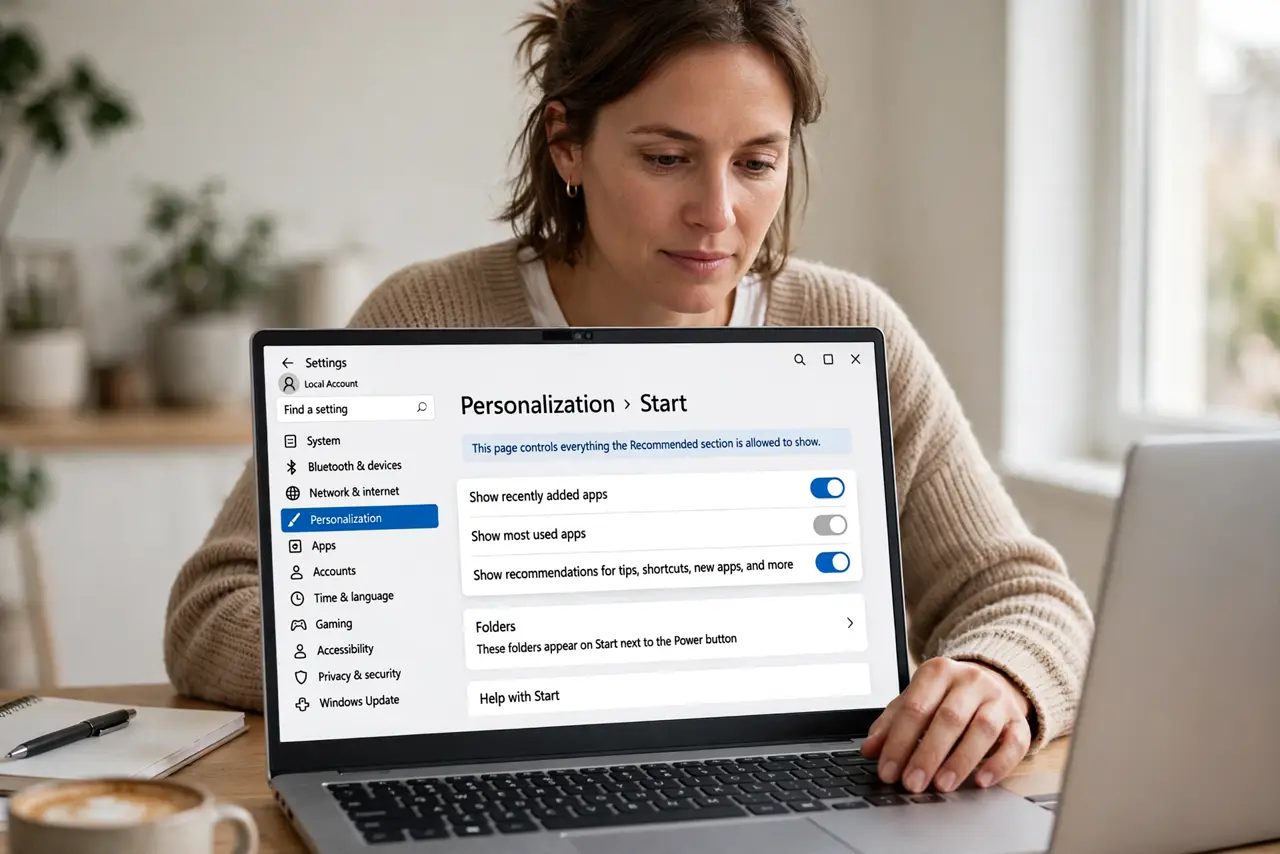
- Open the Start personalization settings. Go to Settings, then Personalization, then Start. This one page controls everything the Recommended section is allowed to show.
- Turn off the recommendation feeds. Switch off showing recently added apps and recently opened items in Start. These toggles are the faucet; everything else is mopping the floor.
- Clear File Explorer history once. In Folder Options, use the Clear button on the privacy history. The Recommended section reads from this same history, so flushing it empties the backlog.
- Remove stubborn individual items. For any item still showing, right-click it in Recommended and choose Remove from list. With the feeds off, removed items stay removed instead of repopulating.
- Check that the toggles stay off. Reopen the settings page after a reboot. If a tool or policy flips them back on, the section will refill, and you need to address that tool, not the section.
- Decide whether you want the section at all. With all feeds off, Recommended shows almost nothing. That is a valid end state — an empty Recommended section is the goal, not a problem.
What NOT to do
- Do not try to delete the Recommended section itself. Windows 11 does not offer a supported way to remove it, so the practical goal is an empty one.
- Do not clear items one by one without turning off the feeds. They will repopulate within hours, which is exactly the frustration you are trying to escape.
- Do not use registry hacks from random videos for this. The Settings page does the job officially, and mystery registry edits risk breaking Start.
- Do not confuse Recommended with pinned apps. Recommended is automatic and feed-driven; your pins are manual and unaffected by these toggles.
Frequently asked questions
Can I completely remove the Recommended section?
Not through supported settings. Turning off all its feeds leaves it effectively empty, which is the closest you can get.
Why do deleted files still show in Recommended?
Because the section caches recent activity. Clearing the history flushes the cache, and turning off the feeds stops it refilling.
Will this affect my pinned apps?
No. Pins are yours and manual; only the automatic recommendations change.